
In Excel 2003, and earlier versions, an AutoFilter allows only two criteria for each column. In Excel 2007 and later, you can select multiple criteria from each column in the table. See how to apply an Excel AutoFilter with multiple criteria in a range on the worksheet.
Update: Get the latest version of this workbook on my Contextures site: Filter Criteria List Macro.
AutoFilter Criteria
In Excel 2003, and earlier versions, if you wanted to filter for multiple criteria, you had to use an Advanced Filter.
To prepare for an Advanced Filter, list all the criteria on a worksheet, and then use that list (and its heading cell) as the criteria range.
In Excel 2007 and Excel 2010, the AutoFilter feature has been improved, and you can select multiple criteria in each column.
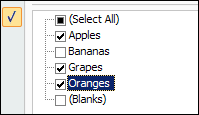
Record an AutoFilter Macro
If you record a macro while selecting criteria in Excel 2007, it will look something like this:
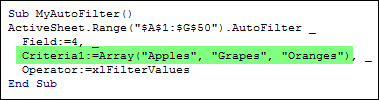
The criteria are entered as an array, showing all three items that were selected in the drop down list.
Create Your Own Array
In the Contextures mail bag this week, someone asked if it’s possible to create this type of AutoFilter criteria array from a list on the worksheet. And the answer is yes, you can!
- NOTE: This criteria list technique works for exact matches only. You can’t use wildcards in the criteria items, such as *apple*
- Using wildcards forces Excel to apply a Custom AutoFilter, “contains”, which is limited to 2 criteria.
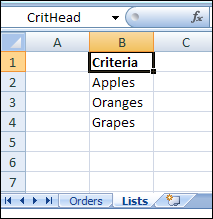
For this example, there’s a dynamic named range — CritList — on the Lists worksheet. The items in the CritList range will be used as the AutoFilter criteria array.
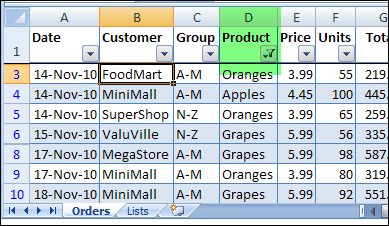
On the Orders sheet, the fourth column — Products — will be filtered using this criteria list.
AutoFilter Code With Array
In an Excel VBA procedure, you can create a variable to store the values from the CritList named range. Define this variable as a Variant, and it will store the values as an array.
vCrit = rngCrit.Value
Then, to use this variable as the AutoFilter criteria list, transpose the array, so it’s read as a row, instead of a column. If you don’t transpose the array, only the first item would be used in the criteria array. (Or, create your worksheet list in a row, instead of a column, and you won’t have to transpose it.)
Criteria1:=Application.Transpose(vCrit)
Here’s the complete code for the AutoFilter:
Sub FilterRangeCriteria()
Dim vCrit As Variant
Dim wsO As Worksheet
Dim wsL As Worksheet
Dim rngCrit As Range
Dim rngOrders As Range
Set wsO = Worksheets("Orders")
Set wsL = Worksheets("Lists")
Set rngOrders = wsO.Range("$A$1").CurrentRegion
Set rngCrit = wsL.Range("CritList")
vCrit = rngCrit.Value
rngOrders.AutoFilter _
    Field:=4, _
    Criteria1:=Application.Transpose(vCrit), _
    Operator:=xlFilterValues
End Sub
Download the AutoFilter Array Sample File
Update: Get the latest version of this workbook on my Contextures site: Filter Criteria List Macro.
To see the sample code and the named range, download my AutoFilter Criteria Array sample file.
The file is in xlsm format, zipped, and you can enable macros when you open the file.
_________
The source file have columns with normal data and two columns with a tables.
The filter is on non table column, but I need to selet all the columns
I am getting error
1004 autofilter method of range class failed
please help me to resolve the issue
Reviving an old thread…
I’m trying to do the opposite here, but totally relevant. I need to get a string listing the selected filter criteria for a column. I have code that works great if only 1 or 2 filters are selected, but when 3 filters are selected, it fails. Here is the code I’m using (forgot the original source):
Function FilterCrit(rng As Range) As String
Dim Filter As String
Filter = “{All}”
With rng.Parent.AutoFilter
If Intersect(rng, .Range) Is Nothing Then GoTo Finish
With .Filters(rng.Column – .Range.Column + 1)
If Not .On Then GoTo Finish
Filter = .Criteria1
Select Case .Operator
Case xlAnd
Filter = Filter & “, ” & Mid(.Criteria2, 2, Len(.Criteria2) – 1)
Case xlOr
Filter = Filter & “, ” & Mid(.Criteria2, 2, Len(.Criteria2) – 1)
End Select
End With
End With
Finish:
FilterCrit = Filter
End Function
Any ideas? Thanks for the help!
The AutoFilter Custom Filter feature only allows 2 criteria, whether you’re trying to do it manually or with a macro.
Try an Advanced Filter instead, if you need more criteria
http://www.contextures.com/xladvfilter01.html
Thanks. I found a good function that works without advanced:
Function GetFilteredItems(temp As String) As String
Dim fl As Filter
Dim ws As Worksheet: Set ws = ActiveSheet
Dim i As Long: i = 0
Dim myfilters As String
For Each fl In ws.AutoFilter.Filters
If fl.On Then
If Len(myfilters) = 0 Then
myfilters = ws.AutoFilter.Range.Offset(0, i).Resize(1, 1).Value
Else
myfilters = myfilters & “; ” & _
ws.AutoFilter.Range.Offset(0, i).Resize(1, 1).Value
End If
If fl.Count > 2 Then
myfilters = myfilters & “: ” & Replace(Join(fl.Criteria1), “=”, “”)
Else
myfilters = myfilters & “: ” & Replace(fl.Criteria1, “=”, “”)
On Error Resume Next
myfilters = myfilters & ” ” & Replace(fl.Criteria2, “=”, “”)
On Error GoTo 0
End If
End If
i = i + 1
Next
‘Debug.Print “>” & myfilters
GetFilteredItems = myfilters
End Function
Wanted to share in case it could help someone else!
The original speadsheet is excellent. Can you please exted you example to filter apples, oranges or grapes (from product column) and 60 or 65 (from the units column).
Thanks (using Excel 2007)
My column to be filtered has result of numbers (calculated via formula). I’ve tried to use Criteria1:=Array(“1″,”2″,”3”), Operator:=xlFilterValues,
also tried Criteria1:=Array(“‘1″,”‘2″,”‘3”), Operator:=xlFilterValues,
and tried Criteria1:=Array(1,2,3),, Operator:=xlFilterValues,
…Neither of the 3 options have resulted in filtering the column properly
(filter showing 1-3 checked). All items are not checked.
Hi – I was wondering if you could filter a Range variable for later pasting to a sheet. i.e. the variable is in place of using an array in memory ?
Dear Debra
Nowhere can I find where the Autofilter criteria can be expressed as a variable.
Hard coding the values in the code iis easy. The real world user wants to enter values
to filter from a textbox userform.
This works great:
Worksheets(“Sheet12”).Range(“A1:A11″).AUTOFILTER Field:=1, Criteria1:=”*last days*”, Operator:=xlOr, Criteria2:=”*latter days*”
But this does not work:
Private Sub cmdFINDVAL_Click()
Dim val1 As String
Dim val2 As String
val1 = TextBox1.Value
val2 = TextBox2.Value
ActiveSheet.Range(“$A$1:$A$11”).AUTOFILTER Field:=1, Criteria1:= _
“* val1 * “, Operator:=xlOr, Criteria2:=”*val2*”
End Sub
Why not? the variable values are passed to the code, yet Autofilter does not respond
to the values when they are variables. What can I be doing wrong ? This should be
straightforward and simple to achieve.
Please help. email: [email protected]
Thanks in advance
cr
Charles A. Rabalais
Kingwood, Tx
Thanks, Charles, and I’ve added this note to the article:
‘—————-
• NOTE: This criteria list technique works for exact matches only.
• You can’t use wildcards in the criteria items, such as *apple*
• Using wildcards forces Excel to apply a Custom AutoFilter, “contains”, which is limited to 2 criteria.
‘————-
However, you could use an Advanced Filter macro, which allows partial matches.
There are examples on my Contextures site: Excel Filter Criteria List Macros