
In Excel 2003, and earlier versions, an AutoFilter allows only two criteria for each column. In Excel 2007 and later, you can select multiple criteria from each column in the table. See how to apply an Excel AutoFilter with multiple criteria in a range on the worksheet.
Update: Get the latest version of this workbook on my Contextures site: Filter Criteria List Macro.
AutoFilter Criteria
In Excel 2003, and earlier versions, if you wanted to filter for multiple criteria, you had to use an Advanced Filter.
To prepare for an Advanced Filter, list all the criteria on a worksheet, and then use that list (and its heading cell) as the criteria range.
In Excel 2007 and Excel 2010, the AutoFilter feature has been improved, and you can select multiple criteria in each column.
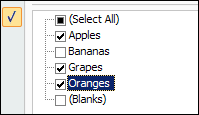
Record an AutoFilter Macro
If you record a macro while selecting criteria in Excel 2007, it will look something like this:
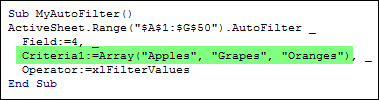
The criteria are entered as an array, showing all three items that were selected in the drop down list.
Create Your Own Array
In the Contextures mail bag this week, someone asked if it’s possible to create this type of AutoFilter criteria array from a list on the worksheet. And the answer is yes, you can!
- NOTE: This criteria list technique works for exact matches only. You can’t use wildcards in the criteria items, such as *apple*
- Using wildcards forces Excel to apply a Custom AutoFilter, “contains”, which is limited to 2 criteria.
For this example, there’s a dynamic named range — CritList — on the Lists worksheet. The items in the CritList range will be used as the AutoFilter criteria array.
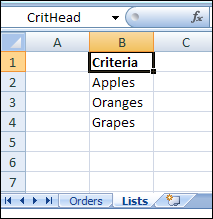
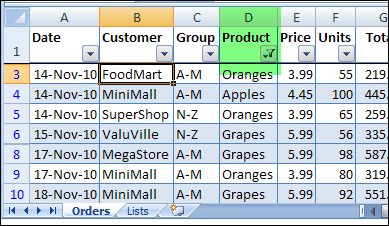
On the Orders sheet, the fourth column — Products — will be filtered using this criteria list.
AutoFilter Code With Array
In an Excel VBA procedure, you can create a variable to store the values from the CritList named range. Define this variable as a Variant, and it will store the values as an array.
vCrit = rngCrit.Value
Then, to use this variable as the AutoFilter criteria list, transpose the array, so it’s read as a row, instead of a column. If you don’t transpose the array, only the first item would be used in the criteria array. (Or, create your worksheet list in a row, instead of a column, and you won’t have to transpose it.)
Criteria1:=Application.Transpose(vCrit)
Here’s the complete code for the AutoFilter:
Sub FilterRangeCriteria()
Dim vCrit As Variant
Dim wsO As Worksheet
Dim wsL As Worksheet
Dim rngCrit As Range
Dim rngOrders As Range
Set wsO = Worksheets("Orders")
Set wsL = Worksheets("Lists")
Set rngOrders = wsO.Range("$A$1").CurrentRegion
Set rngCrit = wsL.Range("CritList")
vCrit = rngCrit.Value
rngOrders.AutoFilter _
    Field:=4, _
    Criteria1:=Application.Transpose(vCrit), _
    Operator:=xlFilterValues
End Sub
Download the AutoFilter Array Sample File
Update: Get the latest version of this workbook on my Contextures site: Filter Criteria List Macro.
To see the sample code and the named range, download my AutoFilter Criteria Array sample file.
The file is in xlsm format, zipped, and you can enable macros when you open the file.
_________
how to fix the if contion on below criteria1 in vba code.
ActiveSheet.Range(“$A$1:$O$10000”).AutoFilter Field:=14, Criteria1:=Array( _
“BODY”, “BODY BANK”, “PAINT”, “PRE-TRIM”, “TCF”), Operator:=xlFilterValues
I tried changing the field that is reference from 4 to 1, but i guess the code can only do the fourth field of the table? if not, how can i fix this?
for example
Sub FilterRangeCriteria()
Dim vCrit As Variant
Dim wsM As Worksheet
Dim wsL As Worksheet
Dim rngCrit As Range
Dim rngOrders As Range
Set wsM = Worksheets(“MfrBodyCode”)
Set wsL = Worksheets(“Lists”)
Set rngOrders = wsM.Range(“$A$3”).CurrentRegion
Set rngCrit = wsL.Range(“CritList”)
vCrit = rngCrit.Value
With wsO
rngOrders.AutoFilter _
Field:=4, _
Criteria1:=Application.Transpose(vCrit), _
Operator:=xlFilterValues
End With
End Sub
This is not working for me for some odd reason. I’ve been staring at it all day.
@Garrett, did you create named ranges “CritHead” and “CritList”?
In the code, you’ve added “With wsO” and “End With” — you don’t need those lines, and you don’t have a variable named wsO.
On the MfrBodyCode sheet, make sure that the first column is included in the filtered range. Try removing the filter, then adding it again.
@Garrett
first “Save” the entire book onto your desktop as a “macro-enabled” file.
Then, open it and accept “Macro-Enabled” option if you are asked, when you open it up.
Then it should work. Try it. If it doesn’t work, post your code here and I will look at it.
@Garrett
What I meant was if your code has changed any from the previous code… 😉
Hi…
Is there any way to pass the criteria as parameters?
I mean, if the criteria are selected from a listbox (one or more) is there any way to have the criteria specified as variables?
thanks in advance
HarryS
‘thanks for for BLOG
‘ maybe this may help clarify some of the confusion
‘ The problem with operator 7 xlFilterValues is that they use operators as
‘ 0 if one
‘ 2 an OR if two
‘ 7 and an array if more than two selected
‘ the arrays and criteria have a lot of” =” that confuse excel when something like “=fredsFarm” is put in a cell
‘ so use as “#” & “>=4567 to store and mid(.. , 2 ) to retrive
‘ rather than use arrays as we had to in ancient times use the functions Join and Replace
‘ that way we can save and reload criteria into and from different ranges
‘ save the criteria in range RasFilt from the filter range RaFoFi
‘ the . are With RaFoFi
Case 7 ‘, xlFilterValues
‘will work on one or two only then an array
‘..1 is a 0 operator
‘ 2 as is as an OR operator ‘xlOR
‘ any more it is as an array .. with = ..
‘ using # to replace = to allow storage in a ONE cell
RaSFilt(Fi, 4) = .Operator
If .Operator = 2 Then RaSFilt(Fi, 5) = “#” & .Criteria2
If IsArray(.Criteria1) Then
RaSFilt(Fi, 3) = Replace(Join(.Criteria1, “,”), “=”, “#”)
Else
RaSFilt(Fi, 3) = “#” & .Criteria1
End If
‘ etc
‘ to reload the filter
With RaFoFi
For Fi = 2 To RaSFilt.Rows.Count
F = Fi – 1
‘
Select Case RaSFilt(Fi, 4) ‘ the operator
Case 0
‘ no operator
If Mid(RaSFilt(Fi, 3), 2) “” Then .AutoFilter F, Mid(RaSFilt(Fi, 3), 2)
Case 1, 2 ‘xlAnd, xlOr
.AutoFilter F, Mid(RaSFilt(Fi, 3), 2), RaSFilt(Fi, 4), Mid(RaSFilt(Fi, 5), 2)
Case 3 To 6
‘ xlTop10Items, xlBottom10Items , xlTop10Percent, xlBottom10Percent
.AutoFilter F, Mid(RaSFilt(Fi, 3), 2), RaSFilt(Fi, 4)
Case 7 ‘, xlFilterValues will work on one or two .. it is as an OR
‘ these have been done in case 0 .. 2 … else is a variable .criteria
‘ RaSFilt(Fi + 20, 3) = Replace(Join(.Criteria1, “,”), “=”, “#”)
.AutoFilter F, Split(Replace(RaSFilt(Fi, 3), “#”, “=”), “,”), RaSFilt(Fi, 4)