
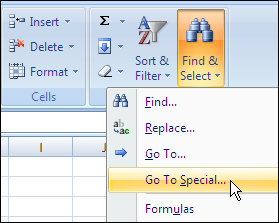
To fill blank cells, or delete rows with blanks cells, you can use Excel’s Go To Special feature.
For example, in the worksheet shown below, you might want to fill in all the blanks in column B, by copying the value from the row above.
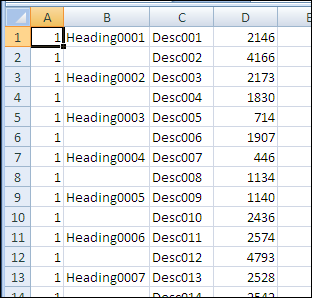
There are instructions on the Contextures website to fill blank cells, by using Go To Special to select the blanks.
You can do this manually, and there’s sample code to make the job easier.
Selection Is Too Large Error
This technique works very well, unless you’re trying to fill blank cells in a long list. In that case, you might see the error message, “Selection is too large.”
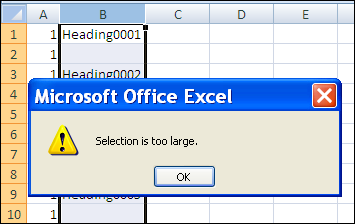
This happens in Excel 2007, and earlier versions, because there is a limit of 8192 separate areas that the special cells feature can handle. (This problem has been fixed in Excel 2010.)
There are details on Ron de Bruin’s website: SpecialCells Limit Problem.
Work in Smaller Chunks
If you run into this error, you can work with smaller chunks of data instead.
- If you’re making the changes manually, select a few thousand rows, instead of the full column.
- If you’re using a macro, you can loop through the cells in large chunks, e.g. 8000 rows, instead of trying to change the entire column.
On the Contextures website, Fill Blank Cells Macro – Example 3 checks for the number of areas, using Ron’s sample code, and uses a loop if necessary.
The code is shown below, and it shows a message box if the range is over the special cells limit. You can remove that line — it’s just there for information.
Sub FillColBlanks()
'https://www.contextures.com/xlDataEntry02.html
'by Dave Peterson  2004-01-06
'fill blank cells in column with value above
'2010-10-12 incorporated Ron de Bruin's test for special cells limit
'https://www.rondebruin.nl/specialcells.htm
Dim wks As Worksheet
Dim rng As Range
Dim rng2 As Range
Dim LastRow As Long
Dim col As Long
Dim lRows As Long
Dim lLimit As Long
Dim lCount As Long
On Error Resume Next
lRows = 2 'starting row
lLimit = 8000
Set wks = ActiveSheet
With wks
   col = ActiveCell.Column
     'try to reset the lastcell
   Set rng = .UsedRange
   LastRow = .Cells. _
     SpecialCells(xlCellTypeLastCell).Row
   Set rng = Nothing
    lCount = .Columns(col) _
            .SpecialCells(xlCellTypeBlanks) _
            .Areas(1).Cells.Count
    If lCount = 0 Then
        MsgBox "No blanks found in selected column"
        Exit Sub
    ElseIf lCount = .Columns(col).Cells.Count Then
		   'this line can be deleted
        MsgBox "Over the Special Cells Limit"
        Do While lRows < LastRow
            Set rng = .Range(.Cells(lRows, col),  _
            .Cells(lRows + lLimit, col)) _
             .Cells.SpecialCells(xlCellTypeBlanks)
            rng.FormulaR1C1 = "=R[-1]C"
            lRows = lRows + lLimit
        Loop
    Else
        Set rng = .Range(.Cells(2, col),  _
            .Cells(LastRow, col)) _
            .Cells.SpecialCells(xlCellTypeBlanks)
        rng.FormulaR1C1 = "=R[-1]C"
    End If
   'replace formulas with values
   With .Cells(1, col).EntireColumn
       .Value = .Value
   End With
End With
End Sub
_______________
The prgram copies only one column. How about if you have multiple column to copy?
the previous question is for Rick
I have this issue since I work in Excel 2007 at my job. Could this code be adapted so it would fill the rows with the FORMULAS from the row above and not the value? If so, an example would be greatly appreciated.
Much Thanks