
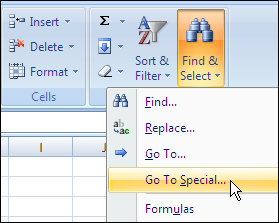
To fill blank cells, or delete rows with blanks cells, you can use Excel’s Go To Special feature.
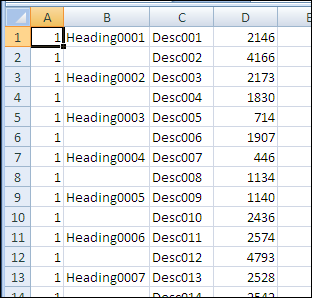
For example, in the worksheet shown below, you might want to fill in all the blanks in column B, by copying the value from the row above.
There are instructions on the Contextures website to fill blank cells, by using Go To Special to select the blanks.
You can do this manually, and there’s sample code to make the job easier.
Selection Is Too Large Error
This technique works very well, unless you’re trying to fill blank cells in a long list. In that case, you might see the error message, “Selection is too large.”
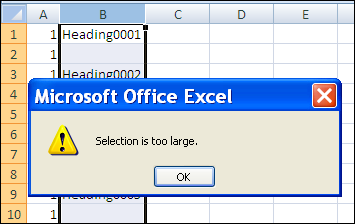
This happens in Excel 2007, and earlier versions, because there is a limit of 8192 separate areas that the special cells feature can handle. (This problem has been fixed in Excel 2010.)
There are details on Ron de Bruin’s website: SpecialCells Limit Problem.
Work in Smaller Chunks
If you run into this error, you can work with smaller chunks of data instead.
- If you’re making the changes manually, select a few thousand rows, instead of the full column.
- If you’re using a macro, you can loop through the cells in large chunks, e.g. 8000 rows, instead of trying to change the entire column.
On the Contextures website, Fill Blank Cells Macro – Example 3 checks for the number of areas, using Ron’s sample code, and uses a loop if necessary.
The code is shown below, and it shows a message box if the range is over the special cells limit. You can remove that line — it’s just there for information.
Sub FillColBlanks()
'https://www.contextures.com/xlDataEntry02.html
'by Dave Peterson  2004-01-06
'fill blank cells in column with value above
'2010-10-12 incorporated Ron de Bruin's test for special cells limit
'https://www.rondebruin.nl/specialcells.htm
Dim wks As Worksheet
Dim rng As Range
Dim rng2 As Range
Dim LastRow As Long
Dim col As Long
Dim lRows As Long
Dim lLimit As Long
Dim lCount As Long
On Error Resume Next
lRows = 2 'starting row
lLimit = 8000
Set wks = ActiveSheet
With wks
   col = ActiveCell.Column
     'try to reset the lastcell
   Set rng = .UsedRange
   LastRow = .Cells. _
     SpecialCells(xlCellTypeLastCell).Row
   Set rng = Nothing
    lCount = .Columns(col) _
            .SpecialCells(xlCellTypeBlanks) _
            .Areas(1).Cells.Count
    If lCount = 0 Then
        MsgBox "No blanks found in selected column"
        Exit Sub
    ElseIf lCount = .Columns(col).Cells.Count Then
		   'this line can be deleted
        MsgBox "Over the Special Cells Limit"
        Do While lRows < LastRow
            Set rng = .Range(.Cells(lRows, col),  _
            .Cells(lRows + lLimit, col)) _
             .Cells.SpecialCells(xlCellTypeBlanks)
            rng.FormulaR1C1 = "=R[-1]C"
            lRows = lRows + lLimit
        Loop
    Else
        Set rng = .Range(.Cells(2, col),  _
            .Cells(LastRow, col)) _
            .Cells.SpecialCells(xlCellTypeBlanks)
        rng.FormulaR1C1 = "=R[-1]C"
    End If
   'replace formulas with values
   With .Cells(1, col).EntireColumn
       .Value = .Value
   End With
End With
End Sub
_______________
Since SpecialCells uses the UsedRange for its limits, the following much shorter code will produce the same output as the code you posted in the blog article (execution time appears to be similar)…
Sub FillColBlanks_Offset()
Dim Area As Range, LastRow As Long, X As Long
Const Limit As Long = 8000
On Error Resume Next
Application.ScreenUpdating = False
For X = 1 To ActiveSheet.UsedRange.Rows.Count Step Limit
For Each Area In Cells(X, ActiveCell.Column).Resize(Limit). _
SpecialCells(xlCellTypeBlanks).Areas
Area.Value = Area(1).Offset(-1).Value
Next
Next
Application.ScreenUpdating = True
End Sub
Both the blog article’s code and the code I posted above suffer from the same problem related to the UsedRange (which SpecialCells uses for its limits)… they will fill-in the blanks within the ActiveCell’s column down to the last row of the UsedRange even when that is set to a row past the last piece of data. The following modification to my previously posted code overcomes that problem; that is, it will stop the fill-in process at the row containing the last piece of data. This code is still much smaller than the posted blog article code and timing tests show its execution time is still similar.
Sub FillColBlanks_Offset()Dim Area As Range, LastRow As Long, X As Long, Limit As Long
Limit = 8000
LastRow = Cells.Find(What:=”*”, SearchOrder:=xlRows, _
SearchDirection:=xlPrevious, LookIn:=xlFormulas).Row
On Error Resume Next
Application.ScreenUpdating = False
For X = 1 To ActiveSheet.UsedRange.Rows.Count Step Limit
If X + Limit > LastRow Then Limit = LastRow – X + 1
For Each Area In Cells(X, ActiveCell.Column).Resize(Limit). _
SpecialCells(xlCellTypeBlanks).Areas
Area.Value = Area(1).Offset(-1).Value
Next
Next
Application.ScreenUpdating = True
End Sub
Oh, and a note about the macro name I am using… this code (and my previously posted code) is a modification of code of mine which has been posted on this website in the past, namely, here…
http://www.contextures.com/xlDataEntry02.html
I simply kept the same name (mainly because I forgot to change it when I made my first posting).
I didn’t know about the limit of 8192, thanks for the heads up. That would have been a bear to figure out. I probably would have dumped the entire range into an array, then looped through each cell while filling in a blank one with the cell above it, then dumped the entire array back into the range.
The 8192 area limit is removed in Excel 2010
Thanks Rick and Gregory, it’s always interesting to see different approaches to a problem.
Sam, thanks, I’ve added that to the blog post.
I have one problem,while exporting OBI pivot table report to Excel. i am getting cell data too large message displaying.
Please suggest an alternate solution for same.
Thanks.