Excel Back Up For Google Sheets

Excel is always my first choice in spreadsheets! Recently though , I’ve been using Google Spreadsheets, to help plan a family event.

I created a file and shared it with a few people, and it’s a quick and easy way for us to keep track of who’s doing what.

We Need a Backup

Then it dawned on me that we’re storing all this information online, with no backup. What happens if we can’t get to that file, a few days before the event? Too horrible to even think about!

So, I copied everything from the Google Spreadsheet, and pasted it into Excel. Not too efficient, but at least I had an offline copy.

Export a Copy to Excel

After I had created the emergency backup file, I looked around to see what other options there are for making the backups.

The first thing I found was that I could export to Excel, when I had a Google Spreadsheet open.

Click the File menu, then click Export, and click the .xls option.
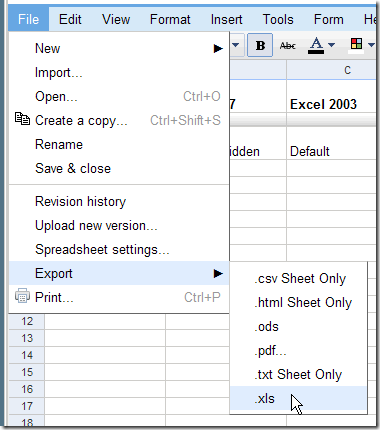
GoogleDL03

In the dialog box that appears, to can click the Save option, then name the file and select a folder to store it in.

Save One Selected File as Excel

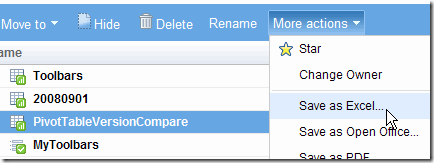
When you’re looking at the list of your Google Documents, you can add a check mark to select one Google Spreadsheet.

Then, click More actions, and click Save as Excel. (If more than one file is selected, the list won’t show the Save options.)
GoogleDL02

Download Selected Files

If you have lots of Google Documents, you might want to download and save more thane one file at a time.

To do this in Firefox, I installed GreaseMonkey, Google Docs Download script, and the DownThemAll add-on. That took a couple of minutes, and went very smoothly.

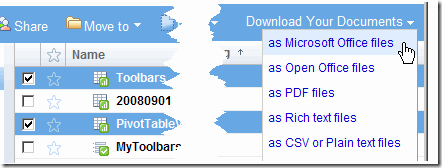
The script add a new menu, Download Your Documents, to the Google Documents menu bar.

Select all the files that you want to download, then click Download Your Documents, and click as Microsoft Office files.
GoogleDL01

A new web page appears, with a list of your selected files.
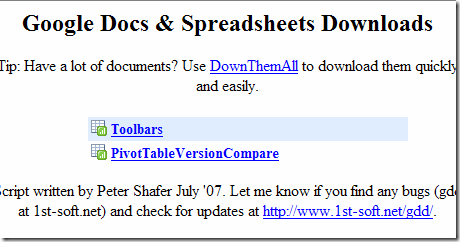
GoogleDL04

In the Firefox menu bar, click Tools, then click DownThemAll! Tools, and click DownThemAll!…
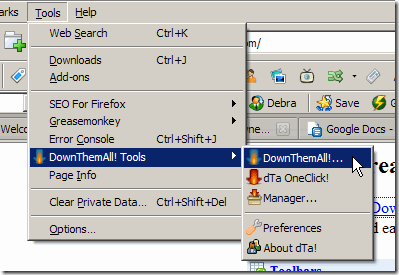
GoogleDL05

In the DownThemAll dialog box, click All files, or select specific files to download.

Click Start! to start the download.
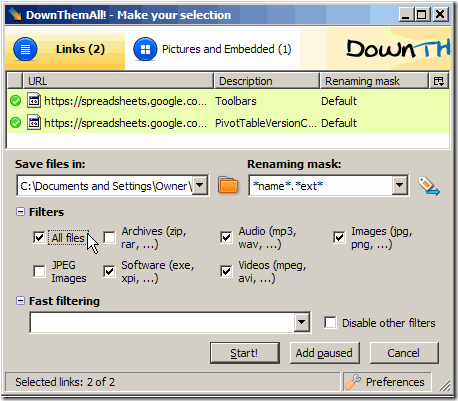
GoogleDL06

What’s Your Backup Plan?

Do you use Google Documents? If so, how do you create backup files? Maybe you’ve found an easier way to accomplish this.
_______________
Lock Excel Shape To Reuse It Easily

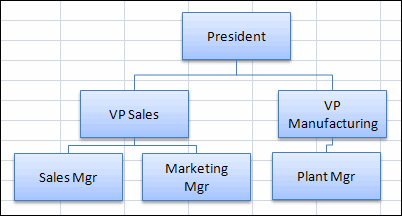
When you’re inserting a shape in Excel 2007 (or using a drawing tool in earlier versions), sometimes you want to use the shape a few times, not just once.

For example, if you’re creating a simple flow chart or organization chart, there might be several rectangles and connector lines.

Simple Flow Chart in Excel

Make Quick Shapes

Yes, I know there are better tools for this kind of thing, but sometimes it’s easier and quicker to do it in Excel or Word.

Instead of going back to the Ribbon, to create each shape, you can select the shape once, and use it several times.

Reuse Shape in Excel 2007

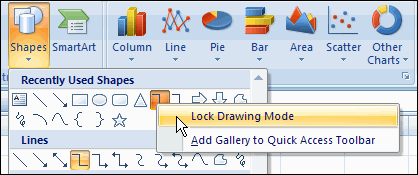
  1. Click on the Ribbon’s Insert tab, and click Shapes.
  2. In the list of shapes, right-click on the shape that you want to use
  3. Click Lock Drawing Mode
Lock Drawing Mode command

Now you can click on the worksheet to add that shape in its default size, or drag on the worksheet to create a shape in a specific size.

Tip: Press the Shift key while you drag, to constrain the shape.

Reuse a Shape in Excel 2003

  1. On the Drawing toolbar, double-click the shape that you want to use

If the shape is not in the Drawing toolbar:

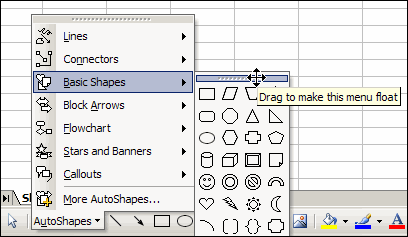
  • On the Drawing toolbar, click AutoShapes
  • Click a category, to view its shapes
  • Point to the bar at the top of the shapes list
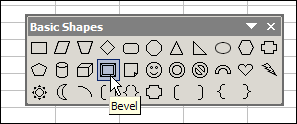
  • When the pointer is a 4-headed arrow, drag the shapes palette onto the worksheet.

ShapesDrag2003

  • In the shapes palette, double-click the shape that you want to use

ShapeClick2003

Turn Off the Locked Shape

When you’re finished using the shape:

  • press the Esc key on the keyboard, OR
  • click that shape on the Ribbon’s Format tab (or toolbar in earlier versions), to deselect it.

__________________

Custom Colour Tips For Excel

Do you use many colours in Excel?

I keep most of my Excel workbooks relatively colour free, except for a few headings or charts, or to mark cells for data entry. Usually, I use Excel’s standard colours, but sometimes I need something a little different.

For example, if I’m building a workbook for a client, I might want to match their corporate colours.

Modify a Colour in Excel 2003

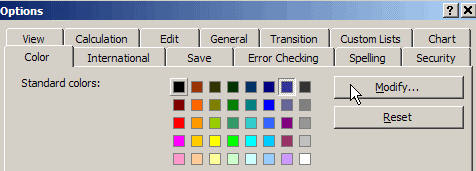
The colour options are hard to find in Excel 2003. To use a new custom colour to your workbook, you’ll have to modify one of the existing colours.

  1. On the Tools menu, click Options.
  2. On the Color tab, click on one of the standard colours that you don’t plan to use in this workbook
  3. Click Modify, to open the Colors dialog box

ColorMod2003

Select a Colour in Excel 2007

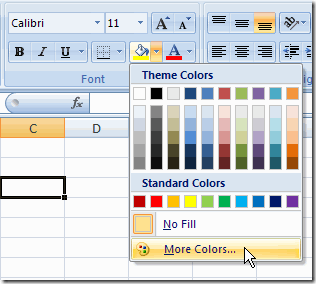
In Excel 2007, you can use a Ribbon command to open the Color dialog box.

  1. On the Ribbon’s Home tab, click the arrow at the right of the Fill Color or Font Color button
  2. Click More Colors…

FillMoreColors

The Color Dialog Box

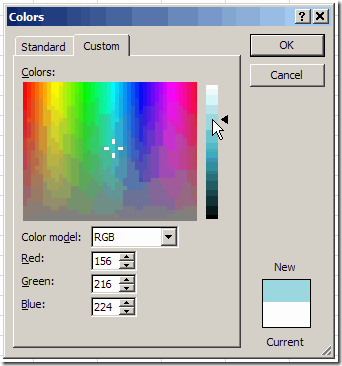
In both versions of Excel, the Colors dialog box looks the same.

ColorsCustom

Click on a colour in the Standard tab, or click the Custom tab for more choices.

Make It Bigger

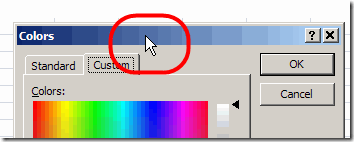
To make it easier to see the colours, double-click the Colors title bar, and the dialog box will expand to fill the screen.

That lets you really zoom in on the colour choices, at the pixel level, and find what you need.

double-click the Colors title bar
Double-click the Colors title bar

Select a Custom Colour

If my client provided colour information, I can enter the Red, Green and Blue numbers on the Custom tab, for an exact match.

When I don’t need an exact match, I can move through the custom colour screen until I find something that looks appropriate for the workbook.

To move through the Custom Colors palette:

  • Click on a colour with the mouse pointer
  • Or, on the keyboard, use the arrow keys to move up, down, left or right

At the bottom left of the Colors window, the Red, Green and Blue numbers will change, as you move through the colours.

_____________________

Excel Scroll Wheel Shortcuts

I started on a Mac, where the mouse had one big button. Later, I moved to a PC, with a two button mouse. For the past few years I’ve used a mouse with two buttons and a scroll wheel.

Scroll Through Excel

At first, I completely ignored the scroll wheel, and found it faster to drag the scroll bar, than to move the scroll wheel. Now I use the wheel occasionally, but more often in Firefox or Word, than in Excel.

Use the Scroll Wheel With Outlines

AlexJ, who shared his technique to hide Excel rows with outlining a few days ago, also uses the scroll wheel to show and hide outline levels.

  1. Point to a cell within the outlined range
  2. Press the Shift key, then roll the scroll wheel down, to hide the outline levels for that cell.
  3. Or, press the Shift key, then roll the scroll wheel up, to show the outline levels for that cell.

Use the Scroll Wheel to Zoom

He also reminded me that you can use the scroll wheel to zoom in or out on the worksheet.

  1. Point to a cell within the outlined range
  2. Press the Ctrl key, then roll the scroll wheel down, to hide the outline levels for that cell.
  3. Or, press the Shift key, then roll the scroll wheel up, to show the outline levels for that cell.

Use the Scroll Wheel to Scroll

And yes, you can even use the scroll wheel to scroll. Really fast!

  1. Click the scroll wheel, and a four-headed arrow appears
  2. Move the mouse up, down, left or right, and a single arrow appears, pointing in the direction that the mouse is moving.
  3. The Excel sheet scrolls very quickly, increasing in speed as you move the single arrow toward the edge of the worksheet.
  4. To stop the scrolling, tap the scroll wheel, or click a mouse button.

Other Scroll Wheel Shortcuts?

Do you use the scroll wheel? Do you have any other shortcuts for it?

My Logitech mouse with its scroll wheel

_________________________

Paste Values Shortcut For Excel

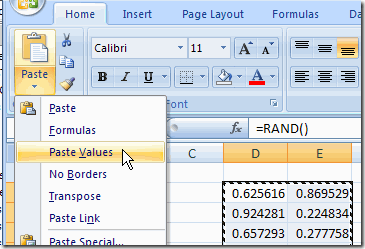
After I create formulas in Excel, sometimes I want to lock in the results of those formulas, so I use the Paste Values command.

For example, I might use the RAND function to create a set of random numbers. After creating them, I don’t want them to change every time the sheet calculates.

Continue reading “Paste Values Shortcut For Excel”

Hide Marked Rows and Columns in Excel

In some of my Excel workbooks there are calculation rows or columns that are required for producing the end result, but users don’t need to see them.

I can manually hide these rows and columns, then unhide them if I need to check a calculation, or adjust a formula.

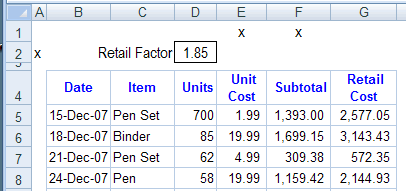
Mark Row and Columns

To make it easy to hide things, I mark the rows and columns with an X. In the screen shot below,

mark the rows and columns with an X

Select the Marked Columns

First, follow these steps to select the marked columns.

  • Click the row button for row 1, to select the entire row.
  • On the Ribbon, click the Home button
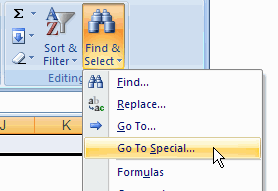
  • In the Editing group, click Find & Select, then click Go To Special

GoToSpecial

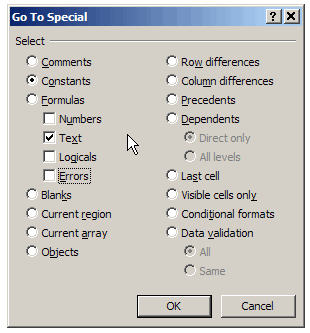
  • In the Go To Special dialog box, click Constants
  • Uncheck all the boxes except Text, then click OK

Now, only the cells that contain constant values (the “X” cells) are selected.

GoToSpecialConst

Hide the Marked Columns

Next, with the marked columns selected, follow these cells to hide the columns:

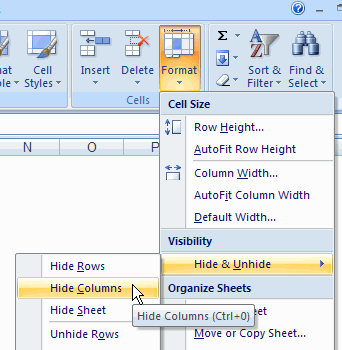
  • Click the Format command on the Ribbon’s Home tab
  • Click Hide & Unhide, then click Hide Columns.

HideColumns

Hide the Marked Rows

Use similar steps to hide the marked rows. Select column A and go to the Constants that are text, then use the Hide Rows command.

Automate the Steps

If you frequently hide and unhide the columns and rows, record a macro as your perform the steps.

Then, run that macro to automatically hide all the marked rows and columns.

Quickly Create Named Ranges in Excel

In an Excel workbook you might have a worksheet that contains several lists that you use as the source for data validation drop-down lists.

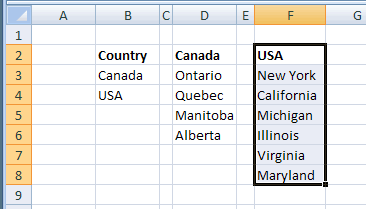
Worksheet List

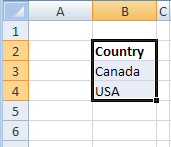
For example, this worksheet has a list of countries, and lists of regions within those countries.

If each list has a heading, you can quickly create named ranges from the lists.

worksheet list of countries

Create the First Named Range

To quickly create a named range, follow these steps:

  • Select the heading and the items in the first list that you want to name.

RangesSelected

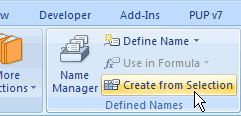
  • On the Excel Ribbon, click the Formulas tab
  • In the Defined Names group, click Create from Selection
  • (Note: In Excel 2003 and earlier versions, click Insert > Name > Create)
Create from Selection command

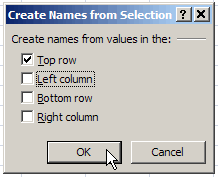
Create Names dialog box

  • In the Create Names dialog box, add a check mark to Top row
  • Next, remove any other check marks, then click OK.
Create Names dialog box

Name the Remaining Ranges

To name the next range, follow these steps:

  • First, select the range’s heading and items
  • Next, on the keyboard, press the F4 key
    • This is the Repeat Last Action keyboard shortcut
  • Repeat for all the remaining ranges.

_______________

Print Excel Sheet On One Page

Often an Excel worksheet is just a bit too wide to print on one page.

You could change it to Landscape orientation, so more will fit across, but you may prefer to keep it in Portrait orientation, especially if it’s a long list.

Make It Fit Page Width

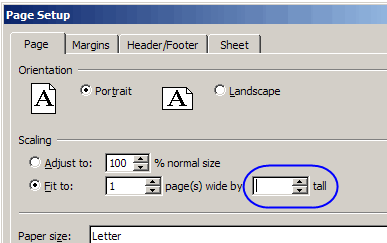
In Excel’s Page Setup dialog box, you can adjust the scaling so the sheet will fit across on one page.

  1. On the Page tab, click the ‘Fit to’ option for Scaling.
  2. Enter 1 as the number of page(s) wide.
  3. Clear the box for the number of pages tall, to leave that box empty
  4. Finally, click OK.
Page Setup Dialog Box Scaling

No Tall Setting

Those changes to the page scaling settings will :

  • limit the file to printing one page across (wide)
  • will NOT limit the number of pages down (tall)

You don’t have to guess the number of pages required. Just leave that setting blank ,and Excel will figure it out for you.
_____________

Create a Table of Contents in Excel

In an Excel file with lots of worksheets, how do you help users navigate through the workbook?

Here are a few of the methods I’ve used. and I’d be interested in hearing about them. I’m sure you’ve found your own creative ways to deal with the Excel workbook navigation problem.

Continue reading “Create a Table of Contents in Excel”