Select Excel Chart Dates From a Drop Down List

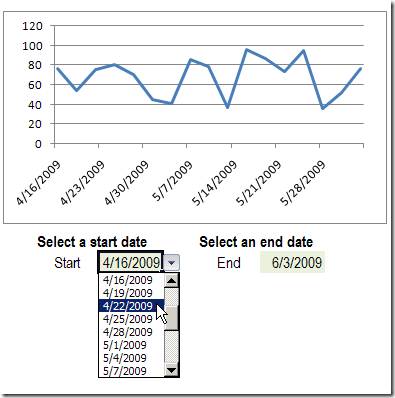
Instead of showing all the data in a chart, you can select a specific date range, and show only the data from that period. In this example, drop down lists of dates are created with data validation. Select Excel chart dates from a drop down list, and the chart changes to show the new range.

Continue reading “Select Excel Chart Dates From a Drop Down List”

Make Excel Numbers Line Up Correctly When Zoomed

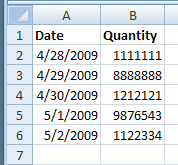
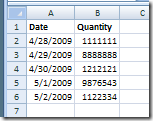
At 100% zoom setting in Excel, the numbers display correctly. If I have a column of 7 digit numbers, all 7 numbers line up correctly, all down the column.

For example, in the screen shot below, 1111111 is the same width as 8888888.

NumPropor01

Problem When Zoomed

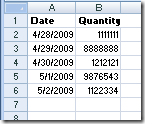
However, if I zoom to something less than 80%, the numbers become proportional, and don’t line up correctly. Here are the same numbers and dates, at 70% zoom.

NumPropor02

An entry of 1,111,111 is much narrower than 8,888,888.

This can cause problems, if you’re skimming down a long column of numbers, to spot entries that are unusually large.

[Update] There is a newer version of this article here: Keep Numbers Aligned When Zooming

Change a Registry Setting

You can change a registry setting, as described in the following MSKB article, to prevent numbers from displaying in proportional font.

  • WARNING: As always, you should make a backup copy of the registry before you tweak any settings:

Here is the article link:

Euro Currency Character Is Not Displayed Correctly in Excel 2003

This is really a fix for a Euro symbol display problem, but it also fixes the proportional font display.

Steps Suggested by Microsoft

Here’s what the article suggests, and you can replace the 11.0 with the version of Excel that you’re using:

  • Quit any programs that are running.
  • Click Start, and then click Run.
  • In the Open box, type regedit, and then click OK.
  • Locate, and then click to select the following registry key:
    HKEY_CURRENT_USERSoftwareMicrosoftOffice11.0ExcelOptions
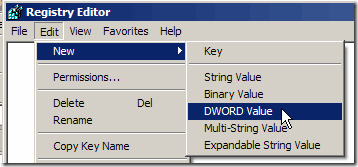
  • After you select the key that is specified in step 4, point to New on the Edit menu, and then click DWORD.

RegistryDWord

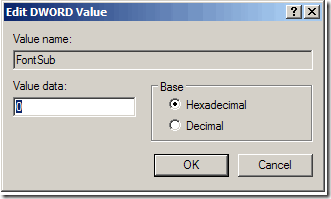
  • Type FontSub, and then press ENTER.
  • Right-click FontSub, and then click Modify.
  • In the Value data box, type 0, and then click OK.

RegistryDWordEdit

  • On the File menu, click Exit to quit Registry Editor.
  • Start Excel.

Test the Result

After making the registry change, open Excel and zoom to 75% or lower. The numbers should remain displayed in non-proportional font.

Here are those numbers at 70%, after the fix – problem solved!

NumPropor03
_________________

Turn Off Excel Paste Options Popup

It’s nice to have a new laptop, but it’s amazing how many options and settings need to be adjusted.

For example, on my other machines I’ve changed the settings so those annoying Paste Options and AutoFill Options buttons don’t appear.

Now it’s time to fix them on the new laptop. Does anyone actually use those buttons?

Video: Turn Off Paste Options

Here’s a video I created while changing the Paste/AutoFill options.

Note: I’m also testing the latest version of Camtasia Studio, and it has some video recording settings that I need to adjust too!

To turn off the buttons in Excel 2007:

  1. Click the Office Button, then click Excel Options
  2. Click Advanced, and in the Cut, Copy and Paste section, remove the check marks from ‘Show Paste Options buttons’ and ‘Show Insert Options buttons’.
  3. Click OK
Cut, Copy and Paste section

To turn off the buttons in Excel 2003 and earlier:

  1. On the Tools menu, click Options
  2. On the Edit tab, remove the check marks from ‘Show Paste Options buttons’ and ‘Show Insert Options buttons’.
  3. Click OK

_________________

How to Change Excel Comment Shape

In earlier versions of Excel you could insert a comment on the worksheet, and then use the Drawing toolbar commands to change the comment’s rectangle to a different shape.

It’s not a technique that you’d want to use too often, but it can add impact to a worksheet if used sparingly.

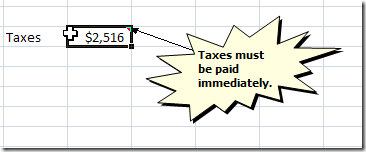
Excel Comment shape changed to Star

Change Shape Command not on Ribbon

In Excel 2007, the Drawing Tools Format tab doesn’t appear on the Ribbon when you select a comment, so the Change Shape command isn’t available.

It’s still possible to change the comment’s shape, but it takes a bit more effort.

There are written steps, and a short video, below

Add Change Shape Command

The first step is to add the Change Shape command to the Quick Access Toolbar (QAT):

  • Right-click the QAT, and click Customize Quick Access Toolbar
  • At the top, in the Choose commands from drop down list, click Drawing Tools | Format Tab
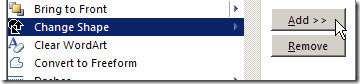
  • Then, in the list of commands, click Change Shape, shown in the screen shot below
  • Next, click the Add button, to put the command on the QAT
  • Finally, click the OK button, to close the Excel Options window
in the list of commands, click Change Shape

Change the Comment Shape

After you’ve added the Change Shape command to the QAT, it’s easy to change a comment shape (or any other shape on the worksheet.

To change a comment’s shape, follow these steps:

  • First, select the cell that contains the comment
  • Next, on the Ribbon, click the Review tab, and click Edit Comment
  • Click the border of the comment, to select the shape.
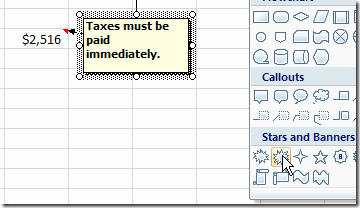
    • The selected shape should have a thick grey border, like the one in the screen shot below.
  • Finally, on the QAT. click the Change Shape command, and click on the shape that you want to use.

CommentChangeShape

Watch the Video

To see the steps for adding the Change Shape command, and changing the comment shape, you can watch this short Excel video tutorial.

______________

Safely Sorting Data in Excel

It seems simple enough, but sorting data in Excel can go horribly wrong, if you aren’t careful.

For example, you could sort a list of names, but miss the phone numbers in a nearby column. Then, when you’re finished sorting, all the names are associated with the wrong phone number.

Trouble Free Excel Sorting

Here are some tips for trouble free sorting in Excel:

  • Make a backup copy of your file before you sort the list. If there are problems with the sorted list, you can use a copy of your backup file instead.
  • Save the file before you sort the list. Then, if the list get scrambled, you can close the list without saving it again.
  • Before you sort, select all the cells in the list. This is the safest approach to sorting. In most cases, you can select one cell and Excel will correctly detect the rest of the list — but not always. If there are blank rows or columns, some of the data may not be included in the sort, and the list will be scrambled.

Sort Excel Data by One Column

In some lists, you might want to sort by one column. For example, in a list of sales orders, you could sort by Order Number.

  • Select all the cells in the list. Tip: Use the keyboard shortcut Ctrl + A.
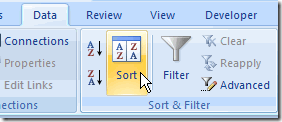
  • On the Ribbon, click the Data tab, then click Sort.

DataSortCommand

  • From the Sort by dropdown, select the column you want to sort.
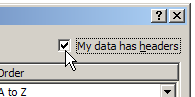
    Note: If the dropdown is showing Column letters instead of headings, add a check mark to My data has headers.

SortHeaders

  • From the Sort On drop down, select Values.
  • From the Order drop down, select A to Z, or Z to A.
  • Click OK

Sort Excel Data by Two or More Columns

Sometimes you need to sort by multiple columns.

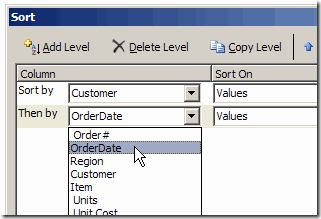
For example, in a list of sales orders, you could sort by Customer Name and then by Order Date.

The customers would be sorted alphabetically, and if there are multiple orders for a customer, those orders would be sorted by date.

  • Follow steps 1 to 5 in the Sort Excel Data by One Column instructions above, to sort by Customer Name.
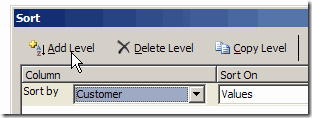
  • Click Add Level

SortAddLevel

  • From the Then By drop down, select the second column that you want to sort – Order Date in this example.

SortTwoLevels

  • Add other levels, if necessary.
  • Click OK

_______________________

Cannot Shift Objects Off Sheet Excel Error

Recently, while working on a small worksheet in Excel, I tried to insert a new row. Up popped an annoying error message, “Cannot shift objects off sheet.” Here’s how I investigated the problem, and fixed it with a simple keyboard shortcut – Ctrl + 6

Continue reading “Cannot Shift Objects Off Sheet Excel Error”

Minimize Excel Ribbon – Save Space

If you’re working on a big worksheet, you might want to see as many rows as possible.

The Excel 2007 Ribbon uses about an inch of space at the top of the worksheet, and if you’re just entering or editing data, you probably don’t need to use the Ribbon commands.

The steps below show how to solve that problem.

Minimize or Restore the Ribbon

You can temporarily minimize the Ribbon, so it only uses a bit of space, and that will make room for a few more rows in the Excel window.

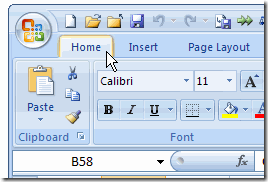
To minimize the Ribbon, double-click on the active tab.

RibbonMin01

Restore Excel Ribbon

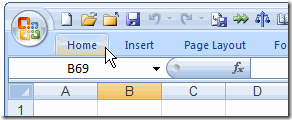
To restore the Ribbon, so the commands are visible, double-click on the active tab.

Double-click to Restore Excel Ribbon

Close Excel

Here’s one more time-saving mouse shortcut, while you’re using the Excel Ribbon:

To close Excel, double-click the Office Button, at the top left of the Ribbon.

  • NOTE: If unsaved files are open, you may be prompted to save the changes.

I use this trick to close Excel, when I’m working on the left side of the Excel workbook. That way, I don’t have to travel all the way over to the Close button, at the top right!
__________________

Create a Font From Your Handwriting

At YourFonts.com you can create a font based on a sample of your handwriting, then use it in Excel, Word, or other programs.

FontPers01

My handwriting is terrible, much to my mother’s dismay, so I thought this might give documents a personal touch, with a bit more legibility. I could use my best writing to create a sample of each letter, then use the personalized font in my documents.

How It Works

The process is quite simple. You download a blank template, and fill in the blanks with a sample of your handwriting.
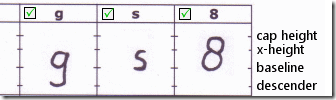
FontPers02

You can also include your signature, which will be mapped to the caret (^) character.

Then, scan and upload the template.

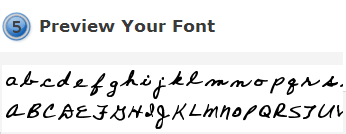
A few minutes later, you can preview, then download and install your font.
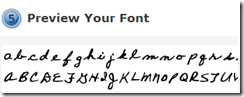
FontPers03

Use Your Font

Once the font is installed, it should appear in the font dropdown list in Excel, Word, and other programs.

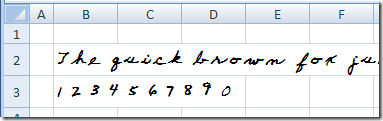
Here’s my font in Excel. Trust me, this looks better than my regular handwriting. I’m sure yours is much nicer!
FontPers04

What I’d Do Next Time

I’ll probably create another font from a sample of my printing, instead of cursive letters. The letters are a bit far apart, and the tails don’t connect to the next letter.

If you’re going to use this font in Excel, you might want to use the caret as a caret, instead of storing your signature in that character. Otherwise, you’ll have to change to a different font to use the exponentiation operator.
______________________

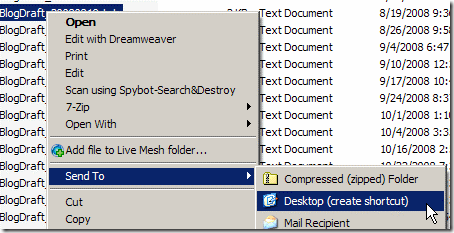
Open Excel Files Quickly-Desktop Shortcuts

While working at a client’s office, I sometimes create an Excel workbook that a user will enter data in every day.

To make it easy to open the workbook, I add a shortcut to the user’s desktop (with their permission, of course).

This makes it easy for the user to open the file, without trying to remember where it’s saved.

Continue reading “Open Excel Files Quickly-Desktop Shortcuts”