Make a Valentine Card in Excel

Heart000Yes, it’s Valentine’s Day today, and if you were too busy to buy your sweetie a card yesterday, you can make one in Excel. Phew!

Your boss won’t mind if you spend a couple of hours working on this today, because it’s an Excel project! This Excel Valentine card uses a named range, data validation, a formula, and conditional formatting (to change the heart from white to pink to red).

If you won’t have time, or if your drawing skills are worse than mine, you can download the sample Excel Valentine file, at the end of this blog post.

And if you want some romantic music in the background, while you work on your Excel Valentine card, you can listen to the YouTube playlist, compiled by John Walkenbach and his blog readers.

Set Up the Worksheet

To create the heart shape,

  1. Start by making columns A:M narrower, to create square cells
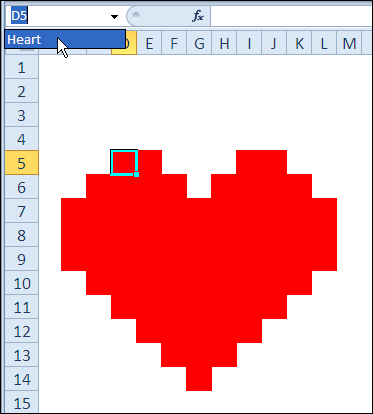
  2. Then, add red fill colour to cells in rows 5:14, to create a heart shape
  3. Select the coloured cells, and name the range as Heart
Heart01

Add the Formula

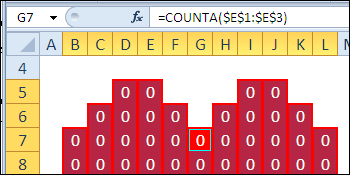
The formula will count how many text items have been added at the top of the worksheet, and the result is used for conditional formatting.

  1. Select the Heart range
  2. Type the following formula, then press Ctrl+Enter, to enter the formula in all the selected cells:

=COUNTA($E$1:$E$3)
Heart02

Add Conditional Formatting

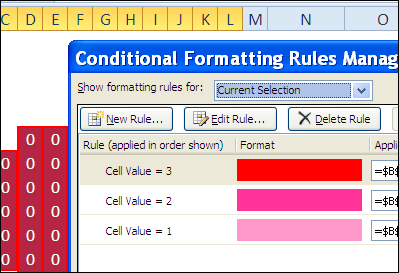
With the Heart range still selected, set up the following conditional formatting:

  • =1, light pink fill and font
  • =2, dark pink fill and font
  • =3, red fill and font

Heart03

Hide the Heart

The heart shape will be hidden, and only revealed when the Valentine message is selected.

To hide the heart:

  1. Select the Heart range
  2. Format the cells with white fill and font.

Add the Data Validation Drop Downs

Next, you’ll create three drop downs, for the Valentine message at the top of the worksheet.

To prepare the cells for the drop down lists:

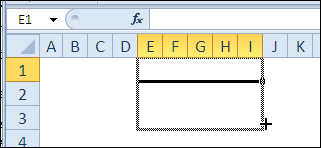
  1. Merge cells E1:I1, E2:I2, E3:I3 (yes, merging can cause problems, but it’s allowed on Valentine’s Day)
    • Tip: After you merge E1:I1, drag the Fill Handle, to copy the formatting down to the next two rows.
    • Heart04
  2. Add a bottom border to each merged cell, with red or dark pink border colour.

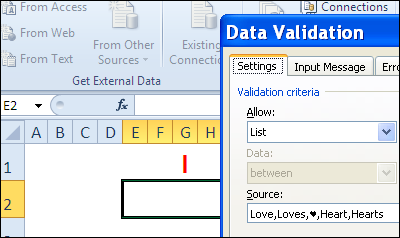
Create the following data validation drop down lists:

  • E1: I, You, Everyone
  • E2: Love, Loves, ?, Heart, Hearts
  • E3: You, Me, Excel

Tip: To type a heart shape, press Alt and type a 3 on the number keypad (if no number keypad, try Fn+Alt+L). On a Mac, another key combination might be needed.
Heart05

Use the Excel Valentine

The Excel Valentine heart has white fill and white font, so it’s not visible.
To see the heart:

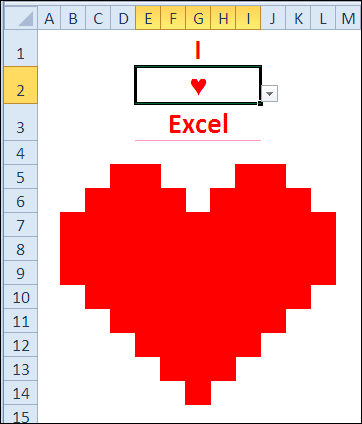
  1. Select one item from the drop down lists, to colour the valentine light pink
  2. Select two items from the drop down lists, to colour the valentine dark pink
  3. Select three items from the drop down lists, to colour the valentine red
Heart07

Download the Excel Valentine Card

To see how the card works, you can download the Excel Valentine Card sample file.

The file is in Excel 2007 format, and zipped, and it contains no macros.
_____________
How to Crash Excel

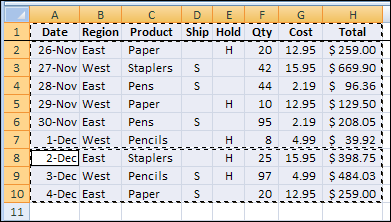
This week, I’ve been working in an Excel 2007 file that has several named Excel Tables. After adding a column in one table, I copied the entire worksheet column.

ExcelTableCrash01

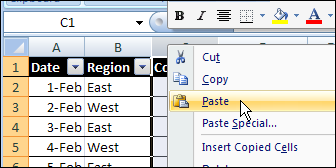
Next, I tried to paste it into another worksheet, where there was a similar table.

ExcelTableCrash02

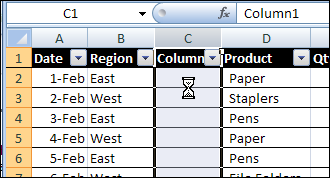
That didn’t go too well. After a few minutes of staring at the hourglass, I gave up, and closed Excel in the Task Manager.

ExcelTableCrash03

Today, I tried to repeat the column copy and paste, forgetting about the previous problem.

Sure enough, Excel crashed again. Well, technically, I guess it’s a hang, rather than a crash, but it’s still annoying.

A Smaller Named Excel Table

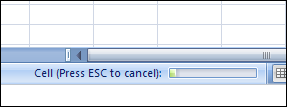
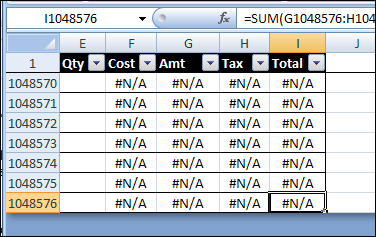
In a smaller workbook, with smaller tables, the copy eventually completed, but with strange results. There was a strange message in the Status Bar.

ExcelTableCrash04

Eventually, the copy completed, but instead of the ten rows from the original table, the paste filled the entire column, so the named Excel Table ended in the last row.

ExcelTableCrash05

Successful Copy and Paste

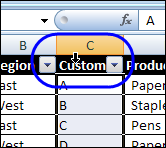
Instead of copying and pasting the entire column, you can copy and paste the named Excel table column.

  • To select the table column, click, the top of the table heading cell, instead of the column heading button.
  • ExcelTableCrash07
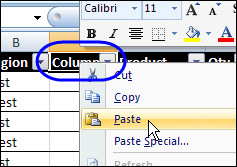
  • Then, to paste into the other table, right-click the heading cell, and paste.
  • ExcelTAbleCrash08

Or you can copy the cells, and paste them, instead of copying and pasting the column.

How Do You Crash Excel?

Enough about my problems! What’s your favourite way to crash/hang Excel?
________________

Improve Your Microsoft Excel Skills

Someone emailed me this week, and asked how he could improve his Excel skills.

Here’s what I suggested:

Books: Read Excel books – there’s a list of my favourites on my Contextures site, and you can browse your local bookstore, or search in Amazon, to see what’s new

Blogs: Follow a few Excel blogs, to see what topics people are writing about. You might learn about new Excel features, or see helpful tips for familial features

Websites: Visit some of the Excel expert websites, for Excel tips, tricks, videos, and sample files. I highly recommend the Contextures website, but I might be biased. 😉

Videos: Another great way to improve your Excel skills is by watching videos. There are lots of videos on my Contextures site, and on my Contextures YouTube channel.

Experiment: And remember keep trying new things in your own Excel files! That’s my favourite way to learn. Just be sure to do your tests on a backup copy of your files, just in case things go horribly wrong!

Your Suggestions

What would you add to that list of ways to improve your Excel skills?

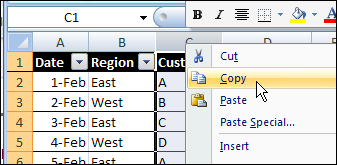
Excel Copy and Paste Tips and Trouble

Copy and paste. It’s one of the first things you learn to do in Excel, and something you do every day.

Without copy and paste, your Excel work would take much longer, and you’d be exhausted by the end of the day, from all that typing!

Here are some Excel copy and paste tips and trouble shooting suggestions.
Continue reading “Excel Copy and Paste Tips and Trouble”

Automatically Change Excel Filter Heading

techrepublic There was a question about Excel Advanced Filter criteria on the Tech Republic blog recently, and I posted an answer.
A couple of weeks later, a Tech Republic mug and flag were delivered to my door, as a reward for answering.

It’s a Fragile Major Award

The real joy is in solving a problem, but it’s fun to get a major award, even if it’s not a fancy leg lamp that I can put in the front window.

Keep reading, to see what problem the blogger was having with Excel Advanced Filters, and download a workbook with my suggested solution.

Set Up an Advanced Filter

To use an Excel Advanced Filter, you create a criteria range, with headings that match the ones used in the original table.

Then, under one or more of the headings, you enter the filter criteria.

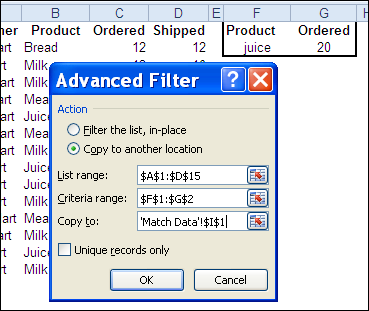
For example, in the screenshot below, the criteria would extract all the records where the quantity ordered is 20 and the product is juice.

With an Advanced Filter, you can even extract the data to a different location, all in one step.

Advanced Filter Dialog Box

Identical Headings

In most cases, when you set up an Advanced Filter criteria range, each heading must be identical to a heading in the source data table.

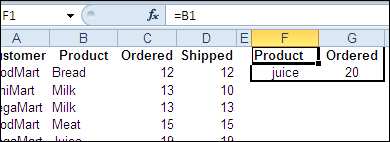
An easy way to make them identical is to link from the criteria headings to the table headings.

In the screenshot below, cell F1 has a formula with a link to cell B1.

  • =B1
cell F1 has a formula with a link to cell B1

Different Headings

However, there’s one situation in which the criteria range headings must NOT match the table headings — if you use a formula in the criteria row.

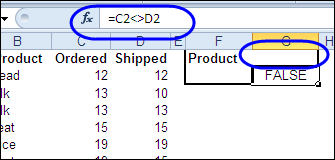
In the example below, we’d like to extract the records where the number ordered is different than the number shipped.

In the criteria range, there’s a formula in cell G2, to compare the quantity ordered and quantity shipped.

  • =C2<>D2

Remove Criteria Heading

For this filter to work, the heading in cell G1 has to be removed, or changed to something different than any of the table headings.

AdvFilterHead04

Add a Space Character

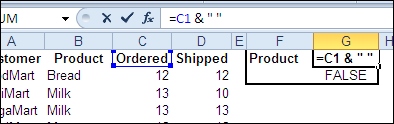
Another option would be to leave the link to the table heading, and add a space character or underscore. That extra character makes the headings different

  • =C1 & ” “

AdvFilterHead05

Create Adjustable Criteria Headings

This was the problem that the Tech Republic blogger encountered — remembering to manually change the heading, or remove it, when using a formula in the criteria range.

The question posed included this restriction:

Remember, you don’t want to force users to remember that in this particular case… they have to do something special like delete header text! Working with the list and criteria ranges, already in place, how would you get the desired results?

Heading With IF Formula

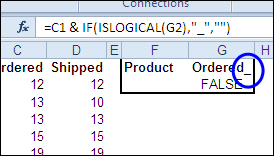
To make the heading adjust automatically, you can use an IF formula to test what’s in the cell below.

=C1 & IF(ISLOGICAL(G2), “_” , “” )

If cell G2 contains TRUE or FALSE, then it has a criteria formula, and an underscore is added to the heading.

AdvFilterHead06

Download the Advanced Filter Workbook

To see the data and the criteria range heading formulas, you can download the Advanced Filter Criteria Headings sample file. It’s in Excel 2003 format, and zipped.

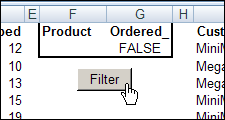
The file contains a macro, that lets you run the advanced filter by clicking the Filter button on the worksheet. Enable macros if you want to use that feature.

AdvFilterHead07

Watch the Advanced Filter Criteria Video

To see the steps for applying an Advanced Filter, with regular criteria or a formula in the criteria range, please watch this short Excel video tutorial.

___________

Excel Error – Selection Is Too Large

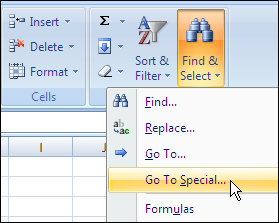
To fill blank cells, or delete rows with blanks cells, you can use Excel’s Go To Special feature.

FillBlankCode01

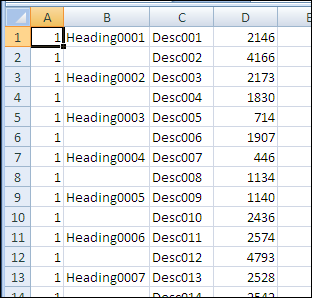
For example, in the worksheet shown below, you might want to fill in all the blanks in column B, by copying the value from the row above.

FillBlankCode00

There are instructions on the Contextures website to fill blank cells, by using Go To Special to select the blanks.

You can do this manually, and there’s sample code to make the job easier.

Selection Is Too Large Error

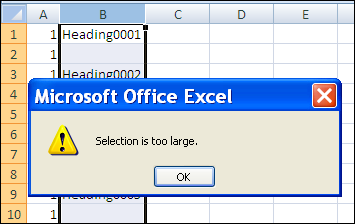
This technique works very well, unless you’re trying to fill blank cells in a long list. In that case, you might see the error message, “Selection is too large.”

FillBlankCode03

This happens in Excel 2007, and earlier versions, because there is a limit of 8192 separate areas that the special cells feature can handle. (This problem has been fixed in Excel 2010.)

There are details on Ron de Bruin’s website: SpecialCells Limit Problem.

Work in Smaller Chunks

If you run into this error, you can work with smaller chunks of data instead.

  • If you’re making the changes manually, select a few thousand rows, instead of the full column.
  • If you’re using a macro, you can loop through the cells in large chunks, e.g. 8000 rows, instead of trying to change the entire column.

On the Contextures website, Fill Blank Cells Macro – Example 3 checks for the number of areas, using Ron’s sample code, and uses a loop if necessary.

The code is shown below, and it shows a message box if the range is over the special cells limit. You can remove that line — it’s just there for information.

Sub FillColBlanks()
'https://www.contextures.com/xlDataEntry02.html
'by Dave Peterson  2004-01-06
'fill blank cells in column with value above
'2010-10-12 incorporated Ron de Bruin's test for special cells limit
'https://www.rondebruin.nl/specialcells.htm
Dim wks As Worksheet
Dim rng As Range
Dim rng2 As Range
Dim LastRow As Long
Dim col As Long
Dim lRows As Long
Dim lLimit As Long
Dim lCount As Long
On Error Resume Next
lRows = 2 'starting row
lLimit = 8000
Set wks = ActiveSheet
With wks
   col = ActiveCell.Column
     'try to reset the lastcell
   Set rng = .UsedRange
   LastRow = .Cells. _
     SpecialCells(xlCellTypeLastCell).Row
   Set rng = Nothing
    lCount = .Columns(col) _
            .SpecialCells(xlCellTypeBlanks) _
            .Areas(1).Cells.Count
    If lCount = 0 Then
        MsgBox "No blanks found in selected column"
        Exit Sub
    ElseIf lCount = .Columns(col).Cells.Count Then
		   'this line can be deleted
        MsgBox "Over the Special Cells Limit" 
        Do While lRows < LastRow
            Set rng = .Range(.Cells(lRows, col),  _
            .Cells(lRows + lLimit, col)) _
             .Cells.SpecialCells(xlCellTypeBlanks)
            rng.FormulaR1C1 = "=R[-1]C"
            lRows = lRows + lLimit
        Loop
    Else
        Set rng = .Range(.Cells(2, col),  _
            .Cells(LastRow, col)) _
            .Cells.SpecialCells(xlCellTypeBlanks)
        rng.FormulaR1C1 = "=R[-1]C"
    End If
   'replace formulas with values
   With .Cells(1, col).EntireColumn
       .Value = .Value
   End With
End With
End Sub

_______________

Spreadsheet Day 2010 — Top 5 Excel Tips

Remember, Sunday October 17th is Spreadsheet Day, so you’d better start planning your celebrations. You could start the day with a big bowl of Chex cereal — each bite looks like a little spreadsheet. For dessert at the end of the day, have some pie, or bars, while you dream about charts.

Continue reading “Spreadsheet Day 2010 — Top 5 Excel Tips”

Count Unique Items in Excel Filtered List

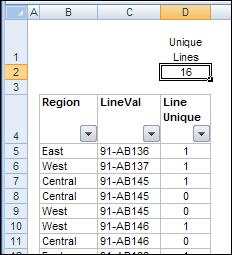
You can use the SUBTOTAL function to count visible items in a filtered list. In today’s example, AlexJ shows how to count the unique visible items in a filtered list. So, if an item appears more than once in the filtered results, it would only be counted once. Thanks, AlexJ!

Continue reading “Count Unique Items in Excel Filtered List”