
I saw this on Twitter yesterday: Wanted “Break Apart all merged cells in entire spreadsheet” button. If you’ve done much work in Excel, you’ve probably encountered problems that are the result of merged cells on a worksheet.
Merging cells can seem like a good idea at the time, but can interfere with sorting and filtering, and other things that make an Excel workbook useful. Here’s how you can unmerge Excel cells.
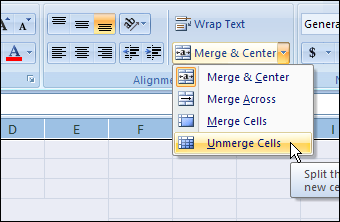
I don’t know what version of Excel that tweeter is using, but there’s an Unmerge Cells command on the Excel Ribbon, and you could add one to the toolbar in earlier versions of Excel.
- Tip: There are lots more tips, and a few macros, for working with merged cells, on my Contextures site.
Unmerge All Cells on All Worksheets
To get rid of all the merged cells in an Excel 2007 workbook, follow these steps:
- Make a backup copy of the workbook, and store it somewhere safe.
- Right-click one of the sheet tabs, and click Select All Sheets
- On the active sheet, click the Select All button, at the top left of the worksheet
- On the Ribbon’s Home tab, click the drop down arrow for Merge & Center
- Click Unmerge Cells
- Right-click one of the sheet tabs, and click Ungroup Sheets
Unmerge in Excel 2003
To get rid of all the merged cells in an Excel 2003 or earlier workbook, follow these steps:
- Make a backup copy of the workbook, and store it somewhere safe.
- Right-click one of the sheet tabs, and click Select All Sheets
- On the active sheet, click the Select All button, at the top left of the worksheet
- On the Format menu, click Cells
- In the Format Cells dialog box, on the Alignment tab, remove the check mark from Merge Cells. If the check box is grey, you’ll have to click twice — click once to add the check mark (in a white box), then click again to remove it.
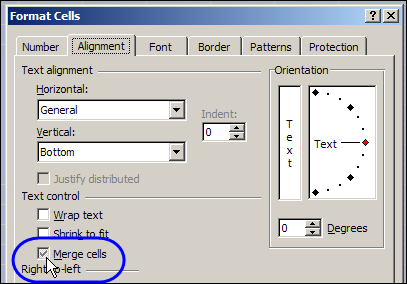
- Click OK to close the dialog box.
- Right-click one of the sheet tabs, and click Ungroup Sheets
And don’t merge those cells again later!
Remember – there are lots more tips, and a few macros, for working with merged cells, on my Contextures site..
_________
@Debra… I see from your comment and Jason’s that my code snippet was unnecessary. Personally, I never use Merge, so I never looked to see that Tools/Customize offered that option… on top of which the code was easy to develop so I didn’t even think to look.
@Rick, your code would quickly unmerge all the cells in the entire workbook, so it’s a timesaver for someone who’s cleaning up files.
For “Squash” and anyone else interested…
Excel 97 thru Excel 2003 only, do not try this on XL2007.
Excerpt from “Extras for Excel” add-in by Jim Cone
ADD CUSTOM BUTTONS TO TOOLBAR…
Dim SpecialItem as CommandBarControl
With Application.CommandBars(“Formatting”)
For Each SpecialItem In .Controls
If SpecialItem.ID = 402 Or SpecialItem.ID = 1742 Then SpecialItem.Delete
Next
Set SpecialItem = .Controls.Add(Type:=msoControlButton, ID:=402, before:=9)
SpecialItem.OnAction = ThisWorkbook.Name & “!MergeAndAlign”
SpecialItem.FaceId = 2992
Set SpecialItem = .Controls.Add(Type:=msoControlButton, ID:=1742, before:=9)
SpecialItem.OnAction = ThisWorkbook.Name & “!CenterAcrossSelection”
SpecialItem.Caption = “Center Across”
SpecialItem.FaceId = 2062
End With
‘–
REMOVE CUSTOM TOOLBAR BUTTONS…
With Application.CommandBars(“Formatting”) ‘Formatting Toolbar
.FindControl(ID:=402).Reset ‘Merge and Center
.FindControl(ID:=1742).Delete ‘Merge across
End With
‘–
SUBS TO DO THE WORK…
‘Apr 16, 2001 – Created – Jim Cone.
Sub CenterAcrossSelection()
On Error GoTo CenterErr
If TypeName(Selection) = “Range” Then
If IsNull(Selection.HorizontalAlignment) Or _
Selection.HorizontalAlignment = xlHAlignCenterAcrossSelection Then
Selection.HorizontalAlignment = xlHAlignGeneral
Selection.VerticalAlignment = xlVAlignBottom
Else
Selection.HorizontalAlignment = xlHAlignCenterAcrossSelection
Selection.VerticalAlignment = xlVAlignCenter
End If
End If
Exit Sub
CenterErr:
Beep
End Sub
‘–
‘Created on April 16, 2001 – Jim Cone.
Sub MergeAndAlign()
On Error GoTo Kaput
If TypeName(Selection) = “Range” Then
If Selection.Areas.Count > 1 Then
MsgBox “Select only one area.”, vbInformation, “Merge Cells – Microsoft Excel”
Exit Sub
ElseIf Selection.Count > 1 Then
Application.ScreenUpdating = False
If Selection.MergeCells Or IsNull(Selection.MergeCells) Then
Selection.UnMerge
Selection.VerticalAlignment = xlVAlignBottom
Selection.HorizontalAlignment = xlHAlignGeneral
Else
Selection.Merge
Selection.VerticalAlignment = xlVAlignCenter
Selection.HorizontalAlignment = xlHAlignCenter
End If
Application.ScreenUpdating = True
End If
End If
Exit Sub
Kaput:
Beep
Application.ScreenUpdating = True
End Sub
‘–
Jim Cone
Portland, Oregon USA
Try the complete add-in… http://tinyurl.com/ExtrasXL
(it adds a classic menu to xl2007)
@Deb,
Okay, yes, as a macro, that is true… but then there would be little need to attach it to a button though.
@Squash,
I think this macro will do what you asked… it only affects merged, centered cells and does not touch other merged cells (you can use my other posted macro to do that afterwards). As with all macros, test it out on a copy, until you are sure it does what you want, as changes made by a macro cannot be undone.
Sub UnmergeAllMergedCells()
Dim WS As Worksheet, Cell As Range, Addr As String
For Each WS In Worksheets
For Each Cell In WS.UsedRange
If Cell.MergeArea.Address “” And Cell.Value “” And _
Cell.HorizontalAlignment xlCenterAcrossSelection Then
If Cell.HorizontalAlignment = xlHAlignCenter Then
Addr = Cell.MergeArea.Address
Cell.MergeCells = False
With Range(Addr).Rows(1)
.Select
.HorizontalAlignment = xlCenterAcrossSelection
End With
End If
End If
Next
Next
End Sub
@Deb… just out of curiosity, is there an HTML tag that I can use to preserve lead spacing when posting code in your blog? As you can see from the code I just posted to Squash, the
,combination changes the font, but eats up all the leading (formatting) spaces.