
I saw this on Twitter yesterday: Wanted “Break Apart all merged cells in entire spreadsheet” button. If you’ve done much work in Excel, you’ve probably encountered problems that are the result of merged cells on a worksheet.
Merging cells can seem like a good idea at the time, but can interfere with sorting and filtering, and other things that make an Excel workbook useful. Here’s how you can unmerge Excel cells.
I don’t know what version of Excel that tweeter is using, but there’s an Unmerge Cells command on the Excel Ribbon, and you could add one to the toolbar in earlier versions of Excel.
- Tip: There are lots more tips, and a few macros, for working with merged cells, on my Contextures site.
Unmerge All Cells on All Worksheets
To get rid of all the merged cells in an Excel 2007 workbook, follow these steps:
- Make a backup copy of the workbook, and store it somewhere safe.
- Right-click one of the sheet tabs, and click Select All Sheets
- On the active sheet, click the Select All button, at the top left of the worksheet
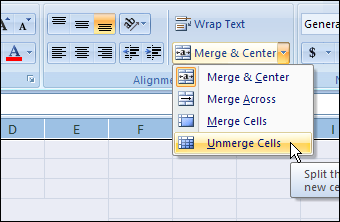
- On the Ribbon’s Home tab, click the drop down arrow for Merge & Center
- Click Unmerge Cells
- Right-click one of the sheet tabs, and click Ungroup Sheets
Unmerge in Excel 2003
To get rid of all the merged cells in an Excel 2003 or earlier workbook, follow these steps:
- Make a backup copy of the workbook, and store it somewhere safe.
- Right-click one of the sheet tabs, and click Select All Sheets
- On the active sheet, click the Select All button, at the top left of the worksheet
- On the Format menu, click Cells
- In the Format Cells dialog box, on the Alignment tab, remove the check mark from Merge Cells. If the check box is grey, you’ll have to click twice — click once to add the check mark (in a white box), then click again to remove it.
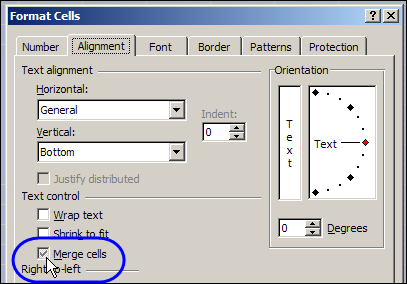
- Click OK to close the dialog box.
- Right-click one of the sheet tabs, and click Ungroup Sheets
And don’t merge those cells again later!
Remember – there are lots more tips, and a few macros, for working with merged cells, on my Contextures site..
_________
Any way to unmerge all Merged & Centered cells and convert them to Centered Across Selection so that the formatting is the same? Can this be done through VBA?
For those using XL2003 and earlier who want to place an Unmerge Button on one of their toolbars, you can assign this macro to the Button…
Sub UnmergeAllMergedCells()Dim WS As Worksheet
For Each WS In Worksheets
WS.Cells.UnMerge
Next
End Sub
Hmmm… in all Excel versions I use, from 2000 to 2010, whenever I want to unmerge cells, I just click the “merge cells” button again. It’s a toggle switch.
With either the whole sheet selected (i.e. by clicking the “square” to the left of column A and above row 1, thus selecting all cells in the sheet, — or with an individual merged cell selected, clicking the “merge cells” command on the toolbar/ribbon again will unmerge the cells.
Why the need for an “unmerge” button on the QAT or a macro? What am I not getting?
cheers, teylyn
Correction. Excel 2000 does not toggle the merge/unmerge, but from Excel 2003 upwards, just click the Merge (or Merge & Center) icon again and all selected cells are unmerged.
cheers, teylyn
@Rick Thanks for the code! For Excel 2003 users there’s also an Unmerge button available through Tools>Customize, in the Format category. If you add that to an existing toolbar, you could manually select all the sheets and cells, and click that button to unmerge.
@Teylyn, the Merge button isn’t on the toolbar by default, and it doesn’t toggle in my copy of Excel 2003. I’ve added both the Merge and Unmerge buttons to my Excel 2003 toolbar.
Maybe you have a custom button that runs a macro to change the MergeCells property of the selected cells, e.g.
Sub ChangeMerge()
With Selection
.MergeCells = Not .MergeCells
End With
End Sub
Or maybe I’m the one who’s missing something!
In Excel 2000 I used the Unmerge button found under Tools>Customize all the time…what Debra just mentioned.