
I saw this on Twitter yesterday: Wanted “Break Apart all merged cells in entire spreadsheet” button. If you’ve done much work in Excel, you’ve probably encountered problems that are the result of merged cells on a worksheet.
Merging cells can seem like a good idea at the time, but can interfere with sorting and filtering, and other things that make an Excel workbook useful. Here’s how you can unmerge Excel cells.
I don’t know what version of Excel that tweeter is using, but there’s an Unmerge Cells command on the Excel Ribbon, and you could add one to the toolbar in earlier versions of Excel.
- Tip: There are lots more tips, and a few macros, for working with merged cells, on my Contextures site.
Unmerge All Cells on All Worksheets
To get rid of all the merged cells in an Excel 2007 workbook, follow these steps:
- Make a backup copy of the workbook, and store it somewhere safe.
- Right-click one of the sheet tabs, and click Select All Sheets
- On the active sheet, click the Select All button, at the top left of the worksheet
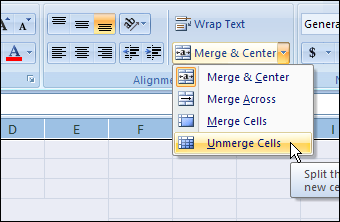
- On the Ribbon’s Home tab, click the drop down arrow for Merge & Center
- Click Unmerge Cells
- Right-click one of the sheet tabs, and click Ungroup Sheets
Unmerge in Excel 2003
To get rid of all the merged cells in an Excel 2003 or earlier workbook, follow these steps:
- Make a backup copy of the workbook, and store it somewhere safe.
- Right-click one of the sheet tabs, and click Select All Sheets
- On the active sheet, click the Select All button, at the top left of the worksheet
- On the Format menu, click Cells
- In the Format Cells dialog box, on the Alignment tab, remove the check mark from Merge Cells. If the check box is grey, you’ll have to click twice — click once to add the check mark (in a white box), then click again to remove it.
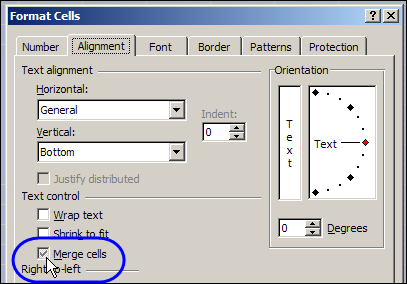
- Click OK to close the dialog box.
- Right-click one of the sheet tabs, and click Ungroup Sheets
And don’t merge those cells again later!
Remember – there are lots more tips, and a few macros, for working with merged cells, on my Contextures site..
_________
New question: I have Excel 2010 and have noticed that when I click on a single cell to enter data, several cells in that column highlight. This is becoming annoying because if I only want to copy one or a few cells in the column I am unable to select them without several others below also auto-highlighting for selection. How can I turn this off?
Thanks,
Laura
what is the shortcut key for unmarge cell in excel
Question: I have a pivot table and I would like to apply Excel’s Alignment on the Tool Bar to center two fields. I am looking for a VBA code to center (align cells to the center) Pivot Table cells (for example range B3:B30,C3:C30).