
I saw this on Twitter yesterday: Wanted “Break Apart all merged cells in entire spreadsheet” button. If you’ve done much work in Excel, you’ve probably encountered problems that are the result of merged cells on a worksheet.
Merging cells can seem like a good idea at the time, but can interfere with sorting and filtering, and other things that make an Excel workbook useful. Here’s how you can unmerge Excel cells.
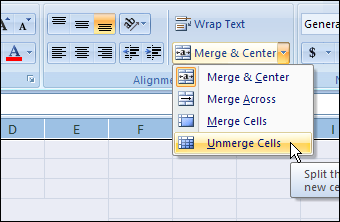
I don’t know what version of Excel that tweeter is using, but there’s an Unmerge Cells command on the Excel Ribbon, and you could add one to the toolbar in earlier versions of Excel.
- Tip: There are lots more tips, and a few macros, for working with merged cells, on my Contextures site.
Unmerge All Cells on All Worksheets
To get rid of all the merged cells in an Excel 2007 workbook, follow these steps:
- Make a backup copy of the workbook, and store it somewhere safe.
- Right-click one of the sheet tabs, and click Select All Sheets
- On the active sheet, click the Select All button, at the top left of the worksheet
- On the Ribbon’s Home tab, click the drop down arrow for Merge & Center
- Click Unmerge Cells
- Right-click one of the sheet tabs, and click Ungroup Sheets
Unmerge in Excel 2003
To get rid of all the merged cells in an Excel 2003 or earlier workbook, follow these steps:
- Make a backup copy of the workbook, and store it somewhere safe.
- Right-click one of the sheet tabs, and click Select All Sheets
- On the active sheet, click the Select All button, at the top left of the worksheet
- On the Format menu, click Cells
- In the Format Cells dialog box, on the Alignment tab, remove the check mark from Merge Cells. If the check box is grey, you’ll have to click twice — click once to add the check mark (in a white box), then click again to remove it.
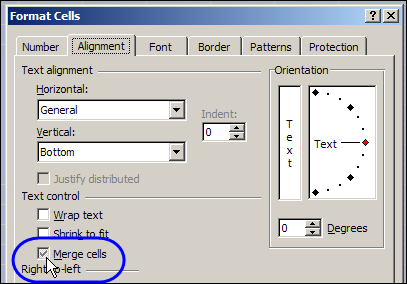
- Click OK to close the dialog box.
- Right-click one of the sheet tabs, and click Ungroup Sheets
And don’t merge those cells again later!
Remember – there are lots more tips, and a few macros, for working with merged cells, on my Contextures site..
_________
@Squash,
Don’t pay any attention to the name I used for the macro I posted for your consideration… I used the framework for the first macro I posted in this blog article to develop the code you asked for and forgot to change the macro name… you can, of course, name the macro anything you want.
Rick,
Thank you for posting your code. Unfortunately, I couldn’t get it to work (are there supposed to be “=” before the double quotes?) so I modified it to get it to do what I wanted for the time being(below). I realize your code also made sure that the cell was both Merged & Centered before demerging it and centering across selection. I’ll probably eventually get it do what yours was doing. I also probably get all other merged cells to be colored so I can manually change them if needed (not everything is worth automating).
Sub UnmergeAllMergedCellsAndCenterAcrossSelection()
Dim Cell As Range, Addr As String
For Each Cell In ActiveSheet.UsedRange
If Cell.MergeCells = True Then
Addr = Cell.MergeArea.Address
Cell.MergeCells = False
With Range(Addr).Cells
.Select
.HorizontalAlignment = xlCenterAcrossSelection
End With
End If
Next
End Sub
@Squash,
Yes, there are THREE missing operators, but it is NOT the equal signs that are missing… it is the “not equal” signs that got eaten by Deb’s comment processor. I’m using the letters NEQ for the “not equal” sign (less than symbol followed by a greater than symbol)… make that substitution in the line below and it should make the code I posted work as intended….
If Cell.MergeArea.Address NEQ “” And Cell.Value NEQ “” And _
Cell.HorizontalAlignment NEQ xlCenterAcrossSelection Then
Note… in case you are not familiar with it, this is NOT two separate lines of code, it is one line of code that has been “continued” across two displayed line (that is what the space/underbar does at the end of the first line).
@Debra,
I use the “merge and center” button on the Excel 2003 Formatting toolbar. It’s there by default and I have not changed it or assigned it any macros. I have Excel 2003 on several different computers, and the behaviour is the same on all machines.
Select the merged cell or select the whole worksheet and click the button. All merged cells will be unmerged.
In Excel 2007 and Excel 2010 it’s a single click on the “Merge & Center” icon on the Home ribbon. Again, I have no special macros running for those and I have these Excel versions on different computers, where they all behave the same.
In fact, un-merging is the only reason for me to use this toolbar button / ribbon command. I prefer “center across selection”, for obvious reasons, but whenever I get a spreadsheet from elsewhere, or a badly designed BI repot exported into Excel, the first thing I do is select all cells and hit that icon to get rid of the merged cells.
Maybe it’s the New Zealand air.
cheers, teylyn
@teylyn, ahhh…the Merge and Center button…now I see what you mean, thanks. I always remove that from the toolbar and add the Unmerge button instead. But, if the Merge and Center button does an unmerge too, then it finally has a use!
@Rick I’ll don’t know off hand how to keep the indentation, and will see what I can find out.
Maybe you can use < (ampersand lt semi-colon) to create a less than symbol and > (ampersand gt semi-colon) to create a greater than symbol
And probably the pre tags don’t work in the comments