
To highlight specific cells on an Excel worksheet, you can use conditional formatting.
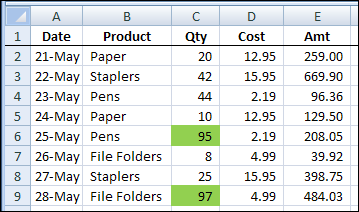
In the example shown below, orders with a quantity greater than 50 are highlighted with green fill colour.
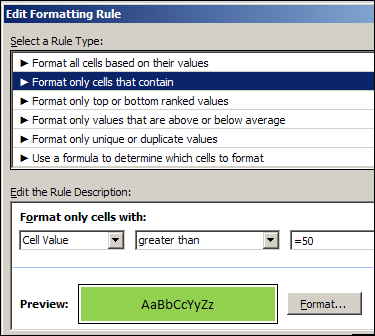
Conditional Formatting Rule
This was the result of simple conditional formatting, based on the cell value.
Sometimes though, the conditional formatting can be distracting, and there’s no built in way to temporarily remove it.
Create an On/Off Switch
Instead of removing the conditional formatting, you could add an On/Off switch to your worksheet. Then, adjust the rules, so you only show the conditional formatting when the switch is on.
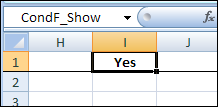
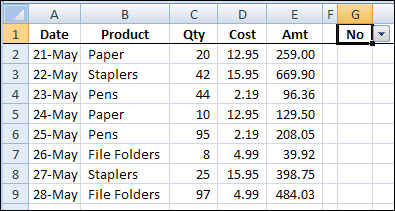
In the screenshot below, there’s a cell named CondF_Show, and it has a data validation drop down for Yes and No.
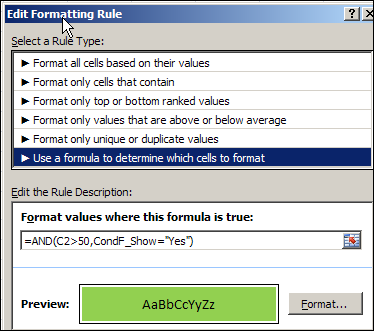
Change Conditional Formatting Rule
I changed the conditional formatting to a formula that checks both the Quantity cell value, and the value in the CondF_Show cell.
On/Off Switch Set to No
After you revise the rule, when the CondF_Show cell is changed to No, the conditional formatting is temporarily hidden.
More Conditional Formatting Info
For more Conditional Formatting rules and advanced examples that use a formula, go to the Conditional Formatting Examples page on my Contextures site.
And here are a few more pages on my site, where you can learn more about Excel Conditional Formatting:
Fix Conditional Formatting Extra Rules
Conditional Formatting – Currency
Conditional Formatting – Documentation
Conditional Formatting – Data Bars
____________
Sorry Debra: I just copied the frormula but is does not work…
Maybe I did not explain well enough: to put it very simple: cell B is a fixed value (let’s say 12)
The cell to format can ONLY be: or 12 or 24 or 36 or 48 etc.
If not the cell should color red
Thansk in advance for a hint!
Guido
Guido, if cell B3 has a value of 12, which cell are you trying to colour red if it’s not a multiple of 12?
Hi and thanks again, Debra
The cell to format in this case is cell A3 when she isn’t eual to 12 or 24 or 36 etc
Guido, that second formula should work: =MOD(A3,B3)<>0
You might have to use a semi-colon though, if that’s what you use in other formulas:
=MOD(A3;B3)<>0
If that doesn’t work, maybe you could send me a small version of your workbook:
ddalgleish @ contextures.com
Hey Debra: you’re right: it works with the semi-colon!
Thank you very much for your help!
Guido