
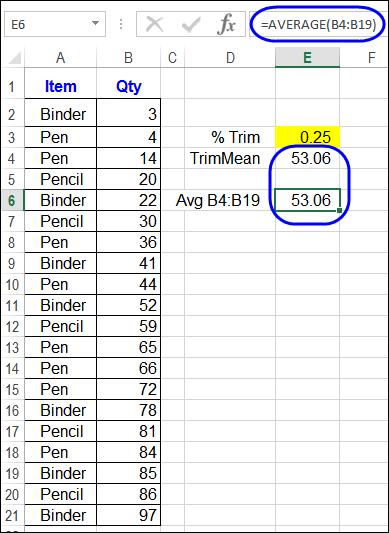
From what I’ve seen in workbooks over the years, SUM is the most frequently used Excel function, and AVERAGE is the runner-up. Would you agree, or do you see other functions used more often than those two?
Excel Roundup 20150302
Spreadsheets are already fun, but Tableau wants to make them even more exciting, with its newest smartphone app, Elastic. In this video, Tableau’s VP of Mobile & Strategic Growth, Dave Story, opens a spreadsheet file (csv format) from his inbox, and shows how Elastic works.
I don’t see any information about the expected release date or pricing.
Resize Excel Comments With Macro
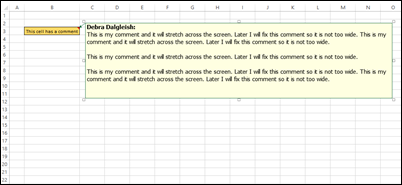
Occasionally, for reasons unknown to anyone other than the centuries-old trolls who live in underground tunnels at Microsoft, Excel comments resize themselves. They get really wide, or narrow, and become almost impossible to read.
Excel Roundup 20150223
The cover slide in this presentation, with its 3-D column and pie charts, led me to believe that the content wouldn’t be too useful. However, a different person must have prepared the remaining slides, because they have some useful tips.
The last slide shows that the content is from Mike Alexander’s book, Excel Dashboards & Reports for Dummies, which was published last year.
Excel Roundup 20150216
In this video, Bill Jelen (Mr. Excel) and Mike Girvin (ExcelIsFun) show two different ways to insert an apostrophe at the start of a long column of numbers.
There is an interesting bit of history, starting at the 1:00 mark – Bill shows how that apostrophe, and other characters, affected cell entries in old versions of Lotus 1-2-3.
Or watch on YouTube: Add Leading Apostrophe to Column of Data
Contextures Posts
Here’s what I posted recently:
- Hide pivot table subtotals quickly, using a Ribbon command or a macro.
Other Excel Articles
Here are a few of the Excel articles that I read recently, that you might find useful.
- Here’s another reason to start using Power Query. Gašper Kamenšek shows how to get all the data from a folder.
- Jan Karel Pieterse has updated his comprehensive article on working with circular references in Excel.
- In case you missed any of the new features in Office 365, you can check this list of what was added in January 2015.
- If you don’t mind clicking though the items one at a time, ComputerWorld UK has 10 free apps to boost your Excel and Word 2013 productivity.
- Excel is easier to use if you understand basic math, so your kids might enjoy playing Prodigy, a free online math game. My 7-year-old grandson loves it!
- The Investintech blog shares 9 simple tips for working with Excel data. Of all those tips, I probably use #4 most often. How about you?
- Jordan Goldmeier is presenting at this year’s PASS Business Analytics conference, and has released an hour-long preview webinar for his session – Creating Outstanding Spreadsheet Models.
- Here is another use for pivot tables – Susan Wenograd uses them to visualize search query mismatches, for AdWords reports.
Excel Announcements
Here are some upcoming events, courses, recently published books, and other new items, related to Excel.
Excel Course
- Chandoo has a new online course – 50 Ways to Analyze Your Data. It is not for beginners though – you should have at least intermediate or higher level Excel skills for this course.
Excel Summit
- Amsterdam Excel Summit, April 13-15, 2015. Mark your calendar for April 13-15, so you can attend this amazing Excel event. Last year’s summit was an outstanding success, and registration will open soon, for this year’s event. Registration is now open, and you can click here to register.
Share Your Events and Articles
If you read or wrote any other interesting Excel articles recently, or have upcoming Excel events, please let me know. Thanks!
Hide Pivot Table Subtotals
Sometimes the Excel macro recorder creates code that gets you off to a good start. Other times, it’s not so helpful.
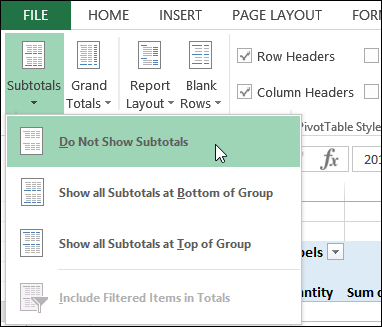
This week, I was working on a pivot table macro, and wanted to turn off all the Row Field subtotals. Fortunately, there is a handy command for this on the Ribbon, on the Design tab, under PivotTable Tools. One click, and the subtotals disappear, or reappear.
Let’s get the code for that, which I’m sure will be equally clean and simple. Ha!
Excel Roundup 20150209
Microsoft announced that Office for Windows 10 Preview is now available for download, and they’re working on Office 2016
You see the preview in this video, and the Excel demo starts around the 1:00 mark.
Save Space With Compact Worksheet Buttons
Last week, AlexJ sent me a tip for making better worksheet buttons, and I’ll be using it from now on, instead of my old method. I’ll show you both button types, and maybe you’ll switch too.
Big Bold Buttons
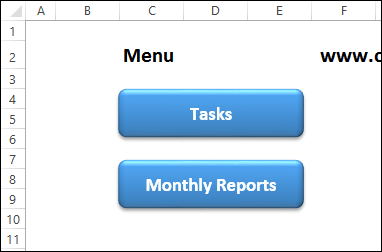
If I’m making a workbook with several sheets, I usually add a menu sheet at the front, with buttons that link to the other sheets. In the screen shot below, you can see a typical menu, with buttons for two of the worksheets. Each button has a hyperlink to cell A1 on the named sheet.
- The buttons are wide enough to fit the longest sheet name
- The font is bold, and big enough to read on the dark background.
They work well, but look a bit big and clunky.
Clear and Compact Buttons
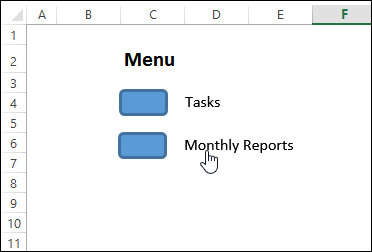
Then, AlexJ sent me his tip for worksheet buttons. Make the buttons small, and let the text flow out to the right side.
- With this method, all the buttons can be compact – just big enough to see, and click easily
- The text doesn’t need to be big and bold, because we’ll use black font on the white worksheet.
The captions are clickable too, so that is an extra advantage.
Set Up the Text
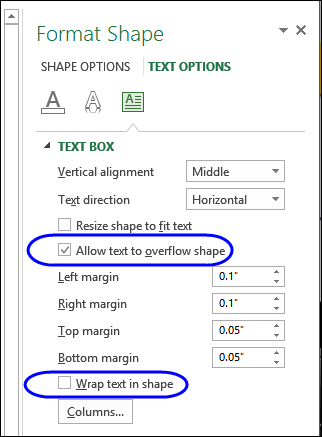
Here are the steps for creating a compact button and caption:
- Add a small shape to the worksheet, and type a caption
- Right-click on the shape, and click Size and Properties
- Click the Text Box heading, to see the options
- Add a check mark to Allow Text to Overflow Shape
- Remove the check mark for Wrap Text in Shape
- Add a few spaces at the start of the text, so it moves to the right of the button shape
- Change the Font colour to black
Download the Sample File
To see how the buttons work, you can download the sample file from AlexJ’s Sample Files page on my Contextures website.
In the Excel Tips section, look for ET0001 – Compact Buttons With Captions. The zipped file is in xlsx format, and does not contain macros.
Watch the Video
To see the steps for creating compact buttons with captions, please watch this video tutorial.
Or watch on YouTube: Save Space With Compact Excel Buttons And Captions
__________________
Excel Roundup 20150202
Happy Groundhog Day! Please feel free to read this roundup over and over again.
Poynter posted a couple of videos from the early days of Lotus 1-2-3, which was released 32 years ago, on Jan. 26, 1983. In this video, you can see how exciting a workday becomes, when new spreadsheet software is installed. Does Excel ever make you feel like dancing?
Football Fun in Excel
This Sunday is Super Bowl XLIX – the last one that will start with “XL”. Next year, it will be Super Bowl L – that doesn’t exactly roll off the tongue!
In 2011, I showed how you can use the ROMAN function in Excel, to change a number into a Roman numeral. That year, they were playing for the 45th time, which was XLV.
=ROMAN(A2)

Other Football Functions
There are other Excel functions that sound like they could be used in a football game. Here are a few, and I’m sure you can think of others:
- CONVERT
- RECEIVE
- YIELD
- SUBSTITUTE
- ISREF
Okay, that last one was a bit of a stretch, but I’ll allow it. What functions did I miss?
Close Football Games
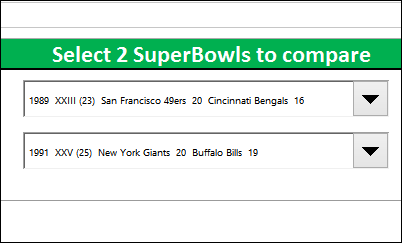
While you wait for the game to start, you can look back at some historic games, with the data that Kevin Lehrbass compiled in an Excel file. You can download Kevin’s workbook, which contains enough data to entertain you for a couple of days, while you try to decide which was the closest game.
Did Kevin think of all the factors that make a football game close, and exciting to watch?
You can even select a couple of Super Bowls, and compare them. Have fun, and enjoy Sunday’s game!
_____________________