Prevent Email Links From Breaking

I have a secure upload site, and often send the link to my clients, so they can upload a large file for me to work on. Because the address is long, the link sometimes wraps in the email, and doesn’t work when the recipient clicks on it.

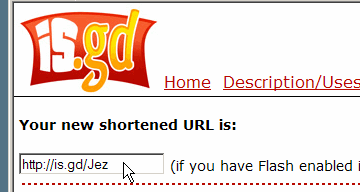
To prevent this problem, you can use a link compression site, such as TinyURL or is.gd.

  1. Copy the long address, by using the keyboard shortcut Ctrl + C
  2. Go to the link compression site, and follow the instructions.
  3. Copy the short address, and paste it into your email.


Note: These shorter addresses are also handy if you’re using Twitter, which has a 140 character limit.

What’s Your Response Time?

How do you get any work done when the phone keeps ringing and the email alert dings every few minutes?

When I’m in the middle of an Excel programming project, I need to concentrate, or I lose time and momentum. To help reduce the distractions I turn off the email alerts and unplug the phone, then focus on the project for a few uninterrupted hours. It’s amazing how much I can get done!

My clients know that I’m frequently unavailable, either out at meetings, or working away from the phone. If they leave a message or send an email, I’ll respond within 24 hours.

On those rare occasions that I’m away for a few days, I warn my clients in advance, and my voice mail gives my return date, so people know when to expect a reply.

In Take Back Your Life, Sally McGhee suggests adding a response time to your voice mail and your email signature.

You’ll get more done because you can focus on your work, then respond to phone calls and emails once or twice during the day.

Even Word Has a Calculator

Yesterday I mentioned the Windows Calculator and Google Calculator. Did you know that Word has a calculator too?

To use it, you can add a button to a Word toolbar, then select numbers, and click the Calculator button, to see the total.

To add the button to a Word toolbar:

  • In Word, click the Tools menu, and click on Customize
  • Click the Commands tab, and click the Tools category.
  • Scroll down the list of commands, to find Tools Calculate
  • Drag that button to one of your Word toolbars.
  • To show a picture, instead of the text, right-click on the button in the toolbar
  • Click on Default Style
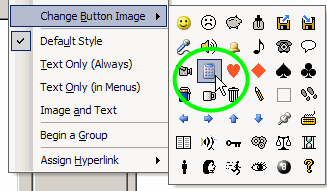
  • Right-click on the button again, and click on Change Button Image
  • Click on the Calculator icon.

  • Close the Customize dialog box

To use the Calculator button:

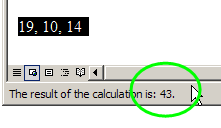
  • Select a column or list of numbers in Word, or type and select a formula, such as 19*10/14.
  • Click on the Calculator button.
  • Look in the Status Bar, at the bottom left of the Word window, to see the result . The total is also automatically copied to the clipboard, so you can paste it in Word, or somewhere else.

Calculator at Your Fingertips

Most of the time I do my calculations in Excel, but occasionally I reach for a calculator instead — and it’s never where I left it.

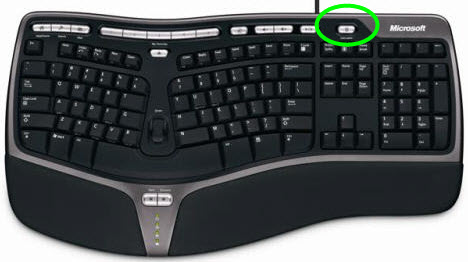
Fortunately, my keyboard has a button that launches the Windows calculator, so I can do quick calculations there.

The Calculator key is at the top of the keyboard, just above the ScrLk key, buried under a layer of dust and crumbs. Fairly well hidden, but it’s nice to have.


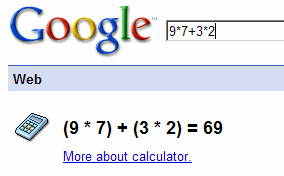
Another way to do a quick calculation is in Google.

Type a formula in the Search box, then click Google Search, or press the Enter key, to see the result.

Find Office Files with Keywords

When you save a Microsoft Office file, you can store keywords to help you find that file later.

For example, when you’re creating an estimate for a client’s Excel project:

  • In Excel, click on the File menu, and click on Properties
  • On the Summary tab, enter Estimate, Excel in the Keywords box, then click OK.
add keywords in Excel properties

Later, you can use one or more keywords to find relevant files:

  • In Excel, click the Open button on the toolbar.
  • At the top right of the Open dialog box, click the arrow on the Tools button
  • Click Search

  • In the Search dialog box, click the Advanced tab.
  • From the first drop down, select Keywords
  • Enter a keyword in the third box, and click Add

  • Enter more keywords, or any other search criteria, including location.
  • Click the Go button, to start the search.

Tidy Up Your Excel Charts

If you’ve created several reports in an Excel workbook, you might want to line them up and make them all the same size before printing.

Instead of doing this manually, you can download and install Jon Peltier’s free Align Chart Dimensions utility.

There are installation instructions on Jon’s site.

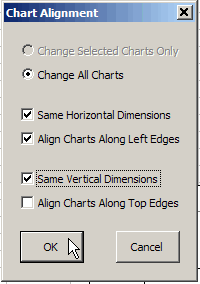
After you install the add-in, you can select specific charts, or let the utility align all the charts on the sheet.

Check the options to align and resize the charts, then click OK, and your report is ready.

Repair an Excel File

If you’re having problems with an Excel file, using the built-in repair feature might fix the problem.

For example, doing this repair procedure can help when:

  • data validation drop down arrows don’t appear
  • there are other signs of corruption, such as frequent crashes, or Excel freezes

Repair Excel Workbook

To repair an Excel workbook, follow the steps below:

  • First, close the problem file, but leave the Excel application open
  • Next, in Excel, choose File►Open
  • Locate and select the file
  • In the Open window, at the bottom right corner, click the arrow at the right side of the Open button
  • In the drop-down list, click on the Open and Repair command
click on the Open and Repair command

Complete the Repair

  • When prompted, click the Repair button.
  • Then, open the Excel file again, to see if it looks okay
Excel message - click the Repair button
Excel message – click the Repair button

Make a Backup!

I hope the repair was successful, and your Excel file is working correctly now. If so, be sure to make backup copies of your work!

If the repair was not successful, you can follow the same steps, but click Extract Data instead.

You might be able to retrieve all of the data, at least, or parts of the data.

And again, remember to make frequent backup copies of your work!