Stick Things Together in Word

This is a feature that I wish Excel had too. If you want to keep two or more paragraphs together on the same page, you can change the formatting options in Word.

To keep two paragraphs together:

  1. Select any paragraph that you want to keep with the paragraph that follows it. For example, click in a heading paragraph, to keep it with the descriptive paragraph below it.
  2. On the Format menu, click on Paragraph
  3. Go to the Line and Page Breaks tab
  4. Add a check mark to Keep With Next
  5. Click OK

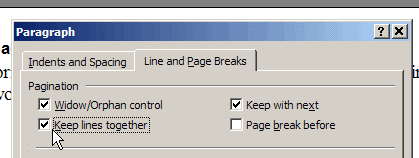
To keep a paragraph from splitting over two pages:

  1. Click in the paragraph, or select several paragraphs
  2. On the Format menu, click on Paragraph
  3. Go to the Line and Page Breaks tab
  4. Add a check mark to Keep Lines Together
  5. Click OK

Keep a Quick Log File

As I work at my computer, there are lots of things that I want to jot down, to act on later. Most of these are brilliant thoughts, or million dollar ideas, so I don’t want to lose them!

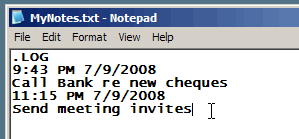
The quickest way that I’ve found to collect these notes is in a log file in Notepad. When I open it, the file adds the current time and date, and the cursor automatically goes to the end of the file.

To create a log file:

  1. Open Notepad, and at the top of the new blank file, type: .LOG
    This MUST be in upper case letters.
  2. Save the file as a Text file, e.g. MyNotes.txt
    Note: I save my file to the Desktop, so it’s easy to find and open.
  3. Close the file.

To use the log file:

  1. Open the log file, and the date and time are automatically added.
  2. Enter your notes, then save and close the file.

Take Measurements With Pixel Ruler

To accurately measure items on your screen you can use the free utility, Pixel Ruler. I’ve found this helpful when I have to upload a picture that’s a specific measurement, such as a blog banner, or profile photo.

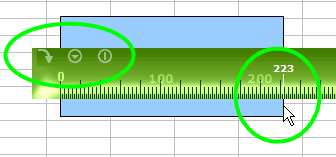
You can drag the ruler to any position on the screen, to line up the zero mark with the left edge of the object that you want to measure.

Then, point to the ruler where it lines up with the right edge of the object, to see the width in pixels. In the screen shot above, the rectangle is 223 pixels wide.

The ruler has three control buttons at its top left — an arrow, a triangle and a line:

  • To measure the height, rotate the ruler to vertical, by clicking the arrow button.
  • Click the triangle button to change the ruler colour, or to access the Pixel Ruler web site
  • To close the ruler, click the line button.

Block the Distractions with White Noise

If you’re trying to work in a noisy environment, some white noise might help block out the distracting sounds. I work from home, with an office that faces the street. It’s usually quiet, but when the kids are out of school for the summer, things get a bit noisy sometimes.

If I’m trying to concentrate, I put on my headset and go to https://www.simplynoise.com/ for some white noise. There’s a slider that let’s me adjust the volume, and that’s it. Nothing to fiddle with, no choice of sounds, just simple noise, as promised.

After a couple of minutes I forget that I have the headset on, the outside sounds fade away, and I can focus on my work again.

Customize Your Excel Toolbar

In Excel 2003 and earlier versions, you can customize your toolbar. Add buttons for commands that you use frequently, to reduce the amount of time you spend digging through the menus and sub-menus.

To make room, you can remove buttons that you never, or very rarely use.

Add a Macro Button to Toolbar

In this example, you’ll customize the toolbar to add the Toggle Grid button:

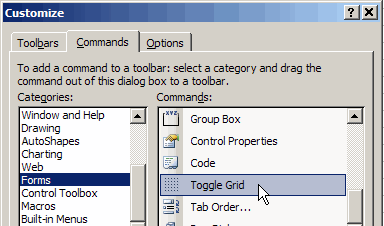
    • On the Excel menu, click Tools, then click Customize.
    • Click the Commnds tab, then click on the Forms category.
    • Scroll to the end of the list of Commands, and find the Toggle Grid command.
Add a Macro Button to Toolbar

Drag the Button

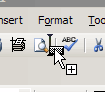
    • Drag the command to one of your existing toolbars. You’ll see an I-beam that indicates where the button will be placed.

  • Close the Customize dialog box.

Use Toolbar Button

Then, to show or hide the worksheet gridlines, just click the Toggle Grid button.

This is much quicker than going to Tools ► Options, and changing the Gridlines setting on the View tab.

On my toolbar I’ve added buttons for:

  • Paste Values (Edit Category)
  • Record New Macro (Tools Category)
  • Toggle Grid (Forms Category)
  • Set Print Area (File Category)
  • Lock Cell (Format Category)

and a few others.

The Lock Cell button is really useful when I’m setting up data entry forms, and want to lock and unlock parts of the worksheet.

Create a New Message

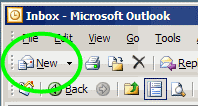
To create a new message in Outlook, you probably click the New button in the Outlook toolbar.


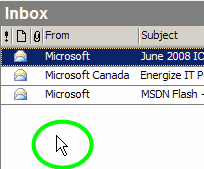
If you’d like to save a few inches of mouse travelling, double-click on the empty space under the list of messages, as shown in the screen shot below. That will open a new message window for you.


If there’s no empty space at the bottom of the list, or if your hands are on the keyboard, press Ctrl + N to create a new message.

These shortcuts also work in the other areas of Outlook, such as Contacts, Tasks and Calendar.

Blog vs Web Site

One of the blogs that I read is sponsoring a Blog vs.Web Site project, and it made me think about why I started this blog.

I’ve had a web site since 2001 and enjoy creating Excel tutorials and sample files. These are popular, and traffic increases each month. Recently, I plunged into blogging as a different way to communicate with Excel users and perhaps a larger community.

To me blog vs. web is like newsstand vs. library. Blog readers want a hot tip or fascinating tidbit, something juicy to chew on, not lug home and study for a week.

Readers grab the idea of the day, learning though serendipity. They come to a blog with an open mind, ready to absorb a new idea. They hope to find something provocative or amusing or a helpful tip.

With a blog, there’s daily pressure to write something new and interesting. On my web site I add items for reference. There’s no posting schedule — I add an article or sample file when I’m inspired.

The site has an index page and many visitors, including me, return to the same pages frequently when trying to remember how some obscure feature works.

The blog’s style is casual and personal, different than the more formal style of the web site.

Another key difference is the interaction with readers.

  • On a web site, a tutorial might inspire a reader to email me for clarification or to point out an error.
  • On a blog, readers can leave a comment, good or bad, for the whole world to see. Well a small part of the world!

By inviting comments, you became vulnerable. Instead of being a reclusive expert, blogging makes me face the world every day, look it square in the eye, and say, “Here’s my opinion. What do you think?” It’s invigorating, with a few moments of nail biting.

It’s challenging to find new topics to post, and to explore a new medium. I’ve experienced some pain in learning the secrets of WordPress, but that will pass.

At any rate, it’s been enjoyable so far, and I hope it continues.

Convert Measurements in Excel

Last weekend I set up a little spreadsheet in Excel to compare the cost of a trip in a rented RV versus a small car. The only gas consumption numbers I could find for the RV were in miles per gallon.

Convert to Metric

Since we use the metric system here in Canada, I needed to convert everything to kilometres and litres.

Fortunately, Excel has a CONVERT worksheet function that makes the conversion easy.

The only tricky part is remembering the codes for each type of unit. Most are intuitive, such as ft for foot and g for gram, but a few aren’t, like lbm for pound mass.

Convert Litres to Gallons

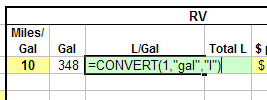
To calculate how many litres are in a gallon, I used the formula:
=CONVERT(1, “gal”,”l”)

In the formula, gal is the code for gallon, and l (lower case L) is the code for litre.

And yes, it’s way more expensive to make the trip in an RV.

Convert Litres to Gallons

Get to the Point in Twitter

I recently signed up for Twitter, to see what all the fuss is about. A few anti-Twitter bloggers have recently posted positive articles, saying it’s a good way to learn new things and connect with different people. So I took the plunge.

To start, I found those bloggers, and a few internet marketing types, and followed their posts, err, tweets. After a couple of days, a few of them were too yakety, so I un-followed them.

I found a few interesting links, and food for thought, but it was all a bit confusing and headache inducing.

Twitter has a search box for name or location, but that only searches the bios, which are very short. So how do you find relevant conversations, or interesting people?

Are there more Excel people in there, or Microsoft employees with juicy information to share? Do you just stagger through the hallways until you bump into them?

Today I found Summize, a Twitter search site that should make things easier. Type in a keyword or two, and it produces a list of tweets that contain the keyword.

From there you can follow the conversation, or check the person’s profile. Now I have to find this conversation – it looks promising!

Are You Hands Free?

Many of us have cell phones that we use hands free while on the road. When you get back to your desk, are you still hands free?

When I’m at my desk and talking to a client on the phone, I’m usually looking at a spreadsheet or database, to help my client with a question.

A few years ago I bought a headset for my office phone, and couldn’t live without it now. It felt funny at first, but I got used to it within a couple of days.

Now I can work on the computer without sustaining a neck injury from wedging the phone between my ear and shoulder. I

have a Plantronics headset, similar to the one shown below, but there are many brands and varieties, so you might find something that’s more comfortable for you.