The Bits du Jour web site offers one discounted item per day (2 on Tuesdays and Thursdays) — either Windows software or a web service.
You can see the upcoming deals, and download a trial version, to see if it’s worth buying when the discount day arrives. You can also read comments from other users, which might alert you to any problems or questions about a specific product.
The products are ordered directly from the vendor, so you’re buying the full, current version of the product, not a limited version. The products appear to be downloads, so those of us who are outside of the USA shouldn’t have to worry about shipping problems.
A quick visit to the site, once a week, will keep you up to date, and then you can return if you’ve decide to buy something, on the day it’s offered.
Many programs use the Windows Common dialogs which you’ll see when you Open or Save files in those programs.
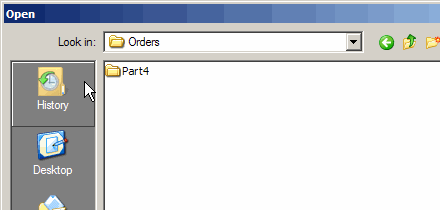
For example, in Notepad, if I select File►Open this dialog appears. The bar at the left is the Places Bar, and it contains 5 standard icons.
Not once, in my entire computing life, have I used that History folder, so it’s just a big waste of space.
The Desktop and My Computer icons aren’t used too often either. Usually I click on My Documents, and hunt for the folder I need. I use the My Pictures folder several times a day, while blogging, so it would be nice to have it one click away.
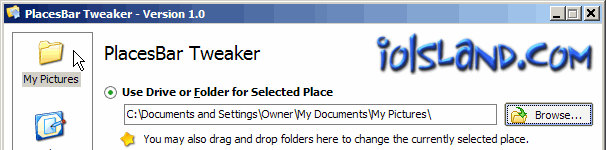
There’s a free utility, PlacesBar Tweaker, that will let you rearrange the folders in the Places Bar, or replace them with folders you prefer.
I removed History and Desktop, and substituted My Pictures and my external hard drive.
The program was simple to download and install, and very easy to use.
Click on an icon, then use the arrows to move it up or down in the Places Bar.
Or, click on an icon and select a different folder to replace it.
It only took me a few minutes to download and install the utility, and rearrange my Places Bar. I’m sure that investment will pay off very quickly in time saved.
Note: Currently PlacesBar only works for Users who have Administrator privileges.
One of the most popular downloads on my web site is an Excel file that uses Data Validation to assign players to a position each inning in a ball game.
Since the baseball file is so popular, maybe I should make a golf sample file next. How many innings does it have? 😉
Selected Player Names Removed
After a player’s name has been selected for an inning, that name disappears from the inning’s drop down lists.
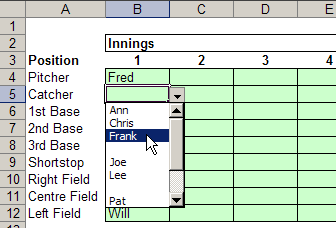
For example, in the screen shot below, Fred’s name is missing from the data validation list, because he was selected as Pitcher.
Selected Player’s name removed from drop-down list
Blank Spaces in List
In the example shown above, the data validation drop down lists have blanks where the used names were.
This isn’t a perfect solution, but it was a quick and relatively simple solution to the problem of assigning players without duplicating.
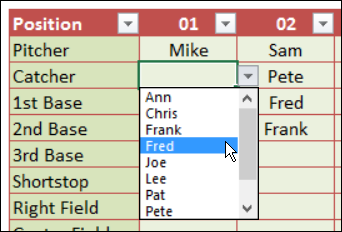
However, I’ve created a newer version that you can download, and it removes the names, without leaving blank spaces.
Selected Player’s name removed – no blanks
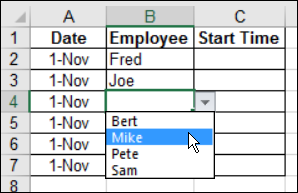
Select Employees for Tasks
There are other “Hide Used Item” examples too, in case you’re not coaching a baseball team!
For example, assign employees to a work schedule, and their names are removed from that column’s drop down list.
The page also has step-by-step instructions for setting up the items lists, and the data validation drop downs, in the data entry sheet.
______________
I don’t reboot my desktop computer too often, but when I do, it takes extra time because of all the programs that have elbowed their way into my Startup folder. The system tray fills with the icons for these programs, and I manually disable them, which takes even more time.
After every reboot, I promise myself that I’ll turn off these annoying startups, and limit the programs to those that I actually want or need. Well, my long procrastination is over, and I’m clearing out the riff-raff.
If you’ve been delaying this process too, you can follow these steps to trim the list in your computer’s Startup. I’m using Windows XP, so your system might do things differently.
Remove a Program from the Startup Shortcut List
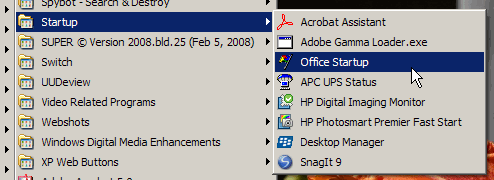
Some programs appear in the Startup Shortcut list and are easy to delete. Update: In the comments, Dave suggested moving the startup shortcuts to a different group, so you can restore them easily if you change your mind.
Click the Start button in the Windows Taskbar.
Click All Programs, then click on Startup
Right-click on a program that you want to remove from the Startup list
Click on Delete, to remove it from the list
Click OK, if prompted, to confirm the deletion.
Remove Other Startup Programs
For startup programs that don’t appear in the Shortcuts list, you can change your System Configuration settings. Do this at your own risk!
Only uncheck an item if you’re sure it’s a program that you don’t need running at startup. As a precaution, create a system restore point before changing the System Configuration.
Update: In the comments, Dave suggested that you make a list of the items you’re removing, so you can add them later, if necessary. Good idea, and I’d take a screen shot with SnagIt, since I’m too lazy to write a list. 😉
Click the Start button on the Windows Taskbar.
Click Run
In the Run dialog box, type MSCONFIG and click OK.
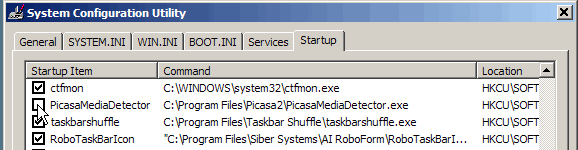
Go to the Startup tab.
Widen the Command column, to see more of the program location details.
If you’re sure that you don’t need the program to run at startup, click on the check box to remove the check mark.
Click OK, to close the dialog box, and choose to Exit Without Restart, when prompted.
Last week I listed a few tricks with the Shift key in Excel, and in the comments, Jon Peltier mentioned a trick he’d discovered with the Ctrl key.
Here are a few more things you can do with the Ctrl key in Excel.
There are many other Ctrl tricks, so if you have favourites, please share them in the comments.
Select Nonadjacent Ranges
This is my favourite use of the Ctrl key — to select nonadjacent ranges. For example:
Click on cell A1 to select it
Press the Ctrl key, and click on cell A5, then click on cell B3
Release the Ctrl key, and all three cells are selected, with B3 as the active cell.
Enter Data in Several Cells
After you’ve selected several cells, adjacent or nonadjacent, you can enter the same data or formula in all of them
Select the cells, and type the data or a formula.
Press the Ctrl key, then tap the Enter key, to enter the data or formula in all the selected cells
Show the Active Cell
Sometimes I scroll to the bottom or far side of a worksheet, to view something, then want to get back to the active cell quickly.
To show the active cell, press Ctrl + Backspace
Select Precedent Cells
If you’re analyzing a formula, you might want to go to the precedent cells — those cells that are used in the current cell’s formula.
Select a cell with a formula that refers to other cells
Press Ctrl + [
The first cell referenced in the formula will be the active cell, and other referenced cells on the same sheet will be selected.
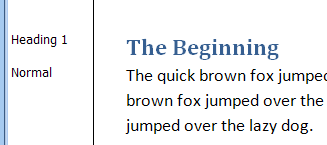
If you use Styles in Word (and you should), did you know that there’s a Style Area at the left of the screen, where you can see the Style names?
This can give you a quick overview when you’re formatting a document, and will help you apply the Styles consistently.
If you don’t use Styles, you can skip to the Random Thoughts section of this article, for a bonus tip. I know, how exciting! 😉
View the Style Area
Word 2007
Choose either Outline or Draft View
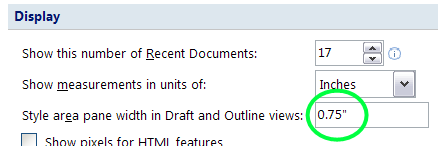
Click the Microsoft Office Button, and then click the Word Options button
Click the Advanced Category
In the Display section, set the width for the Style Area Pane, and then click OK
Word 2003 or earlier
Choose either Outline or Normal View
Click the Tools menu, and then click Options
Click the View tab
In the Outline and Normal Options section, set the width for the Style Area, and then click OK.
Hide the Style area
Drag the vertical line, between the Style Area and the document, all the way to the left.
Or, go back to the Options, and set the width to zero
Random Thoughts
In Excel, you can use the RAND function to calculate random numbers. In Word, you can use RAND to create text.
In the Word document, type: =RAND()
Press the Enter key.
In Word 2003 and earlier, you’ll see paragraphs with “The quick brown fox…”
In Word 2007, the paragraphs describe Word features.
In either version, you can enter two numbers as arguments in the RAND function, e.g. =RAND(3,4) to control the number of paragraphs (3), and sentences per paragraph (4).
If you prepare presentations and use slides, there are interesting ideas in Cliff Atkinson’s book, Beyond Bullet Points.
As the title suggests, he warns against using slides with bullet points. Instead, he uses slides to tell a story, planning them with a storyboard technique.
Atkinson starts by describing a presentation that used the BBP technique to win a major legal case. The rest of the book takes you through the steps of planning, creating and delivering the presentation.
He even suggests handouts with financial data in an Excel spreadsheet, to supplement the presentation, and “quickly establish credibility.”
Incorporating Excel is obviously a smart move in almost any presentation!
I found the book easy to read, with detailed instructions, checklists, tips and examples.
The book comes with a CD which contains templates and checklists to help you get started.
There are also templates and other free resources on the BBP web site, where you can download a couple of chapters from the book, to see if you like it enough to buy it.