Excel Users Inspired the Mouse Scroll Wheel

Do you use the mouse wheel to save time while scrolling through a web page, Word document or Excel sheet? If so, you can thank the Excel users from the early 1990s.

The scroll wheel is one of many features created by Eric Michelman, who was an Excel Program Manager at Microsoft, where he worked from 1991 to 2002.

Eric also designed other time-savers, including Pivot Tables (thanks!), database features, multi-user worksheets, and Page Break Preview.

“Back in 1993, as I was watching many Excel users do their work, I noticed the difficulty they had moving around large spreadsheets. Finding and jumping to different sections was often difficult. I had the idea that perhaps a richer input device would help.”

You can read Eric’s full account of the development of the scroll wheel, to learn how it evolved from a joystick designed for zooming in Excel (shown at the end of this article), to a scrolling wheel.

Scroll Wheel Development

There’s also a brief reference to the scroll wheel development on the Microsoft site, that confirms Eric’s description of the events.

“Eric Michelman wired a joystick to the zoom setting in Excel to make it easier to navigate large spreadsheets. He called it the ZoomLever. He demoed it at one of our team meetings and asked if anyone had any ideas for what we could use instead of the joystick. I had just bought a new VCR that had a remote with a wheel on it, and I brought it in the next day to show him. Eric asked if he could borrow it, showed it to the hardware guys, and soon we were playing with IntelliMouse prototypes with wheels on them.”

Joystick controller
Joystick controller

Straight Talk from IT

Whether you’re the CIO of a large company, or working in a small IT department, or a self-employed consultant, do you hide behind words like “anomoly”, “specifications” and “process”?

I’ve been guilty of a few of those, when a user has a problem with a spreadsheet or database that I’ve created.

In The Naked CIO: Tech’s Weasel Words, the article’s author says, “We need to keep reducing the technical jargon that is so divisive and replace it with meaningful communication.”

My favourite point in the article is a communication tip that I learned long ago — avoiding the use of “but”.

“In my team I have outlawed people saying ‘but’. As in, “I understand what you are saying but…” or “That is a great idea but…”. It has no value and only harms attempts to build consensus.”

I try to replace “but” with “and”. It makes me think a bit harder before I reply, and the results are worth the effort.

Simplify Your Writing With Thsrs

If you’re writing an article or presentation, in many cases it’s better to use smaller words, that more readers will easily understand, than to fill your articles with five syllable tongue-twisters. Eschew obfuscation, as they say.

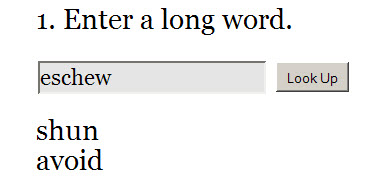
Now there’s Thsrs, an online thesaurus to help you simplify your writing.

Enter a long word in the input box, and Thsrs will return a list of suggested replacements.

One of the words in the list might be a good replacement for your longer word, and will spare your readers from confusion.

Free Online Calculators

If you’re trying to solve those IBM problems from yesterday’s post, you might need the help of a calculator. Luckily, there are free online calculators that you can use.

The first one is a scientific calculator, Calculator Tab, with long-term memory that allows you describe and retrieve saved numbers.

Click the tabs on the calculator to see the hidden functions, to save and retrieve the results, or to clear the calculator.

There are buttons on the page, above the calculator, to view the calculator in a popup window, and to use the keyboard for input.


Another free calculator is calc5, a graphing calculator. There’s not much on the page when you arrive, but click the samples listed at the right, or enter your own data in the input box.

Ponder This

When you’re stuck working on a tough Excel problem, it may help if you set that aside and work on something else for a while.

The people at IBM research apparently do this, and have a monthly problem, Ponder This, that you can tackle when your brain needs a change of scenery. The problem is posted at the beginning of the month, and the solution is posted near the end of the month.

The first challenge was posted in May 1998, with this introduction:
“Here’s what happened… Business Week recently ran an item about a “little book of big ideas” we published for the people here at IBM Research. “Sort of like the Tao for people who think about computers all day,” they wrote. Seemed harmless enough.

The story highlighted some of the simple things our researchers do to get a new perspective on things, ending with this one:

Ponder something else. For example: If a belt were placed around the Earth’s equator, and then had six meters of length added to it, and you grabbed it at a point and lifted it until all the slack was gone, how high above Earth’s surface would you be?

Now Do This

Those of you with a short attention span, and a list of things you need to do, might like the Now Do This web site.

It certainly isn’t filled with distracting shiny things.


Click the ‘edit list’ link, enter the items you need to do, then click Save
As you complete each item, click the ‘done’ button, and the next item appears on the screen.

When all the items are completed, the web site is almost as happy as you’ll be.

Focus on the Business Basics

At The Business Brickyard site, you can download a free copy of president Howard Mann’s book, Your Business Brickyard (download link is at the bottom of the page).

[Update: The free ebook is now available if you subscribe to their newsletter.]

The book is short, and to the point, with no fluffy filler. It covers twelve points that will help you focus your business on the basics, rather than following all the latest trends, and wandering in different directions.

I read it in under an hour, and found several ideas that I can implement in my business.

One of the points that Excel users might relate to is, “Fit your business on a single page.” As the book describes it, “At the end of every day, you should be able to scan a simple 8½ × 11–inch piece of paper and know exactly how your business is doing.”

There is a practice drill for each point, and a summary at the end of the book, for quick reference and review.

After reading the free downloaded copy, you might find it valuable enough to buy a printed version.

Analyze Networks with Excel Add-In NetMap

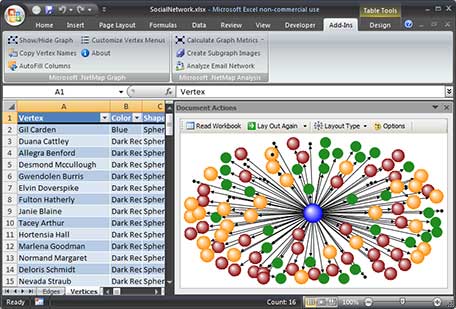
It’s interesting that Microsoft is using an Excel Add-In, NetMap, to analyze newsgroup structures.

The researchers found at least three types of participants: Answer People, Reply Magnets and Discussion People.

Hey, I know a few of those “Answer People.” No mention of trolls though — maybe they’re in the Discussion People group.

Analyzing newsgroup networks in Excel

Website Connections

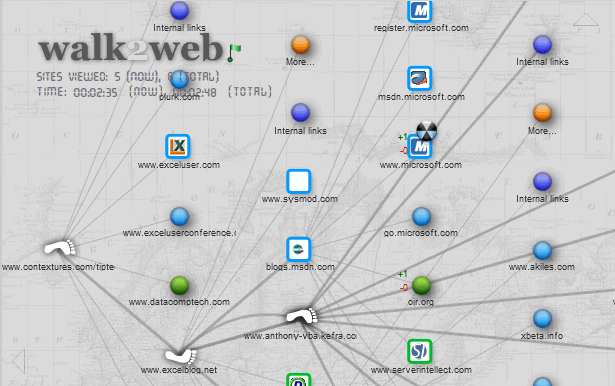
Somewhat related, but more fun, I won’t admit how much time I’ve spent on the Walk2Web site this week, exploring the connections between web sites. I’m marking it in my time log as “Research” so it’s time invested, rather than time wasted. 😉

It’s a great way to discover new sites in your area of interest, and who knows what other gems (or garbage) you’ll find? It’s fascinating to see a picture of how sites are linked, and it does look like a web after you’ve walked to a few sites. A very messy web, granted.

In the screen shot below I’ve followed a couple of the links from my Excel Tips Index page.

  • In the overview you can click on a linked site, to see its connections, or point to a link and see a snapshot of the page.
  • Point to the top, bottom, left or right of the page, to scroll in that direction.
  • Green links are incoming and blue links are outgoing. A maximum of three of each are shown, and you can click the orange More links to expand the view.
  • You can mark sites as favorites, Digg them or StumbleUpon them.

So, if you’re looking for inspiration, or new ideas, or a way to kill an hour, visit Walk2Web. Don’t say that I didn’t warn you.

Simplify Data Entry With AutoCorrect

Instead of typing long phrases in Word or Excel, you can create AutoCorrect entries for those items.

What Do You Type Frequently?

Your AutoCorrect entries are most helpful if they are for long words or phrases that you type frequently, while you’re working.  For example:

  • your full name
  • your job title
  • your company’s full name
  • email sentences, such as, “I’ll send you the file tomorrow.”

Short Replacement Code

The goal is to type a very short AutoCorrect code, and have Excel automatically replace that with the full word or phrase.

  • Note: Don’t use a short code that is an actual word that you use!

Here are example codes, for the AutoCorrect entries that I suggested in the previous section:

  • DD: Debra Dalgleish
  • dmk: Director of Marketing, Canada
  • ctxi: Contextures Inc.
  • syf: I’ll send you the file tomorrow.”

Continue reading “Simplify Data Entry With AutoCorrect”

Daily Discounts on Computer Software

The Bits du Jour web site offers one discounted item per day (2 on Tuesdays and Thursdays) — either Windows software or a web service.

You can see the upcoming deals, and download a trial version, to see if it’s worth buying when the discount day arrives. You can also read comments from other users, which might alert you to any problems or questions about a specific product.

The products are ordered directly from the vendor, so you’re buying the full, current version of the product, not a limited version. The products appear to be downloads, so those of us who are outside of the USA shouldn’t have to worry about shipping problems.

A quick visit to the site, once a week, will keep you up to date, and then you can return if you’ve decide to buy something, on the day it’s offered.