Product Support at Get Satisfaction

If you’re frustrated or pleased with a company or product, you can join the discussions at Get Satisfaction. The site is similar to the Microsoft newsgroups, with a wide range of questions and comments.

Company employees are encouraged to participate, and customers help one another.

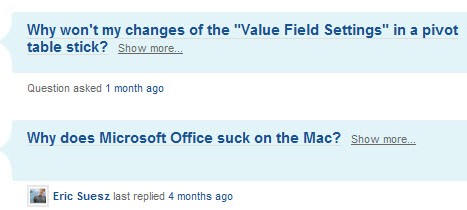
You can ask questions, describe problems, voice an opinion, or help someone else. Microsoft is participating, and there are a few Excel questions listed.


There are hundreds of other companies too, so if you’re looking for help, or want to evaluate a company or product, this might be a good place to start.

Generate Numbers for Excel Testing

When answering newsgroup Excel questions, or doing testing for client projects, I often create a quick table, with a few rows and columns.

The headings, such as a list of months or weekdays can be generated by using AutoFill. That just leaves the body of the table, where I want some numbers for the test.

Create Random Numbers

I used to calculate numbers with a RAND or RANDBETWEEN formula, then copy and paste the results as values.

But that’s a lot of steps when you’re in a hurry, so I built my own number generator, that runs with a click or two.

The values aren’t important, I just want something to populate a table, pivot table or quick chart.

Excel Macros for Random Numbers

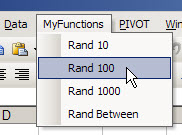
I wrote macros to generate numbers in different ranges, and added these to a toolbar menu.

You could add toolbar buttons, or assign shortcut keys to run them. In Excel 2007, add them to the Quick Access Toolbar.

Excel Macros for Random Numbers

Excel VBA Code

My macro code is shown below. Do you have a different way to create dummy numbers for testing?

'====================================
Sub SRandRange()
Dim c As Range
Dim x As Long, y As Long
Application.EnableEvents = False
Application.ScreenUpdating = False
x = Application.InputBox("Start Number")
y = Application.InputBox("End Number")
For Each c In Selection
c.Value = randbetween(x, y)
Next
Application.EnableEvents = True
Application.ScreenUpdating = True
End Sub
'====================================
Sub SRand10()
Dim c As Range
Application.EnableEvents = False
Application.ScreenUpdating = False
For Each c In Selection
c.Value = Evaluate("=ROUND(RAND()*10,0)")
Next c
Application.EnableEvents = True
Application.ScreenUpdating = True
End Sub
'====================================

Excel Fashion Statement

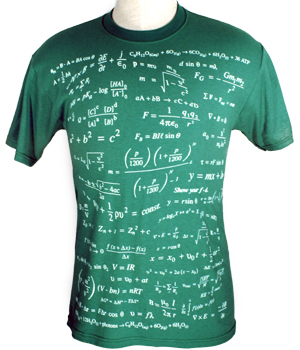
This Saturday, when you’re relaxing at home after working with Excel files all week, what will you wear?

This Equations t-shirt looks like the perfect choice.


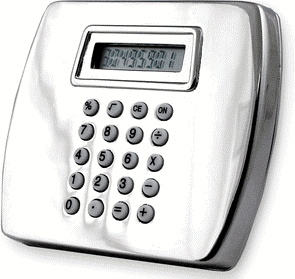
And next week, when you head back to the office, you might find this Calculator Belt Buckle useful.

The ad claims that it’s “Great for accountants, cheaters or math geeks alike.” And what could possibly be wrong with that?

Back Up Your RSS Feed

Every day, I skim through a long list of blog posts, in Google Reader. I’ve accumulated the items in my list over a few years, and would hate to lose it.

Now I’m sure that the fine people at Google take very good care of my feed, and I don’t have to worry about it. However, just to be on the safe side, I make a backup copy of the feed every couple of weeks or so.

Then, it’s on my computer, and gets backed up onto the external drive too. Belts and suspenders might not be fashionable, but they can prevent embarrassing situations.

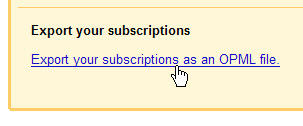
Here are the steps for exporting a backup file from Google Reader. Other RSS readers should have something similar. This technique is also useful if you decide to change to a different RSS reader.

You can export from the old one, and import in the new one. If Google ever disappears in the middle of the night, and I have to go back to Bloglines, I’ll be ready.

Export an RSS Feed

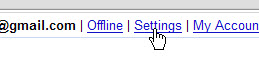
  • Log in to Google Reader, and click the Settings link.

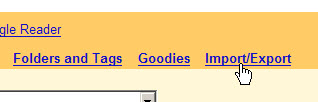
  • Click on the Import/Export link

  • Click the Export button

  • Select a folder, and save the file. That’s it!

Technogeek Dream Coat

Why have I been making do with three pockets, when I could have 19? Or 39? Who knew there were special clothes for technology lovers?

Here’s the rodeo coat, which has 39 pockets. Might come in handy, even if you don’t plan to attend a rodeo.

As you can see, it’s a final close out, so act fast! Remember, this blog is dedicated to helping you save time and money.


The SCOTTEVEST people realize that women are technology lovers too. I need this vest, with its 21 handy pockets.

I’ll pass on the Hidden Cargo Pants though, thanks anyway.

Find WiFi While Travelling

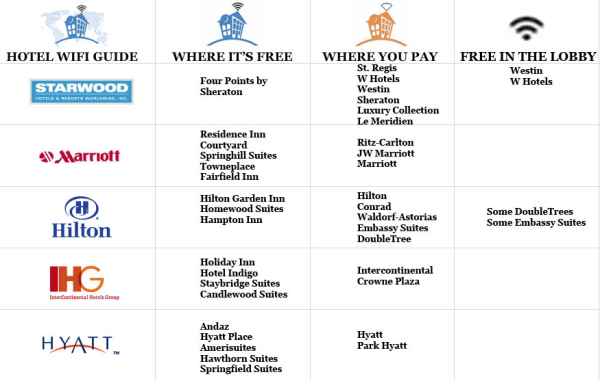
When you’re travelling, you probably bring your laptop, so you can do some work and keep up with your email. Some of the ritziest hotels that I’ve stayed in charge for daily access to their wireless network, or you can trudge down to the lobby for free access.

At other, mid-priced hotels, the access is sometimes free. If you’re paying an exorbitant rate for the room, can’t they throw in a couple of dollars worth of wifi?

If you’re planning a trip, the following chart, from Book of Joe, shows which hotel chains have free access, and which chains charge for it, or make you balance your laptop on your knees in the lobby.


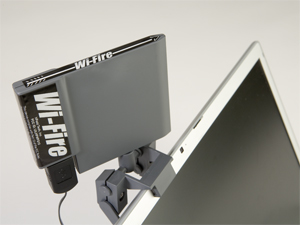
If you have trouble finding a nearby wireless network, the Wi-Fire might help you find something a bit further away.

I haven’t tried it, but there have been many times that it would have been very useful.

Are You Ready for Metered Internet?

If you had asked me a few days ago, how much I download and upload each day, I’d have had no idea. Apparently some cable companies in the USA are testing metered internet service.

I haven’t seen this mentioned for Canadian companies, but if it works in Texas, it will probably arrive here soon enough. If you know your current usage, you’ll be able to select the best plan for your needs.

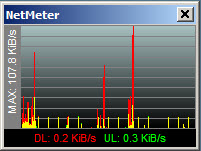
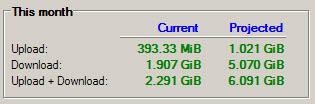
To measure your daily transfer rates, you can download the free utility, NetMeter. I installed it last week, which went very smoothly. The icon sits in the system tray, and you can click on it to see a graph of your current usage.


Right-click on the system tray icon, to change the options, or to view your totals and projected totals.


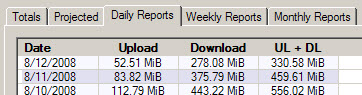
You can also view Daily, Weekly and Monthly reports, and export them as csv files. Open the exported files in Excel, and you can create your own chart, reports and pivot tables from the data.

Send Google Search Results to Your Newsreader

If you’re trying to stay on top of the news in Excel or another area of interest, you can create Google Alerts to update you automatically.

After you create an Alert, you can add it to your newsreader, and read it with the rest of your feeds every day. I prefer this, instead of getting Alerts by email.

Create a Google Alert

  • Log in to your Google account, and click on Google Alerts
  • Enter your search topic, and set the other options for the alert.

  • Click Create Alert, to open the list of Alerts

Add the Alert to a Newsreader

These steps will vary, depending on your browser and newsreader. In this example, I used Firefox and Google Reader.

  • In the list, click on the search term link


  • In the toolbar of your browser, click the RSS Feed icon.


  • On the Feed page, select a newsreader from the drop down list

  • Click the Subscribe Now button
  • Click the Add to Google Reader button, or complete the steps in your newsreader.

Delete the Google Alert

  1. Go back to the list of Google Alerts
  2. Add a check mark to your Alert, then click the Delete button.