Customize Excel Right-Click Menus

iconmenurighterDo you ever right-click on something in Excel, and the command that you wanted to use isn’t on that pop-up menu?

For example, if right-click on a cell, there is no command to turn off the gridlines.
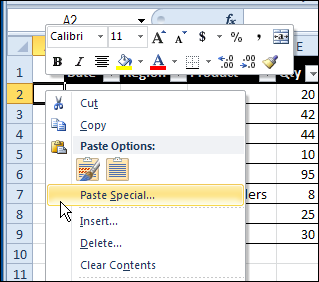
menurighter01

If you can’t find the command on the right-click menu, you have to go to the Excel Ribbon or Quick Access Toolbar (QAT) instead, and try to find the command on one of the tabs there.

What commands would you add to a right-click menu? Are there commands that you added to the QAT, that would be even better in a popup menu?

Customize the Right-Click Menus

Fortunately, Doug Glancy has created a solution to the right-click menu problem, with his MenuRighter Add-in. With Doug’s free add-in, you can add commands to the pop-up menus, so the items that you need are easy to find.

The add-in is not for sissies! You need to know where the commands were on the old Excel 2003 menus – or be willing to poke around and find them.

Then, you select the right-click menu where you want to add the command, and click the buttons to add the command, and save the changes.

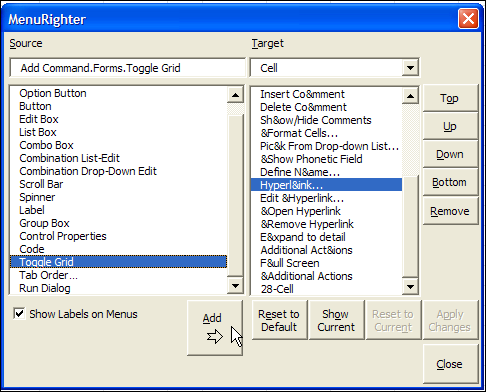
In the screen shot below, I have selected the ToggleGrid command from the Forms toolbar, and am adding it to the Cell popup menu, just above the Hyperlink command.
menurighter02

Find the Right Right Menu

There is a large collection of Targets, so it can be tricky to select the correct one. There are two Cell targets, so how can you decide which right menu is the right one?

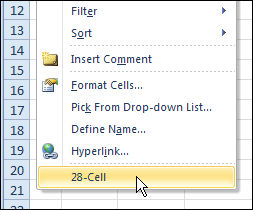
While the MenuRighter is open, you can check the box for Show Labels on Menus. At the bottom of the list at the right, you can see the identity for the selected Cell target – 28-Cell.

If I right-click on cell A2, the popup menu also shows 28-Cell, so that confirms that I selected the Cell target that I want.
menurighter03

Use the Modified Right-Click Menus

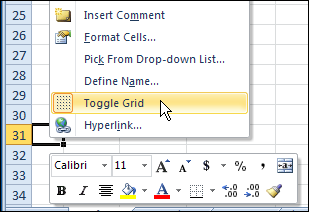
After I added the Toggle Grid command to the Cell menu, I clicked Apply Changes, and closed the MenuRighter window.

Then, I can right-click on a cell, and turn the gridlines on or off.
menurighter04

It’s a command that I use frequently, so it’s very convenient to have it in the right-click menu. Thanks Doug, you made life in Excel a little easier!

Download the MenuRighter Add-in

For more instructions, and to download the MenuRighter add-in, you can visit Doug Glancy’s website: MenuRighter Add-in.

Watch the MenuRighter Video

To see the steps for adding a command to a right-click menu, by using the free MenuRighter add-in, you can watch this short Excel video tutorial.

___________________
Excel VLOOKUP Troubleshooting

You’re admired by your co-workers, thanks to your awesome Excel skills. Cupcakes magically appear on your desk, in thanks for your help with complex formulas.

Your boss keeps stretching the budget, to accommodate the huge bonuses you get, in reward for your amazing talents. Well, that might not be the exact situation, but I’m sure your skills are appreciated!

VLOOKUP Trouble

Then, one day, it all goes horribly wrong. Your boss needs a report in 15 minutes, and you can’t get a seemingly simple VLOOKUP formula to work.

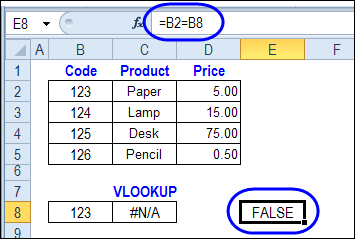
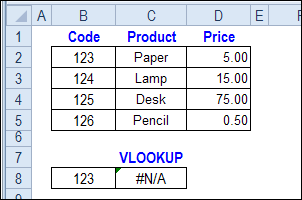
You can see the target product numbers in the lookup table, but the formula result is #N/A, instead of the product price.

formula result is #N/A

You don’t want to lose your Excel Expert badge over something this trivial, so how will you solve the problem?

Text or Number?

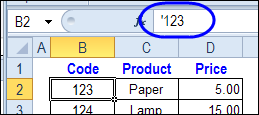
A common cause for this VLOOKUP error is that one of the values is a number, and the other is text. In this example, the lookup table codes in cell B2:B5 are stored as text values – they have a leading apostrophe.

The lookup code, in cell B8, is entered as a number – no leading apostrophe.

vlookuptroubleshoot02

So, it looks like cells B2 and B8 are equal, but Excel sees them as different values.

vlookuptroubleshoot03

Fix the Text Values

The easiest solution to the the VLOOKUP problem in this example is to convert the text values to numbers, so the codes in the table match your lookup values.

Or, type an apostrophe in front of your lookup code in cell B8, so it’s a text value too.

Change the VLOOKUP Formula

If you can’t fix the data, you can convert the lookup value in the Excel VLOOKUP formula. Here is the original VLOOKUP formula, that returned an #N/A error.

=VLOOKUP(B8,$B$2:$D$5,2,FALSE)

If you add an empty string to the end of the value in cell B8, the lookup number will be converted to a text string. The revised formula is:

=VLOOKUP(B8 & “”,$B$2:$D$5,2,FALSE)

This formula will also work if cell B8 contains a text value – adding the empty string won’t change the value.

More Excel VLOOKUP Troubleshooting

If this VLOOKUP formula fix doesn’t solve the problem, there are more Excel VLOOKUP troubleshooting tips on the Contextures website.
Have you run into this problem? How did you fix it?

Watch the Excel VLOOKUP Troubleshooting Video

To see the steps for fixing the Excel VLOOKUP problem, you can watch this short Excel video tutorial.

___________________
GetPivotData Formula Instead of Cell Link

This week, I was updating the GetPivotData Function page on my website, and remembered how hard it was to turn off that feature, in Excel 2003 and earlier.

We won’t even talk about the really olden days (Excel 2000), when you had to type those tricky GetPivotData formulas yourself!

Automatic Formulas

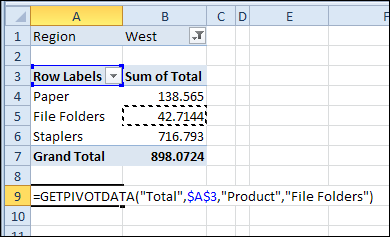
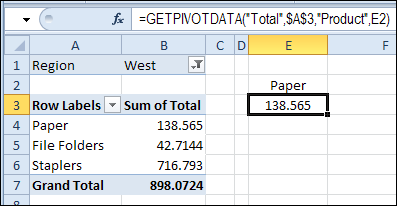
If you try to reference a pivot table cell, a GetPivotData formula may be automatically created, instead of a simple cell reference. This is thanks to the Generate GetPivotData feature, which is turned on by default.

getpivotdata02

The automatic formula can be a helpful feature, but sometimes you’d rather just have the cell link. You could type the link yourself, or find a way to turn off the formula feature.

GetPivotData in Excel 2003 and Earlier

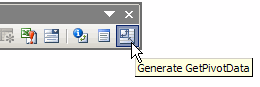
In the old versions of Excel, if you want to stop that automatic formula creation, you have to add the Generate GetPivotData button to the PivotTable toolbar.

If you’re nostalgic for the old method, you can see it in the video at the end of this blog.

image

GetPivotData in Excel 2007 and Excel 2010

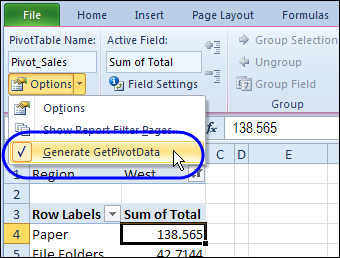
Now, it’s much easier to turn the Generate GetPivotData feature on and off.

  1. Select any cell in a pivot table.
  2. On the Excel Ribbon, under PivotTable Tools, click the Options tab.
  3. In the PivotTable group, click the drop down arrow for Options
  4. Click the Generate GetPivotData command, to turn the feature on or off.

getpivotdata01

GetPivotData Formulas

There is more information on the GetPivotData Function page, including examples of using cell references within the formula.

It’s a great way to pull specific data from your pivot tables.

getpivotdata03

Generate GetPivotData Button in Excel 2003

To see how we changed this setting in the olden days, you can watch this short video.

___________

Calculate Thanksgiving Date in Excel

Recently, Jerry Latham showed us how to use Excel to calculate the date of Easter in any year, by using a worksheet formula or Excel User Defined Function (UDF). Now, it’s getting close to Thanksgiving in the USA, so lets see how to calculate that date, with an Excel worksheet formula.

Continue reading “Calculate Thanksgiving Date in Excel”

How to Add Bullets in Excel

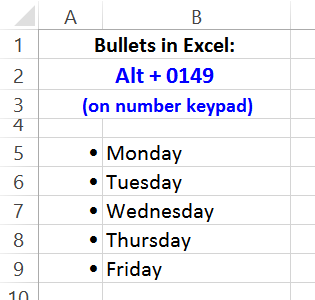
There’s no built-in feature for bullets in Excel, like there is in a Word document. Bullets are a handy feature when you’re making a list, so it would be nice to use them occasionally, in our Excel files. Even though they’re not built in, keep reading, to see how to add bullets in Excel.

Continue reading “How to Add Bullets in Excel”

Excel Macro Name Conflicts

Last week I ran into an interesting problem, when trying to fix a macro button in a client’s Excel file. I’ve created a simplified version of the workbook and button, to show you what happened.

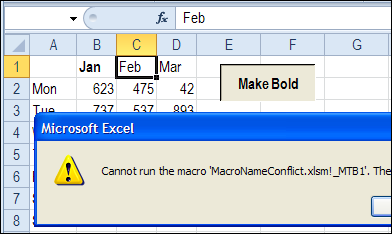
The workbook had been converted from Excel 2003 to Excel 2010, and when the macro button was clicked, it showed an error message.

  • Cannot run the macro…The macro may not be available in this workbook or all macros may be disabled.

macronameconflict01b

Other buttons in the workbook were working fine, so the macros were enabled – that wasn’t the problem.

Assign a Macro to the Button

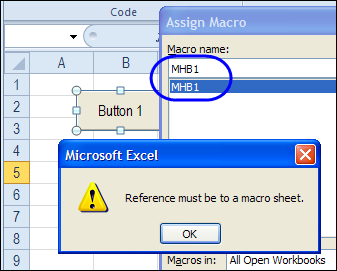
I tried to reconnect the button to the macro, but when I tried, another error message appeared.

  • Reference must be to a macro sheet.

macronameconflict02

Well, I haven’t used a macro sheet for about 10 years, so that was a bit confusing! Didn’t we get rid of macro sheets, several versions ago?

Cell Name Conflict

Finally, I realized what the problem was. The person who created the macro used a very short name – MBT1 – which was fine in Excel 2003, where the last column was IV.

When the file was converted to Excel 2010, the macro name became a problem, because there is a cell with the address MBT1.

During the conversion, the button’s macro reference was automatically changed to _MBT1 to prevent a conflict with the cell reference.

macronameconflict04

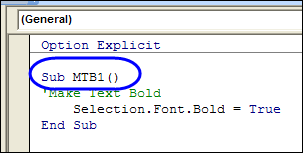
However, the macro name wasn’t changed automatically – it was still named MTB1. So, the button couldn’t find a macro named _MTB1, and the error message appeared.

macronameconflict06

Fix the Macro Name Conflict

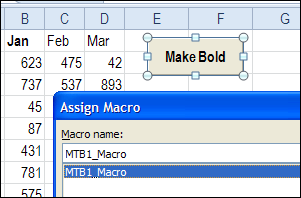
To fix the problem, I changed the macro name to MTB1_Macro, and connected the button to the renamed macro. Now, the button works correctly, and runs the macro without complaining.

macronameconflict07

Prevent the Problem

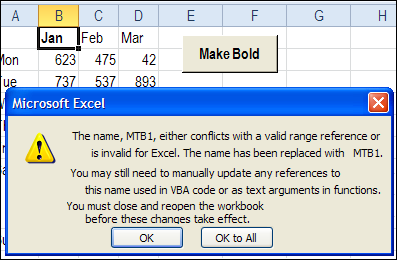
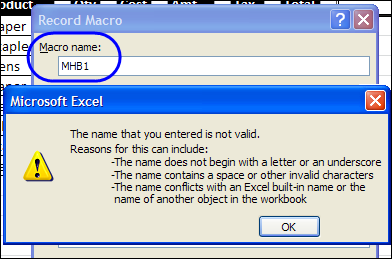
When you’re recording a macro, if you use a name that’s the same as a cell name in Excel 2010, you’ll see an error message, warning you about the name conflict.

  • The name conflicts with an Excel built-in name or the name of another object in the workbook.

macronameconflict01

Use longer names for your macros, or include an underscore, to avoid problems – now, and in the future. Who knows how many columns the next version of Excel will have?

Other Macro Naming Problems

You can also have problems running your macros if the procedures have the same name as a module in the workbook. To avoid that, start your module names with “mod”, such as modUpdate, and don’t use those names for any macros.

Have you run into any other problems with naming your macros?
____________