Someone emailed me this week, about a problem he was having with my sample Part Data Entry UserForm.
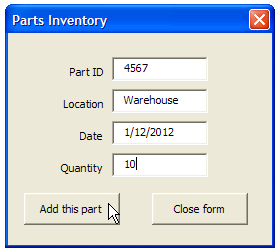
When I took a look at the workbook, everything seemed okay, and the code had been copied and altered correctly.
Excel Named Table
Then I noticed that there was a formatted Excel table on the data collection sheet, which wasn’t in my original file.
That can cause problems if you’re using Excel VBA to add data to the first blank row on the worksheet.
Change the Last Row Code
In the comments for my Find First Blank Row blog post, Rick Rothstein suggested this code revision:
LastRow = Cells.Find(What:="*", SearchOrder:=xlRows,
SearchDirection:=xlPrevious, LookIn:=xlValues).Row
Rick mentioned that this formula ignores cells with formulas that are displaying the empty string. If your situation is such that you need to identify formula cells that might be displaying the empty string, then change the xlValues argument to xlFormulas.
Revised Excel VBA Code
So, I changed the Part Data Entry code, to use the Find method for finding the last row. I replaced this old line of code:
'find first empty row in database
iRow = ws.Cells(Rows.Count, 1) _
  .End(xlUp).Offset(1, 0).Row
With this line of code:
iRow = ws.Cells.Find(What:="*", SearchOrder:=xlRows, _
       SearchDirection:=xlPrevious, LookIn:=xlValues).Row + 1
Parts Data Entry UserForm With Combo Boxes
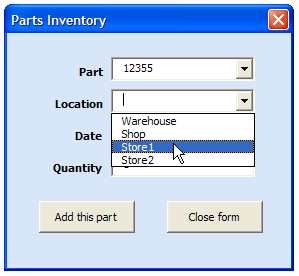
There is another version of the Parts Data Entry UserForm, and it’s a little fancier, with combo boxes to select parts and locations.
I’ve updated the Parts Data Entry UserForm With Combo Boxes too, with the revised last row code.
Get the Updated Sample Files
You can download the updated versions of the parts data entry forms on the Contextures website.
Parts Data Entry UserForm With Combo Boxes
_________________