Create a New Message

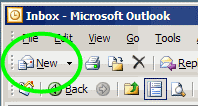
To create a new message in Outlook, you probably click the New button in the Outlook toolbar.


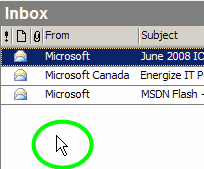
If you’d like to save a few inches of mouse travelling, double-click on the empty space under the list of messages, as shown in the screen shot below. That will open a new message window for you.


If there’s no empty space at the bottom of the list, or if your hands are on the keyboard, press Ctrl + N to create a new message.

These shortcuts also work in the other areas of Outlook, such as Contacts, Tasks and Calendar.

Blog vs Web Site

One of the blogs that I read is sponsoring a Blog vs.Web Site project, and it made me think about why I started this blog.

I’ve had a web site since 2001 and enjoy creating Excel tutorials and sample files. These are popular, and traffic increases each month. Recently, I plunged into blogging as a different way to communicate with Excel users and perhaps a larger community.

To me blog vs. web is like newsstand vs. library. Blog readers want a hot tip or fascinating tidbit, something juicy to chew on, not lug home and study for a week.

Readers grab the idea of the day, learning though serendipity. They come to a blog with an open mind, ready to absorb a new idea. They hope to find something provocative or amusing or a helpful tip.

With a blog, there’s daily pressure to write something new and interesting. On my web site I add items for reference. There’s no posting schedule — I add an article or sample file when I’m inspired.

The site has an index page and many visitors, including me, return to the same pages frequently when trying to remember how some obscure feature works.

The blog’s style is casual and personal, different than the more formal style of the web site.

Another key difference is the interaction with readers.

  • On a web site, a tutorial might inspire a reader to email me for clarification or to point out an error.
  • On a blog, readers can leave a comment, good or bad, for the whole world to see. Well a small part of the world!

By inviting comments, you became vulnerable. Instead of being a reclusive expert, blogging makes me face the world every day, look it square in the eye, and say, “Here’s my opinion. What do you think?” It’s invigorating, with a few moments of nail biting.

It’s challenging to find new topics to post, and to explore a new medium. I’ve experienced some pain in learning the secrets of WordPress, but that will pass.

At any rate, it’s been enjoyable so far, and I hope it continues.

Get to the Point in Twitter

I recently signed up for Twitter, to see what all the fuss is about. A few anti-Twitter bloggers have recently posted positive articles, saying it’s a good way to learn new things and connect with different people. So I took the plunge.

To start, I found those bloggers, and a few internet marketing types, and followed their posts, err, tweets. After a couple of days, a few of them were too yakety, so I un-followed them.

I found a few interesting links, and food for thought, but it was all a bit confusing and headache inducing.

Twitter has a search box for name or location, but that only searches the bios, which are very short. So how do you find relevant conversations, or interesting people?

Are there more Excel people in there, or Microsoft employees with juicy information to share? Do you just stagger through the hallways until you bump into them?

Today I found Summize, a Twitter search site that should make things easier. Type in a keyword or two, and it produces a list of tweets that contain the keyword.

From there you can follow the conversation, or check the person’s profile. Now I have to find this conversation – it looks promising!

Are You Hands Free?

Many of us have cell phones that we use hands free while on the road. When you get back to your desk, are you still hands free?

When I’m at my desk and talking to a client on the phone, I’m usually looking at a spreadsheet or database, to help my client with a question.

A few years ago I bought a headset for my office phone, and couldn’t live without it now. It felt funny at first, but I got used to it within a couple of days.

Now I can work on the computer without sustaining a neck injury from wedging the phone between my ear and shoulder. I

have a Plantronics headset, similar to the one shown below, but there are many brands and varieties, so you might find something that’s more comfortable for you.

Prevent Email Links From Breaking

I have a secure upload site, and often send the link to my clients, so they can upload a large file for me to work on. Because the address is long, the link sometimes wraps in the email, and doesn’t work when the recipient clicks on it.

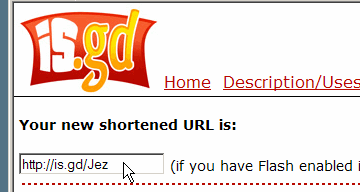
To prevent this problem, you can use a link compression site, such as TinyURL or is.gd.

  1. Copy the long address, by using the keyboard shortcut Ctrl + C
  2. Go to the link compression site, and follow the instructions.
  3. Copy the short address, and paste it into your email.


Note: These shorter addresses are also handy if you’re using Twitter, which has a 140 character limit.

What’s Your Response Time?

How do you get any work done when the phone keeps ringing and the email alert dings every few minutes?

When I’m in the middle of an Excel programming project, I need to concentrate, or I lose time and momentum. To help reduce the distractions I turn off the email alerts and unplug the phone, then focus on the project for a few uninterrupted hours. It’s amazing how much I can get done!

My clients know that I’m frequently unavailable, either out at meetings, or working away from the phone. If they leave a message or send an email, I’ll respond within 24 hours.

On those rare occasions that I’m away for a few days, I warn my clients in advance, and my voice mail gives my return date, so people know when to expect a reply.

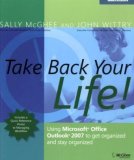
In Take Back Your Life, Sally McGhee suggests adding a response time to your voice mail and your email signature.

You’ll get more done because you can focus on your work, then respond to phone calls and emails once or twice during the day.

Even Word Has a Calculator

Yesterday I mentioned the Windows Calculator and Google Calculator. Did you know that Word has a calculator too?

To use it, you can add a button to a Word toolbar, then select numbers, and click the Calculator button, to see the total.

To add the button to a Word toolbar:

  • In Word, click the Tools menu, and click on Customize
  • Click the Commands tab, and click the Tools category.
  • Scroll down the list of commands, to find Tools Calculate
  • Drag that button to one of your Word toolbars.
  • To show a picture, instead of the text, right-click on the button in the toolbar
  • Click on Default Style
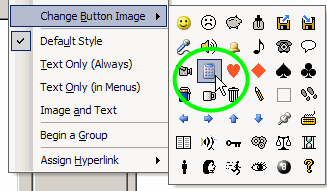
  • Right-click on the button again, and click on Change Button Image
  • Click on the Calculator icon.

  • Close the Customize dialog box

To use the Calculator button:

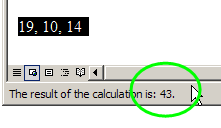
  • Select a column or list of numbers in Word, or type and select a formula, such as 19*10/14.
  • Click on the Calculator button.
  • Look in the Status Bar, at the bottom left of the Word window, to see the result . The total is also automatically copied to the clipboard, so you can paste it in Word, or somewhere else.

Calculator at Your Fingertips

Most of the time I do my calculations in Excel, but occasionally I reach for a calculator instead — and it’s never where I left it.

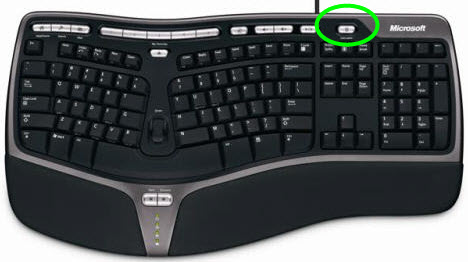
Fortunately, my keyboard has a button that launches the Windows calculator, so I can do quick calculations there.

The Calculator key is at the top of the keyboard, just above the ScrLk key, buried under a layer of dust and crumbs. Fairly well hidden, but it’s nice to have.


Another way to do a quick calculation is in Google.

Type a formula in the Search box, then click Google Search, or press the Enter key, to see the result.