Copy Code to Your Excel Workbook

You might find Excel code on this blog, or my Pivot Table blog, and want to copy it into your own workbooks.

I’ve updated my web page, Adding Code to an Excel Workbook, to show instructions for Excel 2010.

New Video

There’s a new video on that page too, that shows how to

  • copy Excel code from the internet
  • insert a code module in Excel
  • paste the code into the module
  • run the new macro
  • save the file as macro enabled

Video: Copy Excel VBA Code

You can watch the new video here too, if you’d like to see the steps.

In the video, the sample pivot table code was copied from the Excel Pivot Tables blog: Change All Pivot Table Value Fields to SUM

NOTE: For the Excel 2003 version of the Copy Code tutorial, please visit: Copy Code to Excel 2003 Workbook

Modify the Code

It’s not always so simple to copy Excel code, and use it in your workbooks. You might have to modify the code, by changing worksheet names, or cell references, to match what is in your file.

For example, if you copy my code for multiple selections from an Excel drop down, you might have your data validation cells in a different column. You could change the column number in the code, as shown in the following video.

Note: This code goes on a worksheet module, instead of a regular module.

_________________

Check Excel Database Before Adding New Item

When you build an Excel tool or template, it’s rare that you’re ever really finished building. There’s always something that would make the tool a little better, either for your own use, or for your customers.

And that’s the case with the Excel worksheet data entry form, which I’ve just updated again.

The original version was by Dave Peterson, and the form has evolved into a version in which you can add and update items in the database.

New Features

In the latest version, I fixed an issue with the navigation. Thanks to Travis, who let me know about the problem.

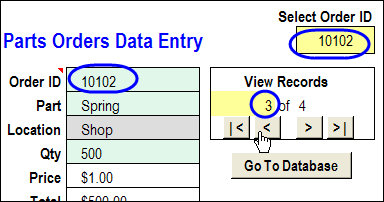
Now, when you move to a different record with the arrow buttons, the Order ID selector also updates.

You can see the Order ID, the Order ID selector, and the record number, circled in the screen shot below.

Order ID, Order ID selector, record number

Add or Update

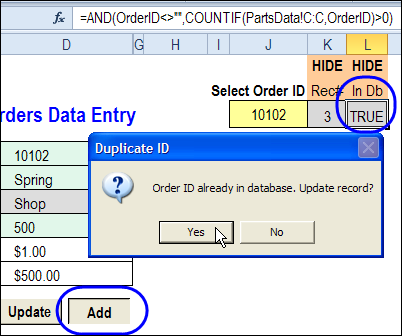
The other enhancement is a database check, when you click the Add or Update button. In a hidden column, a COUNTIF formula counts the selected Order ID occurrences in the database.

=AND(OrderID<>””,COUNTIF(PartsData!C:C,OrderID)>0)

If the Order ID is found in the database, the result is TRUE, otherwise the result is FALSE.

Warning Message

If you try to add an Order ID that already exists in the database, you’ll see a warning message, shown below.

  • Click Yes, to update the record
  • Or click No, enter a unique ID number, and click Add again.

dataentryform02

Message – Not in Database

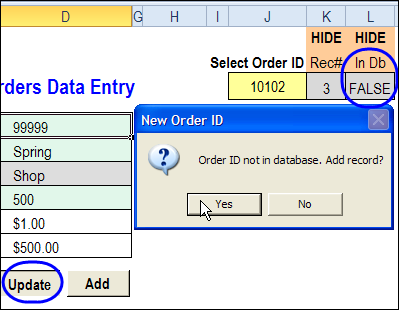
Or, if you try to update a record and it’s Order ID isn’t in the database, you’ll see a different warning.

  • Click Yes to add the record, instead of updating.
  • Or, click No, enter an existing ID number, and click Update again.

dataentryform03

Download the Updated Form

To download the new version of the worksheet data entry form, please visit the the Data Entry and Update Form page on the Contextures website.

The download link is near the bottom of the page.

And if you have any ideas for future improvements, please let me know!

More Articles on the Worksheet Data Entry Forms

Website pages With Sample Files

Data Entry Worksheet Form – Basic

Worksheet Data Entry Form – Enhanced

Blog Posts

Worksheet Data Entry Form in Excel

Edit Records in Excel Worksheet Data Entry Form

New Improved Excel Data Entry Form

How to Customize the Excel Data Entry Form

Delete Orders with Excel Data Entry Form
________________________

Automatically Format an Excel File

Do you open the same type of Excel file every day, and make a few standard formatting changes, before you start to use it?

One of my clients was getting tired of manually formatting a daily list of customer information, and asked for some help.

Record a Macro

I suggested that she record a macro while formatting the file, and run the macro each day, when the new file arrives.

Other people in her company were in the same situation, so I set up a workbook with some fake data, and made a video, to show them the steps.

Excel Tips Too

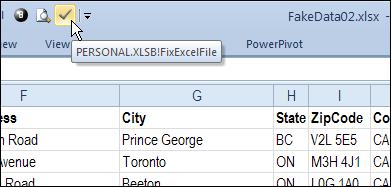
I included a few Excel tips too, like using the F4 key to repeat the last action, and adding a button to the Quick Access Toolbar.

Add macro button to Quick Access Toolbar

Watch the Record and Run a Macro video

If it’s something that you’d like to learn, or share with a co-worker (so they’ll stop asking you for help!), you can watch this short Excel video tutorial.

You could save time by automating some your daily tasks in Excel!

And by recording and editing a few macros, you’ll learn a bit about Excel VBA programming too!

_________________

AutoFit Merged Cell Row Height

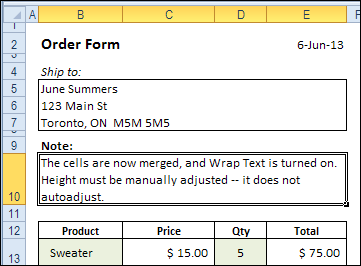
You’ve most likely heard this warning — “Avoid merged cells in your Excel worksheets!”, and that is excellent advice. Merged cells can cause problems, especially when they’re in a table that you’ll be sorting and filtering. You’ll run into more problems if you try to autofit merged cell row height.

Continue reading “AutoFit Merged Cell Row Height”

Add New ComboBox Items in Excel UserForm

If you want to enter data in an Excel worksheet, while keeping the data sheet hidden, you can create an Excel UserForm.

I’ve updated my sample file, so you can now add new parts to the drop down list, while you’re  entering data. It’s almost working the way it should, but I’m stuck on one step, so if you have a solution, please let me know!

[Update: Problem solved with a workaround — see below.]

Select Part from ComboBox Drop Down List

In the sample file, you can click the Add Parts Information button on the worksheet, to open the UserForm.

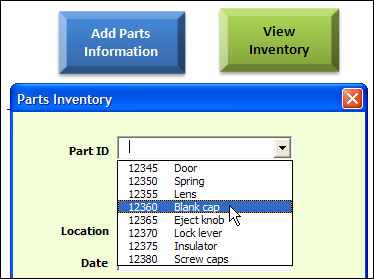
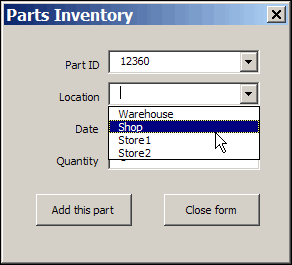
Then, at the top of the UserForm, select a Part ID from the combo box drop down list.

The drop down list shows part ID, and the part name. After you make a selection, only the part ID appears in the combo box.
userformcomboadd02

The Parts List

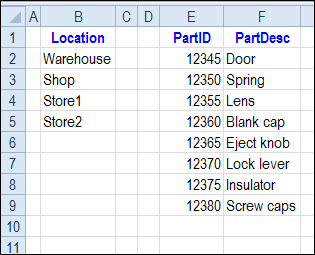
On another sheet in the workbook, there are two lists – Location, and Parts. These are dynamic named ranges, based on a formula, and the named ranges will expand automatically, as new items are added to the lists.
userformcomboadd01

Add a New Part to the List

In the latest version of the sample file, you can add new parts to the list, while you are entering data in the UserForm.

  1. First, if the Part ID that you want is not in the list, type it into the Part ID combo box.
  2. Next, when you press the Tab key, to move to the next control, a Part Description text box will appear.
  3. Enter the description, then fill in the rest of the data.
  4. Finally, click the Add This Part button
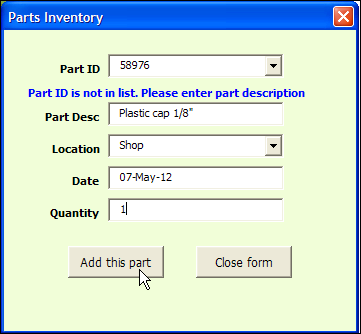
userformcomboadd05

Select the New Part

After you click the Add This Part button, the new item is added to the Parts List, and the Parts list on the worksheet is sorted A-Z, based on the PartID column.
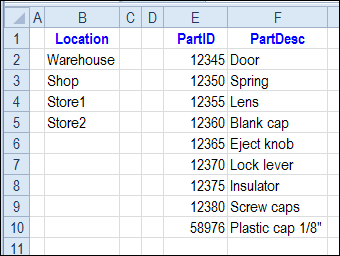
userformcombo06

The next time you click the Part ID combo box arrow, you will see that the new item now appears in the drop down list.
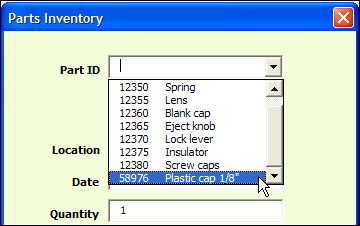
userformcomboadd04

SetFocus Problem

My goal was to have the Part Description activated, as soon as it was made visible. However, the VBA code wouldn’t cooperate, so I’ve commented out the following line in the code:

Me.txtPartDesc.SetFocus

If you have a solution for getting that line to work, please share it in the comments, or send me an email. I’d appreciate it!

Set Focus Workaround

Update: Thanks to JeanMarc, Jon and Dave, the tab order is working now. You can see their suggestions in the comments below.

  • Instead of being hidden, the Parts Description textbox moves to the far right, so it’s not in the visible part of the form, then moves back when needed.
  • To keep the tab key from stopping on the “off form” textbox, its position is checked. If the textbox is at the far right, go to the next control.

Download the Sample File

To get the sample file, and to check the Excel VBA code, you can download the file from my Contextures website.

On the Sample Excel Files page, in the UserForm section, look for UF0017 – Parts Database with Updateable Comboboxes

The file is available in Excel xlsm or Excel xls format, and zipped. The workbook contains macros, so enable those if you want to test the UserForm combo box code.
_____________________

When Good Excel Macros Go Bad

iconmacrosWhy do good Excel macros suddenly go bad? Does that ever happen to you? Here’s my latest adventure, and maybe it will help you prevent (or solve) a similar problem.
Unprotect Sheets With a Macro

When making changes to client files, I use macros to quickly and easily protect or unprotect all the sheets in an Excel file, like the examples shown below.

  • This macro protects all the worksheets in the active workbook, with no password.
Sub ProtectAllSheetsNoPwd()
Dim ws As Worksheet
On Error Resume Next
For Each ws In ActiveWorkbook.Worksheets
  ws.Protect DrawingObjects:=True, _
    Contents:=True, Password:=""
Next ws
End Sub
  • And this macro unprotects all the worksheets, with no password.
Sub UnProtectAllSheetsNoPwd()
Dim ws As Worksheet
On Error Resume Next
For Each ws In ActiveWorkbook.Worksheets
  ws.Unprotect
Next ws
End Sub

The Protect Macro Fails

However, even a simple macro can run into problems, as I’m sure you’ve already discovered with your own macros. It worked yesterday, but the macro won’t run correctly today, in the same file. And you’re sure that nothing was changed in the file – so what’s the problem?

That’s what happened to me recently, while trying to unprotect a file, so I could make some changes. The macro ran, but the sheet’s weren’t unprotected.

Excel error

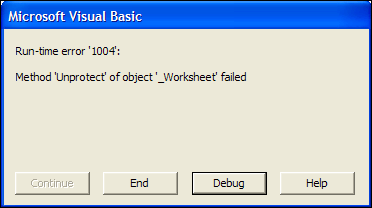
I commented out the macro’s error handling, to try and solve the problem, and this run-time error 1004 popped up:

Method ‘Unprotect’ of object ‘_Worksheet’ failed.

Excel error: Method 'Unprotect' of object '_Worksheet' failed
Excel error: Method ‘Unprotect’ of object ‘_Worksheet’ failed

Prevent the Macro Problem

After a bit of head scratching, I realized what the problem was – I had grouped some of the sheets, because they all needed a formatting change. Oops! Because the sheets were grouped, they couldn’t be unprotected.

I added a line of code to the macro, to ungroup the sheets, if necessary, and the problem is solved. You could do something fancier, like identifying the active sheet, and selecting it, instead of the first sheet.

Revised Excel VBA Code

Sub ProtectAllSheetsNoPwd()
Dim ws As Worksheet
On Error Resume Next
Sheets(1).Select '<====== selects first sheet in workbook
For Each ws In ActiveWorkbook.Worksheets
  ws.Protect DrawingObjects:=True, _
    Contents:=True, Password:=""
Next ws
End Sub

The same line was added to the Unprotect macro.

Sub UnProtectAllSheetsNoPwd()
Dim ws As Worksheet
On Error Resume Next
Sheets(1).Select '<====== selects first sheet in workbook
For Each ws In ActiveWorkbook.Worksheets
  ws.Unprotect
Next ws
End Sub

Watch the Protect Macro Fails Video

To see the problem that occurs when you try to protect or unprotect group sheets, and the code change that fixes it, you can watch this short Excel video tutorial.

___________

Create an Excel UserForm

This week, I’ve been working on a client’s Excel file, and we’re using a UserForm for data entry, instead of worksheet cells.

image

Data Entry and Storage

Data can be entered in the UserForm, and stored in a worksheet, when the form is closed.

The UserForm could open automatically when the file opens, or put a button on the worksheet, and click that to open the form.

On the Contextures website, you can find instructions and sample workbooks, for creating a simple UserForm, or a UserForm with drop down lists.

Watch the Excel UserForm Videos

To see the steps for creating an Excel UserForm, you can watch this 3-part Excel Video Tutorial series.

You’ll see how to add a UserForm to your Excel file, then put text boxes and buttons on the form.

Demo – Excel UserForm for Data Entry Demo

Creating a UserForm – Part 1

In part 1, you’ll see how to create a blank Userform. Then you’ll name the UserForm, and next you’ll add text boxes and labels.

Users will be able to type data into the text boxes. Labels are added beside the text boxes, to describe what users should enter into the text box

Creating a UserForm – Part 2

In Part 2, you’ll learn how to add buttons and a title on the UserForm.

With buttons on the UserForm, a user can click to make something happen.

For example, click a button after entering data in the text boxes, when you’re ready to move the data to the worksheet storage area

Creating a UserForm – Part 3

In Part 3, you’ll learn how to add VBA code to the controls, and you’ll see how to test the UserForm.

The VBA code runs when a specific event occurs, such as clicking a button, or entering a combo box. In this example, the user will click a button, and the VBA code will move the data to the worksheet storage area

Creating a UserForm – Part 4

In Part 4, you’ll see the code that adds the items to the combo boxes.

____________

Select Actual Used Range in Excel Sheet

It’s easy to select the current range in Excel – just press Ctrl + A. That shortcut selects all the cells in the block that surround the active cell. The selection stops at the first blank row and blank column. But how can you select actual used range in Excel sheet?

Continue reading “Select Actual Used Range in Excel Sheet”