
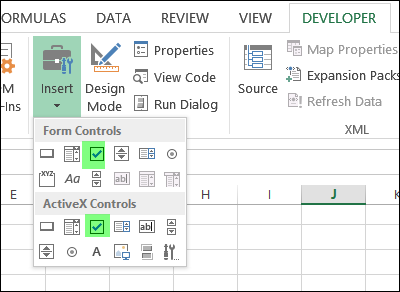
You can use check boxes on a worksheet, and link the results to a cell. If the box is checked, the cell shows TRUE, and if it’s not checked, the cell shows FALSE or the cell is empty. This makes it easy for someone to give a quick answer to a question, or select an option. You can even link check boxes to cells with a macro, so something happens automatically when the box is clicked.
Category: Excel VBA
Prevent Scrolling on Excel Worksheet
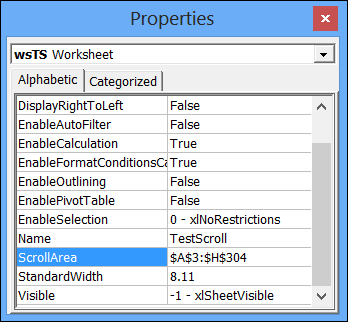
Even if a worksheet is protected, you are able to scroll in any direction, and see what is on the sheet. To prevent scrolling on Excel worksheet, change the ScrollArea property for the worksheet, either manually or with a macro.
Enter Multiple Items in an Excel Cell
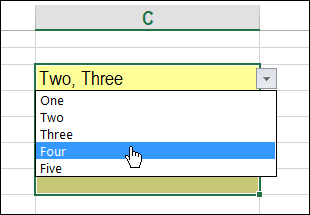
Today we’ll see an interesting tweak to an old technique. One of the articles on my website shows how you can select multiple items from a cell’s drop down list. Instead of overwriting the cell’s value, new selections are added to the end of the cell’s contents. Here’s how to enter multiple items in an Excel cell, if it doesn’t have a drop down list.
Getting Started With Excel UserForms
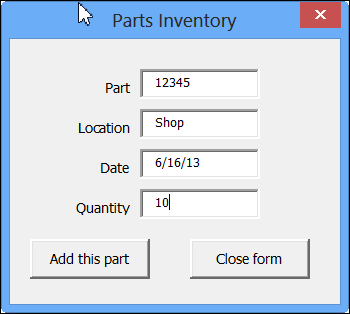
With some VBA programming, you can create an Excel UserForm, to use for data entry. Click a button, and the data is stored on a hidden worksheet, and the form is cleared out, so you can start a new entry.
If you’re just getting started with Excel UserForms, the short video below shows how a completed form works.
Click to Move Excel List Items Up or Down
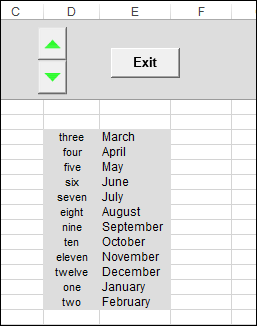
Your challenge for today is to come up with a real-life use for this nifty (do the kids still say nifty?) Excel scrolling tool.
Continue reading “Click to Move Excel List Items Up or Down”
Print Invoices With Excel Macro
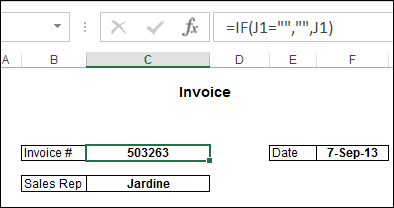
There is a sample file on my Contextures site, in which you can enter invoice details, then print all the new invoices by clicking a button.
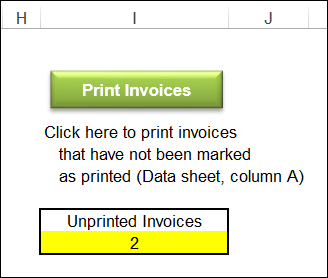
I’ve updated the file, and you can now download the xlsm version, if you’re using Excel 2007 or a later version.
Store Invoice Details in Table
In the new version, the invoice data is stored in a named Excel table, and a named range – Database – is based on that table. The range is dynamic, because it is based on the named table, so it will include new rows as they are added.
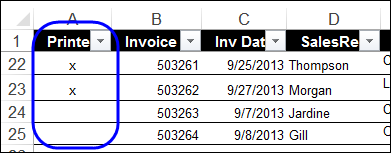
Invoices that have been printed are marked with an X, and the new invoices do not have a mark in column A.
Count Unprinted Invoices
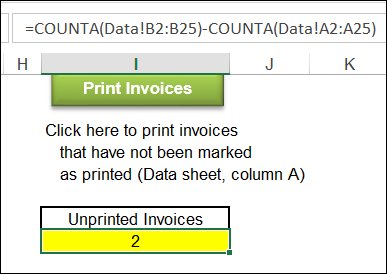
On the Invoice sheet, you can see how many invoices have not been printed. A formula calculates that number by counting invoice numbers and subtracting the count of X marks:
=COUNTA(Data!B2:B25)-COUNTA(Data!A2:A25)
Print the Invoices
When you click the Print Invoices button, a macro filters the list, to show only the records with a blank cell in column A. This code is quite different from the previous version, because it uses List AutoFilter VBA, which is only available in newer versions of Excel.
Then, for each of those records, the invoice is printed, and then the record is marked with an “X”.
Download the Sample File
To see how the invoice printing macro works, and to view the code, you can download the sample file. On the Sample Spreadsheets page, go to the Functions section, and look for FN0009 – Print Unmarked Invoices
The zipped file is in Excel 2007/2010 format (xlsm), and contains macros.
___________________
Problems With SendKeys in Excel
Yes, I know that it’s a bad idea to use the SendKeys method in Excel, because strange things can happen.
However, it’s handy in a few situations, and I use SendKeys in a few of my Comments macros.
SendKeys Example
For example, in this macro to insert a blank comment, without a user name, the comment opens for editing, at the end of the macro.
Sub CommentAddOrEdit()
  Dim cmt As Comment
  Set cmt = ActiveCell.Comment
  If cmt Is Nothing Then
    ActiveCell.AddComment text:=""
  End If
  SendKeys "+{F2}"
End Sub
Send Keyboard Shortcuts
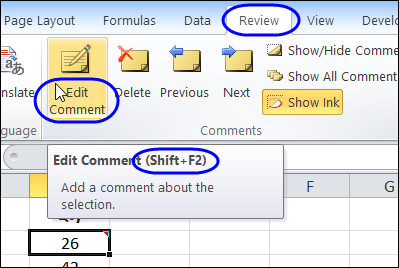
In that example, the SendKeys line simulates using the keyboard shortcut – Shift + F2 – to edit the comment in the active cell.
SendKeys Doesn’t Run
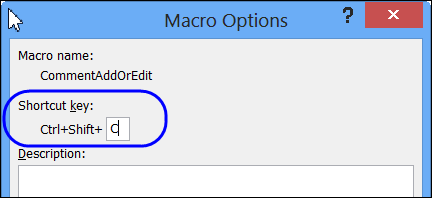
While I was updating the Comments VBA page, I wanted to test a few of the macros, to make sure that they still worked in Excel 2010. To make it easier to run a macro, I added a keyboard shortcut for it – Ctrl + Shift + C.
Shortcut Problem
When I tested the macro, using that shortcut, it inserted the comment, but the comment didn’t open for editing. Hmmm…maybe that shortcut code doesn’t work in Excel 2010.
But, when I ran the macro from the Macro window, instead of the shortcut, it worked correctly. So, the problem wasn’t the SendKeys code.
There was something funny happening with the shortcut to run the macro.
Add a Wait Line
Some Googling led me to the Microsoft site, where this problem is in the MSKB: Error Using SendKeys in VB with Shortcut Key Assigned
The problem occurs because this is a very short macro, and I was still pressing the Ctrl + Shift keys when the macro runs the SendKeys statement. And that messes up the SendKeys keystrokes. See – I told you that SendKeys was risky!
Suggested Solution
The suggested solution is to add a Wait line in the macro, just before the SendKeys code. So, I altered the macro, and now it runs correctly when I use the keyboard shortcut.
Sub CommentAddOrEdit()
  Dim cmt As Comment
  Set cmt = ActiveCell.Comment
  If cmt Is Nothing Then
    ActiveCell.AddComment Text:=""
  End If
    Application.Wait (Now() + TimeValue("00:00:01"))
    SendKeys "+{F2}"
End Sub
_________________________
Custom Ribbon Tab for Excel File
Have you created any custom tabs for your Excel files? I avoided that, as long as possible, but have finally started dabbling with the Ribbon code.
And, the good news is that it’s not as dark and scary as I imagined.
Here is a screen shot of a sample file that I created, as an update to my Parts Database which has a UserForm for data entry.
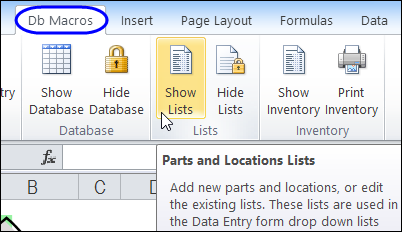
When the file opens, it adds a custom tab to the Ribbon, with buttons to run the workbook’s macros.
You can download the sample file, and see the written instructions here: Getting Started With Excel Ribbon Custom Tabs
View and Edit Ribbon Code
To see the Ribbon code, without messing with the hidden parts of an Excel file, you can use the free tool – Custom UI Editor. (UPDATE: No longer available)
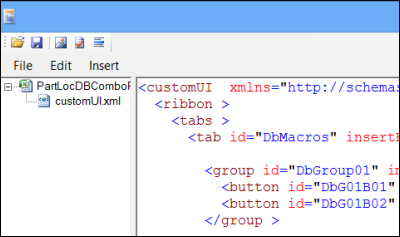
To get started, use the Custom UI Editor to take a look at a sample file or two. Then, you can copy some of the sample code into your own files, and tweak the labels and macro names, to match your workbook.
Watch the Video
To see the steps for opening and editing the Ribbon code with the Custom UI Editor, you can watch this short video. The sample file and written instructions are here: Excel Ribbon Custom Tabs Intro
__________
Excel 2010 Runs Macros Without Enabling
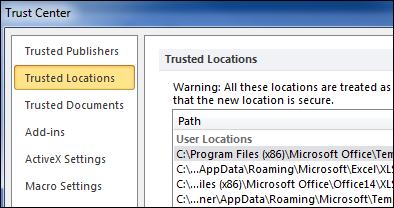
In the old days, if you opened a file that contained macros, a warning message popped up on the screen. That has changed, and now Excel 2010 runs macros without enabling, in some situations.
Print Numbered List of Excel Comments
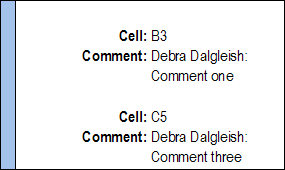
In Excel, there are two built-in options for printing comments. The first choice is to print them at the end of the worksheet.
For that selection, all the worksheet comments are listed in a single column, with labels to the left, as shown below.
Print As Displayed
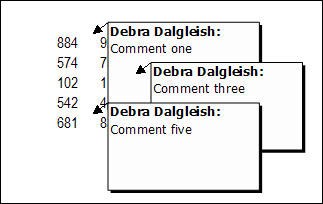
The other option is to print comments as displayed on the worksheet. Any comment that is currently visible on the worksheet will print, exactly as they appear on screen.
If you arrange things carefully, they’ll look okay, but with closely positioned comments things will look messy.
Print a Numbered List
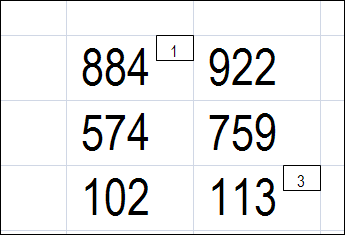
On my Contextures website, there is code that lets you show a number at the top right of each comment cell. These little rectangles cover up the red triangle that marks the comment cells.
This is a zoomed in view of the numbers.
Macro to Print List
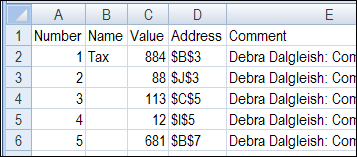
There is also sample code creating a numbered list of comments on a separate sheet. Thanks to Dave Peterson for writing that!
List Comments With Merged Cells
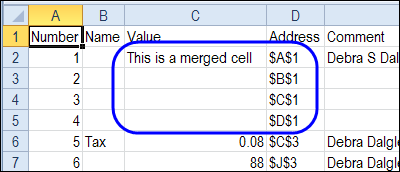
I avoid merged cells whenever possible, and hadn’t noticed that there was a problem listing comments that are in merged cells.
Someone contacted me last week, to see if there was a way to list those comment cells once, instead of listing all the cells in the merged area.
Here’s the list, using the old code. Cells A1:D1 are merged, and they’re all listed.
New Macro for Merged Cells
So, I’ve created a new procedure in the Excel 2007 file, and added a button to the worksheet. If your worksheet has merged cells with comments, use that button, for better results in the numbered list.
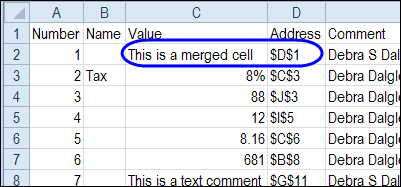
The code works with merged or normal cells, and also copies the number format from the source cell.
Here is the list created by the new code. There is only one listing for the merged cell, and the Tax cell shows the number formatted as a percentage.
Download the Sample File
To download the sample file for Excel 2003 or Excel 2007/2010, go to the Number and List Comments section on the Comments programming page.
There’s sample code to add numbers, remove numbers and list the comments, and a zipped sample file that you can download.
The Excel 2003 numbering code didn’t work well in Excel 2007. The numbers didn’t appear in some boxes, and the boxes didn’t line up correctly in the cells. So if you’re using Excel 2007, be sure to download that version’s sample file
Both files contain macros, so you may get a warning when you open them. Enable the macros if you want to run the code.
_____________________________