
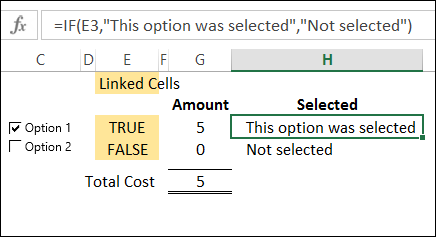
To make it easy for people to enter data on a worksheet, you can insert a check box control, using the Form Control tools on the Developer Tab. Then, use check box result in Excel formula solutions.
Category: Excel Formulas
Calculate Loan Payments with PMT Function
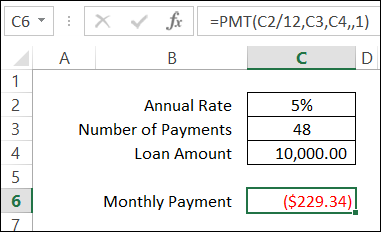
Even if you’re not a financial wizard, you’ve probably had to figure out a loan payment at least once in your life. Fortunately, Excel makes it easy to calculate loan payments, with the PMT function.
Continue reading “Calculate Loan Payments with PMT Function”
Excel Functions: AVERAGE, MEDIAN, MODE
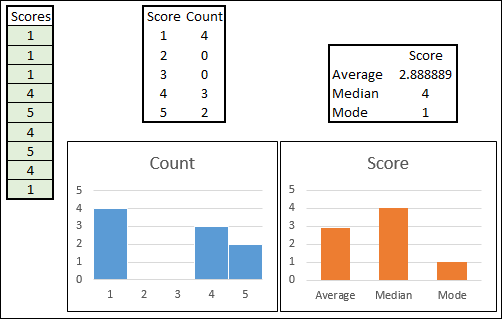
When we created a Box Plot recently, one of the measures was the MEDIAN. Today we’ll look at a few Excel Functions: AVERAGE, MEDIAN, MODE
Interactive Excel Functions List
There are lots of Excel function tips and tutorials on my Contextures website, and here on the Contextures blog.
To help me keep track of everything, I’ve created an interactive list of the Excel functions, that you can see here: Interactive Excel Functions List
Sort and Filter
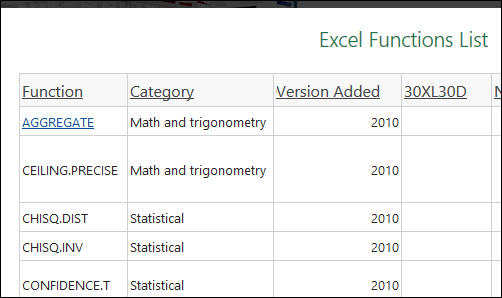
On the web page, you can click the green button to open the interactive version of the list. Then, click on a heading to sort the list by that column, such as Category or Version Added.
To filter, click on a column name at the left, and select one of the items to filter. For example, in the screen shot above, the list is filtered to show the functions that were added in Excel 2010.
Click a Link
Some of the function names are hyperlinks – click those to go to my web page or blog post with an example for that function.
For example, click the AGGREGATE link, to see the examples for this versatile new function in Excel 2010.
I’ll be adding more function examples over the coming months, and will update this list to include the new links.
Video Tutorials
I’ve also updated the Video Tutorials Index page. In addition to the video links, I’ve added video playlists, so you can see all the videos in a specific category, such as Data Validation.
In the sample playlist below – Excel Functions — click the “Playlist” list at the bottom left of the video screen. You should see a scrollable list of videos in that category, and click on any video to start the playlist.
There are currently 73 videos in this playlist, and the total time is 3 hours and 51 minutes.
_____________
Nesting IF Functions in Excel
The IF function lets you test something in Excel, and show one result if the test result is TRUE, and another result for FALSE. For example:
=IF(“Debra met Excel MVPs last week”,”Show Picture”,”No Picture”)
And yes, I did meet some Excel MVPs last week, and you can see a picture at the end of this article.
Check Cell Value
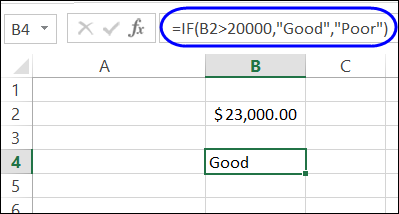
As another example of the IF function, you can check the value in a cell, and show “Good” if the value is $20,000 or more. For lower amounts, the result is “Poor”.
=IF(B2>20000,”Good”,”Poor”)
Nested IF Functions
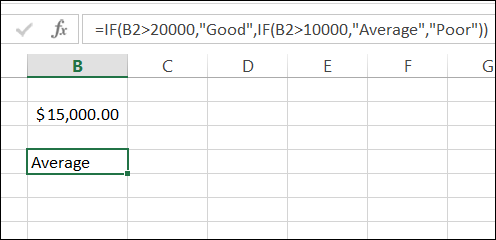
You can use more than one IF function in a formula too. Instead of just Good or Poor, you can nest a second IF in the formula, to test for a lower amount – $10,000 – and rate those results as “Average”.
=IF(B2>20000,”Good”,IF(B2>10000,”Average”,”Poor”))
Watch the IF Order
The key to nested IF functions is to put the tests in order of difficulty.
- In this example, 20000 is the highest amount that we’re testing for, so that test comes first.
- Next, we test for the lower amount, 10000, and any value that is over that amount is rated as “Average”.
- Finally, any amount that fails both tests is rated as “Poor”.
=IF(B2>20000,”Good”,IF(B2>10000,”Average”,“Poor”))
Meeting at Microsoft Canada
Last week, I attended an MVP Open Day at Microsoft Canada, and enjoyed spending time with fellow Excel MVPs, Vittorio Covato, Domenic Tamburino, and Eduardo Pineiro.
They’re all formula experts, who share their Excel expertise in the online forums. “IF” you’ve asked a formula question online, there’s a good chance that they’ve helped you with a solution.
Excel MVPs
In the photo below, you can see Vittorio and Domenic, who kindly allowed me to share this picture with you. Okay, I might have strong-armed them into agreeing, but I thought that you’d like to meet them too.

____________
Sum a Filtered List with AGGREGATE Function
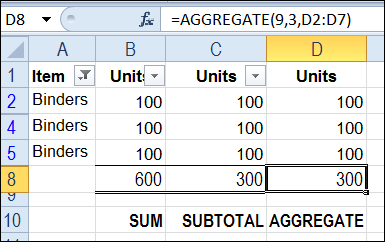
The SUBTOTAL function is great for calculating totals on a filtered list in Excel. Unlike the SUM function, SUBTOTAL ignores the values in rows hidden by the filter, and can even ignore manually hidden rows, so the total includes only the visible cells.
Continue reading “Sum a Filtered List with AGGREGATE Function”
Get Mileage from Excel Lookup Table
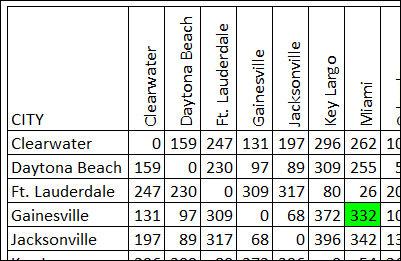
There is a new sample file on my website, in response to a lookup question that someone asked on my Contextures Facebook page. The sample file shows how to get mileage from Excel lookup table, when you pick two cities.
Calculate Annual Costs and Savings in Excel
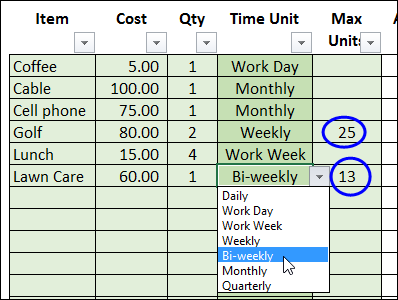
This workbook shows how to calculate annual costs and savings in Excel. It’s amazing how all those little expenses can add up over a year.
Continue reading “Calculate Annual Costs and Savings in Excel”
Catching Your Excel Errors
It’s been a bad week for Excel, with big news stories about spreadsheet errors. Two Harvard professors were in the news after a student at the University of Massachusetts found errors in their economic research paper.
Create a Running Total in an Excel Column
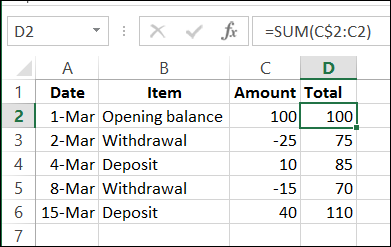
If you’re using a pivot table, there are built in features that lets you show a running total, or a percent running total. Here’s the command to show a % Running Total in a pivot table.
Continue reading “Create a Running Total in an Excel Column”