Another humdrum day in the world of spreadsheets? Hardly!
Thanks to John Walkenbach (Mr. Spreadsheet) and Mike Alexander (DataPig), things are getting exciting.
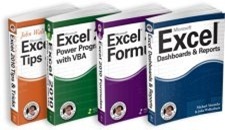
They’ve just announced a Show Us Your Spreadsheets contest, with Excel books and gift cards going to the winners. The contest is open to residents of the USA, UK, and Canada (except Quebec).
How to Enter
To enter, send in a photo of yourself with one of John’s or Mike’s books, or with a fabulous Excel workbook that you created.
As an example of creative book holding, here’s John hiding behind a notebook, imitating the poses of his buddies Bill and Steve.
Read the Rules
Be sure to read and follow the official rules, and submit your photos (up to 3) by December 3rd.
You probably have some Excel books by John and/or Mike, but if not, head to Amazon or your local bookstore, and pick one up (or a bunch!)
Picking the Winners
The best photos will be selected by John and Mike, and prizes awarded based on their decision. These multi-talented gentlemen have previous experience in judging creative events, as you can see in the photo below.
Dick is constructing an amazing tower, and you can see John (second from left) and Mike (right), judging the event. This shows that they have a keen eye for design, and are calm in the face of danger.
They seem to like beer and hockey pucks too, so that bodes well for the Canadian entries!
A while ago, I suggested that we pick a day to celebrate as Spreadsheet Day. There was a poll to pick a date, and October 17th, the release date of VisiCalc, got the most votes.
So, we still have lots of time to plan events for this year’s Spreadsheet Day. Do you have any ideas?
Spreadsheet Day
In the meantime, we know that every day is spreadsheet day, and we can celebrate that. I’ve been looking for examples of unusual ways that people use spreadsheets, and posting them on the Spreadsheet Day blog.
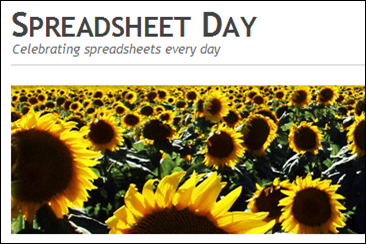
Why sunflowers? Why not? They’re lined up nicely, like a spreadsheet grid, and they look like they’re celebrating.
So far, the spreadsheet examples have been intriguing, such as:
planning a spa day
drawing a town map
keeping track of World of Warcraft data
designing amusement rides
and much more to come.
Your Awesome Spreadsheet Examples
What’s the strangest thing you’ve used Excel for? If you have examples you’d like to share, please let me know, in the comments below, or by email: ddalgleish AT contextures.com.
I look forward to seeing what creative things you’re doing.
___________
Are you an Excel power user? Answer a few quick questions at the Excelerators Quiz site, and find out how you rate. You could even win a nice prize here at the Contextures blog!
The team at PowerPivot for Microsoft Excel 2010 created the Excelerators Quiz, and to make the challenge more exciting, they’re sponsoring a giveaway here on the Contextures blog (for USA residents only).
The blog giveaway prize has a total value of over $250, and will include a Dell ST2310 23 inch flat panel monitor, keyboard, and mouse. You’ll be even more powerful if you have those tools!
Enter the Giveaway
What does it take to be an Excel power user? What kind of quiz questions would you create? We’ll create our own Excel quiz here in the comments. Maybe it’ll be better than the Excelerators Quiz!
To enter the giveaway, after you take the Excelerators Quiz, come back here and add a comment. In your comment:
Create your own unique question for the Excelerators Quiz.
Make your question multiple choice, with the correct answer as one of the four options.
You can contribute more than one question, but only your first question will be entered in the giveaway draw.
The Giveaway Rules
You must be a legal resident of the Unites States of America.
To enter, submit an original Excelerators quiz question in the comments below, with the correct answer as one of the 4 multiple choice options
The comment must be submitted before the deadline of 12:00 noon (Eastern Time) on Thursday, January 28th, 2010
One entry per person – any additional entries will be deleted from the draw
A random draw will select the winner from all valid entries.
Winner will be notified by email, so please provide a valid email address. This will not be publicly visible, but will be shared with the contest organizers at Ignite Social Media, so they can contact the winner to arrange delivery.
The Alpha Geek Challenge
The PowerPivot team has also launched an Alpha Geek Challenge for more advanced excel geeks. Donald Farmer will host a PowerPivot competition in which the Grand Prize winner will receive an all-expenses paid trip to the 2010 Microsoft BI Conference in New Orleans, LA in June.
After you finish the Excelerators Quiz, and the giveaway contest here, see how you do in the Alpha Geek Challenge!
________
[Update Nov. 15, 2015 – Adapx, Inc. has ceased operations]
I loved the idea of a pen that could magically send my data to Excel, but it didn’t work out as well as I’d hoped. 😉 Anyway, here’s my review of Capturx Forms for Excel, made by Adapx, Inc.
For the past couple of years, I’ve worked with a client that has factories around the world. As part of their safety program, employees fill in printed checklists, then send them to the Safety Officer, who enters the data in Excel. As you can imagine, this takes time, and is prone to data entry errors.
An Enticing Offer
Recently, I was asked if I’d like to test a digital pen and Capturx Forms for Excel. With it, I could create and print blank forms in Excel, then use the pen to fill them in. Later, that data could be imported into Excel, with one click of a button.
That sounded good, so I accepted the offer, and the pen and software arrived a few days later. If the product worked well, my client could test it in their plants, and possibly save some time and headaches.
Well, it took a while, but I’m finally done testing. I loved some of the features, but there were frustrations and disappointments along the way.
Stalling on the Installation
Installation was the first obstacle to overcome. Several components had to be installed before the Capturx program, and it took several tries before everything finally worked.
I won’t bore you with all the details, but I seriously considered putting everything back into the box and returning it.
I’m not sure if there was a problem with my hardware, or conflicting software, or something else. The documentation didn’t provide any tips for installation problems, nor did the company website. There’s product information online, but no search feature that I could find.
It’s Not You, It’s Your Printer
Thrilled at finally getting the program to work, I created a simple form, and was ready to test the digital pen. Oops! You need to print the forms on one of the compatible printers. I have a black and white laser printer, not one of the colour postscript laser printer on the list.
When I told the company rep about the problem, she sent some sample forms by courier. I was able to keep testing, without buying a new printer. Whew! Here’s one of the sample forms that I used for the test.
Also, while reading the printer information, I noticed that the dot pattern that’s printed on the forms “gets used up as you print.”
When the dot pattern is gone, you need to purchase more from the Adapx website. So, if you use this solution, you’ll have some ongoing costs.
The Good News
Once I was up and running, my mood definitely improved. I filled in a couple of forms with the digital pen, then docked the pen in its base. In Excel 2007, a Capturx tab appeared on the Ribbon, and with a single click, I imported the forms’ data.
I could compare the imported data to the original writing, and easily make changes where necessary.
From the Master Template sheet, I could create a summary of all the imported forms.
summary of all the imported forms
The summary cells are linked to the original sheets, so they’ll update if you change the forms’ data. However, new sheets aren’t added automatically. You have to delete the summary sheet, and create a new one.
A Few More Problems
I hit a few more snags while working with the Capturx Forms for Excel add-in. For example, it was painfully slow to move through the workbook. When I clicked on a different sheet tab, it took several seconds for the sheet to activate.
Excel has crashed a few times while using it, especially when trying the Sort Worksheets feature. When I deleted the Summary sheet, the sort feature worked, but it took more than 10 minutes to complete.
The sample workbook has 95 completed forms in it, which seems like a reasonable number. In a real life situation, you’d probably have many more forms than that.
Maybe the features work well in a smaller workbook, but that somewhat defeats the purpose of digital input.
The Final Word on Capturx Forms for Excel
I had high hopes for the digital pen and Capturx Forms for Excel, and some of those dreams came true. The pen worked like a charm, and even with my bad handwriting, there was a good recognition rate for the imported data.
For me, the main drawback is the slow performance. If you’re collecting lots of data, how could you manage it with this software? Maybe you could use Excel to import the data, then export it to Access, or another database.
Also, the Help could be better, with a search function on the website. For example, I couldn’t figure out how to create a Summary sheet, and nothing in the notes or built-in help provided any clues.
After several experiments, I finally got it working. The company is currently offering online training sessions, so that might help with some of the confusing features.
There’s potential for a great product, but Capturx Forms for Excel needs some improvement before I can recommend it to my clients.
The Movie
If you’d like to see the digital pen and Capturx Forms for Excel in action (I cut out the inaction bits), you can watch this short video.
It’s been quite a while since the last one, but I’ve finally posted another list of Excel Twitters.
The Twitter spam was making it too tough to collect the interesting tweets, and that’s why I stopped. However, I managed to create a few search settings that helped a bit, and this new list is the result.
The new Excel Twitters list is on my Excel Theatre blog, where I have all the archived Excel Twitters posts, plus some Excel video tutorials, and a few other things.
Excel Takeaways
My friend, Heather Mak, has started a new blog – Five Takeaways. In the blog, Heather and friends will “interview subject matter experts and ask them to provide the five takeaways (hence the name) of a subject area.”
UPDATE: The blog is no longer online
She asked if I’d like to create a list of five takeaways for Excel, so I’m working on it. If you’d like to help, please add a comment with one or more things that you’d include as an Excel takeaway. Thanks!
Excel Trials
I’ve been testing some Excel products recently and here’s one that I tried this weekend.
[update] This add-in is no longer available
Mathias Brandewinder of Clear Lines Consulting sent me a link to Akin, an Excel file comparison program.
This is a free download, and was very simple to install. Open the Akin program, and select two Excel files to load.
Akin compares the files, and highlights the cells on the selected sheets, where there are differences.
You can click on a row or column heading, or the Select All button, to see only the cells where there are differences.
Find Differences in Large Worksheets
That feature is useful in a large worksheet, letting you focus on the differences, without searching through the sheets manually.
The program is easy to use, and a good tool to use if you’re trying to find changes that someone else has made in a file. It shows changes to both values and formulas.
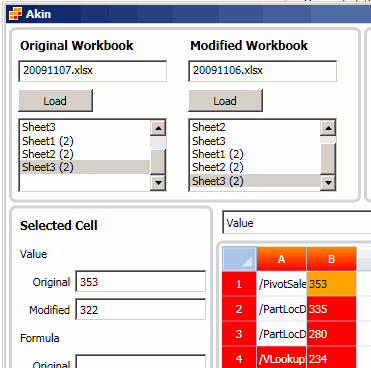
Here’s a screen shot of the Akin window, with the original and modified value in cell B1 shown.
Thanks for participating in the Very Scary Fall Giveaway for Excel Nerds! Your Excel horror stories were truly frightening, and the costume ideas were very creative. Thanks again to the generous prize donors:
As a bonus for everyone who entered the giveaway, Patrick O’Beirne has an entertaining pdf file — “The Devil’s guide to creating spreadsheets.” If you’d like a copy, send me an email at ddalgleish @ contextures.com and I’ll email you a link to the download.
And the Winners Are…
I did a random draw of prizes and entries, using the macro that I created for the Summer Giveaway for Excel Nerds. You can see the Summer video there, and download the macro sample file.
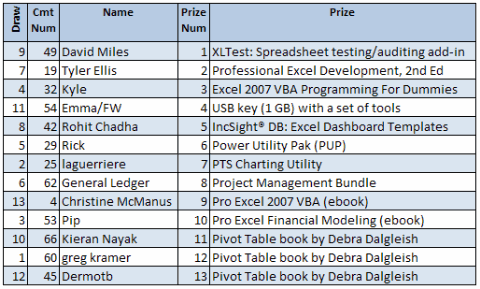
After the numbers were selected, I used VLOOKUP formulas to pull the prize names and winner names from the original lists of numbered prizes and entries. Congratulations to all the winners! Here’s the list:
Collect Your Prize
I’ll send an email to all the winners today, with instructions for claiming your prize. If you’re on the list of winners, and don’t receive an email by end of today, please let me know at ddalgleish @ contextures.com or add a comment here.
Please reply by 5 PM (Eastern time zone) on Monday November 9, 2009, or your prize will be forfeited.
______________
It’s time for another Excel giveaway! Hallowe’en is just around the corner, so let’s find out what Excel Nerds do to celebrate. I’ve been given some awesome Excel utilities, books, and ebooks to give away, so let’s have some fun. Rules are at the end of this article.
UPDATE: This giveaway has ended.
To enter, write an original (and suitable for work!) comment below, describing either:
A) an Excel related costume (real or imagined). For example, here’s a picture of my daughter and son, many years ago, ready for some trick-or-treating. My daughter was dressed as The Formula Doctor and my son was an early prototype of an Excel Web app. I’m sure they won’t mind me posting this picture, but if you see them, maybe you shouldn’t mention it. 😉
OR
B) your scariest Excel related experience. I’m sure you’ve had horrifying days, buried under spreadsheets, and workbooks that come back to haunt you. Tell the other readers about one of those gruesome times. Remember, misery loves company. We’ll feel sorry for you, as soon as we stop laughing.
The submission deadline is 12:00 noon (Eastern Daylight Time) on Tuesday, October 27, 2009. Winners will be announced here on October 28th.
Note: You can make as many comments as you like, but only the first one will count as your entry.
The Ghastly Goodies
Some scarily smart Excel authors, developers and publishers have contributed a monstrous mound of books and utilities for me to give away as treats.
Thanks to all the contributors – Patrick “Ogre” O’Beirne, Jan Karel “The Creeper” Pieterse, Charley “Crypt-Kicker” Kyd, John “Walking Dead” Walkenbach, Jon “Petrifier” Peltier, “Chiller” Chandoo and Matt “Killer” Kennedy.
one copy of IncSight® DB: Excel Dashboard Templates Linked to Data — “Set up your first Excel dashboard report in less than an hour. Add any number of reports. You can update your reports in seconds because they’re linked to an Excel database.”
The winner can select one of the two versions available:
one copy of the Power Utility Pak (PUP). — “Power Utility Pak Version 6 (PUP v6) is a useful collection of add-ins that brings significant new functionality to Excel. When PUP is installed, you can do things with Excel that you never thought were possible.”
The winner can select one of the two versions available:
Power Utility Pak v6 for Excel 2000, Excel 2002 and Excel 2003
one copy of a PTS Charting Utility – “When installed the utilities provide buttons on the Excel menu or ribbon that allow you to select a regular worksheet range and create a specialized and customized Excel chart.”
one copy of the newly released Project Management Bundle of templates for Excel — “The bundle contains 24 highly reusable excel templates for project planning, task management, timesheets, issue tracking, risk logging, status reporting and more.”
The winner can select one of the two versions available:
Project Management Bundle for Excel 2007
Project Management Bundle for Excel 2003
Apress Publishers
From Matt Kennedy of Apress, 2 prizes – e-books that you can download from the Apress website:
And finally, from Contextures – 3 prizes. The 3 winners can each select one of my pivot table books:
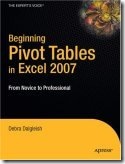
Beginning Pivot Tables in Excel 2007
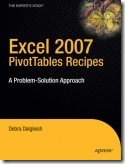
Excel 2007 PivotTables Recipes
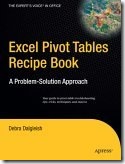
Excel Pivot Tables Recipe Book
The Rigid Rules
To enter, submit an original (and suitable for work!) comment below, describing either an Excel-related costume or horrifying Excel-related experience
The comment must be submitted before the deadline of 12:00 noon (Eastern Daylight Time) on Tuesday, October 27, 2009
One entry per person – any additional entries will be deleted from the draw
A random draw will select each prize and its winner. No substitution of prizes.
Winners will be notified by email, so please provide a valid email address. This will not be publicly visible, but may be shared with the contest sponsors, so they can contact prize winners to arrange delivery.
Physical prizes will be shipped, postage paid, but taxes or other charges (if any) will be the responsibility of the recipient.
For more than a year I’ve posted Excel related tweets every week, ranging from the hilarious, to the bizarre, to the somewhat useful.
Twitter Search Problems
Lately though, using the search feature in Twitter pulls up long lists of ads, spam, ads, spam, and more spam. To see for yourself, you can search for Excel Spreadsheet in Twitter. Maybe you’ll have better luck than I’m having.
There’s still the occasional nugget of Excelly goodness in the Search page, but I don’t have the time or patience to wade through all the other stuff.
So, I’ll stick to reading what’s in my own Twitter stream, posted by friends and colleagues.
Anyway, I hope you enjoyed the Excel Twitters while they lasted!
A Few Good Things
More good stuff comes from my email and RSS feeds, like these three items from this week.

 Another humdrum day in the world of spreadsheets? Hardly!


 Are you an Excel power user? Answer a few quick questions at the Excelerators Quiz site, and find out how you rate. You could even win a nice prize here at the Contextures blog!