
If you’ve been using Excel 2013, you might enjoy seeing the collection of templates when you open Excel. There is a blank template at the top left, and you can even take a tour of Excel.
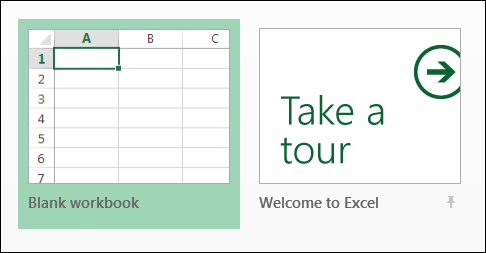
Choose an Excel Template
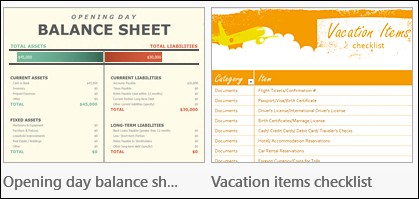
There is a wide assortment of templates to choose from – everything from a balance sheet to a vacation checklist.
Turn Off the Start Screen
It was interesting to see those templates the first time that I opened Excel 2013, but 100% of the time I click on the Blank Template.
Instead of having to click on it, I’d like a blank template to open automatically. That would save me thousands of clicks each month, and at 1 second per click, that’s a huge time saver! (I just made those numbers up, so the actual time savings might be lower than expected.)
Fortunately, there is a way to turn off the template selection, and get right to work.
- Open Excel, and click the Blank Template, to go to the Excel window.
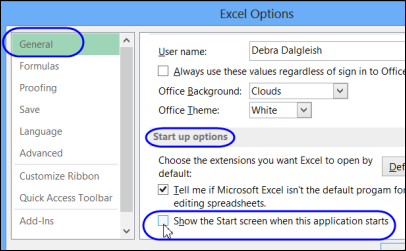
- Click the File tab, and click Options, at the bottom of the list at the left.
- In the Options window, click the General category
- Scroll down to Start up Options, and remove the check mark from ‘Show the Start screen when this application starts’
- Click OK, to close the Options window.
Now get to work!
______________
Thank you. Will save years of my life. (I’d say “gray hairs” as well, but it looks like it’s too late for that …)
Thanks for this. It saved me time looking for it.
I have never used a Microsoft template in over 20 years and I am not going to start now. I would love to send them all to the waste bin, as they are a waste of space.
Thanks Eric, and at least you won’t have to look at those templates now, every time you open Excel!
Thanks for sharing this, now I have saved couple of extra clicks to start my work.
Thank goodness for your help!! Was making me NUTS! 😀
@Beth, you’re welcome! Thanks for letting me know that it helped you.
Thank you for saving me +/- 1 million clicks!