
There’s a popular sample file on my website, that lets you select multiple items from a data validation drop down list. Since the original article, I’ve posted updates:
- how to set up multiple selection
- edit multiple selection cells
- prevent duplicates in multiple selection column
And here is the latest update.
Remove Previous Selections From Cell
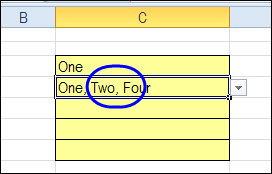
In the comments on the original post, Dan asked for a way to remove items if they been previously selected. For example, the cell contains four items — “One, Two, Three, Four”.
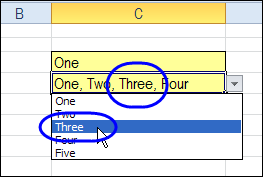
When you select Three again, that number is removed from the cell, instead of being added at the end of the cell.
Download the Sample File
To experiment with this technique, you can download the sample file from the Contextures website, on the Excel Data Validation – Select Multiple Items page. The file is in Excel 2003 format and zipped. There are macros in the file so enable them to test the features.
The new sample is on the SameCellAddRemove worksheet.
Please let me know in the comments if there are other features you’d like to see in this workbook. Thanks!
Watch the Excel Tutorial Video
This video shows how the multiple select and remove features work. You can also see the Excel VBA code, and the steps that it goes through, when you make a selection in the drop down list.
________________
@Debra, thank you very much for this “tool”. I downloaded the sample excel sheet and I was wondering how can I merge the code for “SameCellAddRemove” and “LineBreak”. I would like to use both functionalities.
Rodrigo, in the code for the SameCellAddRemove, change the “, ” separator to vbCrLf. There are 2 lines where that occurs:
Target.Value = Replace(oldVal, newVal & vbCrLf, “”)
and
Target.Value = oldVal _
& vbCrLf & newVal
Thank you very much, it work!!!
I really appreciate your time and assistance with this.
Hello there,
I’m using the code below and it works well. The code applies to the whole worksheet as I have multiple drop downs that I want it to work on. The only issue I have is that I would like to remove the ability to select one particular word on the drop down list alongside any of the other options. In other words, by selecting another choice this word no longer appears in the cell. (The word is “Select”). Many thanks for your help.
Private Sub Worksheet_Change(ByVal Target As Range)
‘ Developed by Contextures Inc.
‘ http://www.contextures.com
Dim rngDV As Range
Dim oldVal As String
Dim newVal As String
If Target.Count > 1 Then GoTo exitHandler
On Error Resume Next
Set rngDV = Cells.SpecialCells(xlCellTypeAllValidation)
On Error GoTo exitHandler
If rngDV Is Nothing Then GoTo exitHandler
If Intersect(Target, rngDV) Is Nothing Then
‘do nothing
Else
Application.EnableEvents = False
newVal = Target.Value
Application.Undo
oldVal = Target.Value
Target.Value = newVal
If oldVal = “” Then
‘do nothing
Else
If newVal = “” Then
‘do nothing
Else
Target.Value = oldVal _
& “, ” & newVal
‘ NOTE: you can use a line break,
‘ instead of a comma
‘ Target.Value = oldVal _
‘ & Chr(10) & newVal
End If
End If
End If
exitHandler:
Application.EnableEvents = True
End Sub
Hi –
Im getting a run-time error anytime I change something in a cell outside the target column. Any thoughts?
That’s surprising. I would have expected the code
to only respond to that column. Confirm that your code has not been altered.
Can you post your error details here? (Err.description and Err.Number)
As with Edwin’s request, I’m trying to get this code to work on a password protected sheet. I am not getting it right with the code he provided – please help!!
Thank you.
Llewellyn
@Debra Thank you very much for the code. I’m now using it all over. I do have a couple questions though.
1) After the values are changed to “Choice1, Choice2, Choice3”, I’m getting a data validation error. Naturally, the dropdown has three individual choices, neither is “Choice1, Choice2, Choice3”. Must I suffer through this error or is there a way around it.
2) If I type in an item into the box, it will receive it as if I selected it with the mouse. It is case-insensitive though and I may end up with “Choice1, Choice2, choice3” or even “Choice1, Choice2, Choice3, choice3”. Do you have a workaround for this.
3) If I start to type in something and then click the dropdown arrow expecting to select an item, excel immediately tries to validate my partial entry and complains “Invalid entry, [Retry], [Cancel]. If I click [Retry], fine. If I click [Cancel] I get a runtime error “Method Undo Failed”. Is there some code that can avoid this issue?
I thank you again for sharing your expertise with the rest of us.