
Thanks to an email question from Leslie, I’ve done another variation on the Data Validation Multiple Selection sample.
Leslie is scheduling training courses, and has a table with dates across the top, and course names down the side. One or more of the instructor names can be selected for each training session.
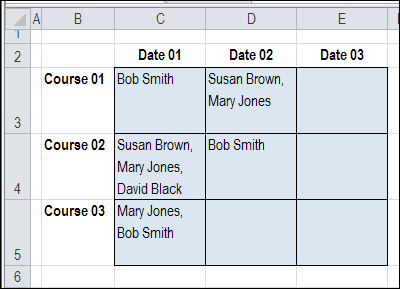
However, Leslie wants to prevent an instructor’s name from being selected twice on the same day. For example, on Date 01, in the screen shot above, Bob Smith and Mary Jones are each booked for 2 courses.
Check for Existing Names
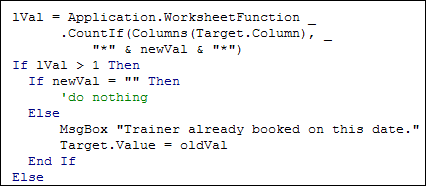
To prevent the names from being selected twice, I changed the code, to include the COUNTIF function.
- After a name is selected, the active column is checked for that name.
- If the name is found, a warning message is shown, and the name is not added in the current cell.
Here is the revised section of the code, with the COUNTIF function:
Testing the Code
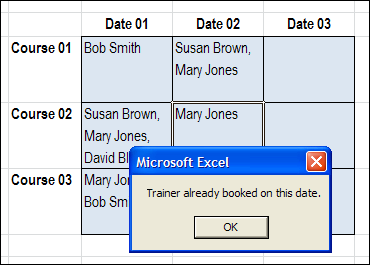
With the revised code, if I try to select a trainer who is already booked, I see this message, and the name is not added.
Download the Sample File
If you’d like to test the Block Duplicates code, you can download the No Duplicates in Multiple Selection Excel Drop Down sample file.
The file is in Excel 2007 format, and is zipped. When you open the file, enable macros, if you want to test the block duplicates feature.
_____________
Alert users to duplicates for certain ranges. I have 3 rotas in one worksheet. I have multiple data validation from different named ranges. For each selection, I want the vba to search three different cell ranges for a match to that name. If there is a match, a msg box appears saying this person has already been assigned for…(and list the job that appears in the cell to the left of the matched name) I don’t want to delete the newly selected person or the match as doubling up sometimes is okay, I just want to alert the user that there is a double up.