
Thanks to an email question from Leslie, I’ve done another variation on the Data Validation Multiple Selection sample.
Leslie is scheduling training courses, and has a table with dates across the top, and course names down the side. One or more of the instructor names can be selected for each training session.
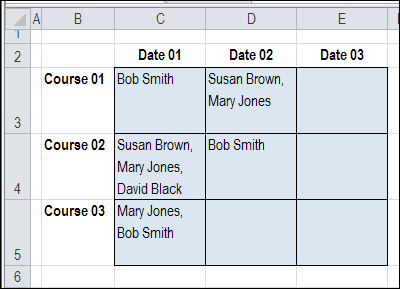
However, Leslie wants to prevent an instructor’s name from being selected twice on the same day. For example, on Date 01, in the screen shot above, Bob Smith and Mary Jones are each booked for 2 courses.
Check for Existing Names
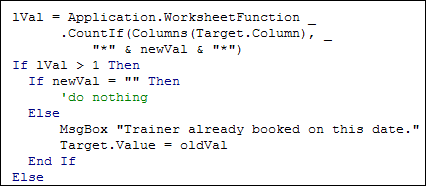
To prevent the names from being selected twice, I changed the code, to include the COUNTIF function.
- After a name is selected, the active column is checked for that name.
- If the name is found, a warning message is shown, and the name is not added in the current cell.
Here is the revised section of the code, with the COUNTIF function:
Testing the Code
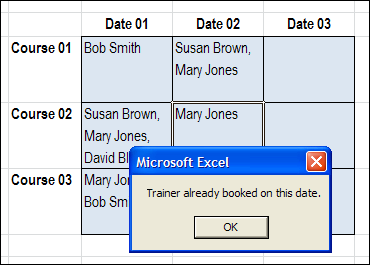
With the revised code, if I try to select a trainer who is already booked, I see this message, and the name is not added.
Download the Sample File
If you’d like to test the Block Duplicates code, you can download the No Duplicates in Multiple Selection Excel Drop Down sample file.
The file is in Excel 2007 format, and is zipped. When you open the file, enable macros, if you want to test the block duplicates feature.
_____________
I’m using some of you VBA coding for a template to set up projects. Basically, in order to get a project set up in our database we need to know who needs access to a project. So I’ve added a named range called (Employee_Names) and I’m using that for my drop down list. So the end user filling out the .xls form, can either pick from the list or type in the names themselves. The issue I’m having is if a user starts to pick from the drop down and then decides it is easier to type the name, it is then causing everything to duplicate. I’m using Data Validation for that cell as follows: Allow: List (checked- ignore blank and in-cell dropdown), nothing selected for Data, Source is my named range (=Employee-Names), no check for apply these changes to all other cells. Input Message is checked, Error Alert is not checked. I’m also using the below VBA code. Any idea how to allow people to type and select from a drop down with causing it to duplicate?
Sub Multiple_Selection()
Private Sub Worksheet_Change(ByVal Target As Range)
Dim rngDV As Range
Dim oldVal As String
Dim newVal As String
Dim lUsed As Long
If Target.Count > 1 Then GoTo exitHandler
On Error Resume Next
Set rngDV = Cells.SpecialCells(xlCellTypeAllValidation)
On Error GoTo exitHandler
If rngDV Is Nothing Then GoTo exitHandler
If Intersect(Target, rngDV) Is Nothing Then
‘do nothing
Else
Application.EnableEvents = False
newVal = Target.Value
Application.Undo
oldVal = Target.Value
Target.Value = newVal
If Target.Column = 2 Then
If oldVal = “” Then
‘do nothing
Else
If newVal = “” Then
‘do nothing
Else
Target.Value = oldVal _
& “, ” & newVal
End If
End If
End If
End If
exitHandler:
Application.EnableEvents = True
End Sub
You could add a new variable:
Dim lOld As Long
Then change the following section from this:
If newVal = "" Then
        'do nothing
      Else
        Target.Value = oldVal _
          & ", " & newVal
      End If
To this:
If newVal = "" Then 'do nothing Else lOld = Len(oldVal) If Left(newVal, lOld) = oldVal Then Target.Value = newVal Else Target.Value = oldVal _ & ", " & newVal End If End IfThank you for looking into this but that still does work completely. So I can type and select from the drop down list with it duplicating now but if I move to another cell and than go back to add another name (whether I manually type or pick from the drop down list) it will duplicate what was in the cell. For example, I’m in cell A1 and I type Bob manually, than I select Jeff from the drop down list, which leaves me with Bob, Jeff in cell A1. I then move on to fill in the rest of the template and remember that I forgot to add Joe to cell A1. I go back to cell A1 and whether I manually type or select Joe from the drop down list I get duplicates. So instead of it saying Bob, Jeff, Joe it duplicates it to Bob, Jeff, Joe, Bob, Jeff, Joe. Any suggestions for that?
Actually, the above new variable did work. Sorry I’m new to VBA and didn’t assign it to the sheet I was working in.
Great! Thanks for letting me know that you’ve got it working now.
Hi, I´m also quite new to VBA. So this code is at the moment for only specific column for Adding multiple options with no duplicates. How should it look like when I want to apply code for entire sheet? Can you help me please? And is there any way I can delete values afterwards in data validation cell?
Option Explicit
Private Sub Worksheet_Change(ByVal Target As Range)
Dim rngDV As Range
Dim oldVal As String
Dim newVal As String
Dim strVal As String
Dim i As Long
Dim lCount As Long
Dim Ar As Variant
On Error Resume Next
Dim lType As Long
If Target.Count > 1 Then GoTo exitHandler
lType = Target.Validation.Type
If lType = 3 Then
Application.EnableEvents = False
newVal = Target.Value
Application.Undo
oldVal = Target.Value
Target.Value = newVal
If Target.Column = 3 Then
If oldVal = “” Then
‘do nothing
Else
If newVal = “” Then
‘do nothing
Else
On Error Resume Next
Ar = Split(oldVal, “, “)
strVal = “”
For i = LBound(Ar) To UBound(Ar)
Debug.Print strVal
Debug.Print CStr(Ar(i))
If newVal = CStr(Ar(i)) Then
‘do not include this item
strVal = strVal
lCount = 1
Else
strVal = strVal & CStr(Ar(i)) & “, ”
End If
Next i
If lCount > 0 Then
Target.Value = Left(strVal, Len(strVal) – 2)
Else
Target.Value = strVal & newVal
End If
End If
End If
End If
End If
exitHandler:
Application.EnableEvents = True
End Sub
Hi All,
I am trying to insert a drop down list in excel but I have duplicate txt that I would like to show only once in the drop down. Is there a code I can put or a formula without inserting too many columns or pivot tables? The below is my sample and please note the selection is much larger. Thank you for your help in advance.
Master Category
Commodity
Commodity
Commodity
Commodity
Commodity
Commodity
Commodity
Commodity
Commodity
Commodity
Commodity
Commodity
Commodity
Commodity
Commodity
Packaging
Packaging
Packaging
Packaging
Packaging
I have table like this
District Crop Block
TVM Banana A
TVM Tapioca A
QLN Banana
Infact my list is very big consist of around 1500 rows and 6 columns. I need to prepare dependent data validation for all these 6 cloumns which purely depending the next table to the previous drop down