
Thanks to an email question from Leslie, I’ve done another variation on the Data Validation Multiple Selection sample.
Leslie is scheduling training courses, and has a table with dates across the top, and course names down the side. One or more of the instructor names can be selected for each training session.
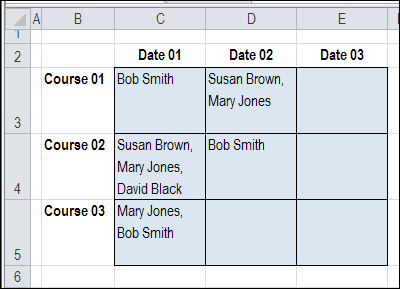
However, Leslie wants to prevent an instructor’s name from being selected twice on the same day. For example, on Date 01, in the screen shot above, Bob Smith and Mary Jones are each booked for 2 courses.
Check for Existing Names
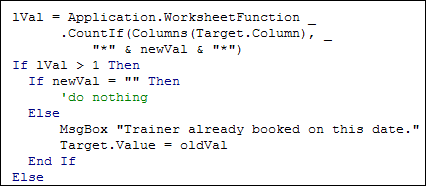
To prevent the names from being selected twice, I changed the code, to include the COUNTIF function.
- After a name is selected, the active column is checked for that name.
- If the name is found, a warning message is shown, and the name is not added in the current cell.
Here is the revised section of the code, with the COUNTIF function:
Testing the Code
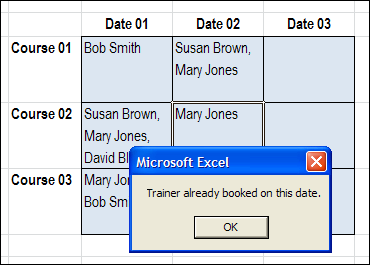
With the revised code, if I try to select a trainer who is already booked, I see this message, and the name is not added.
Download the Sample File
If you’d like to test the Block Duplicates code, you can download the No Duplicates in Multiple Selection Excel Drop Down sample file.
The file is in Excel 2007 format, and is zipped. When you open the file, enable macros, if you want to test the block duplicates feature.
_____________
Hi
Could someone upload the code to prevent duplicates from being enterred in the same cell.
/A
Hi,
I am using your VBA code for making multiple selections from a drop down list (to column format). The formula works great, but i would like it to prevent duplicates from being added. However, when i used the above sample, it tells me my variable “newVal” has not been defined… is there something i need to define it as, or do i have to use one of my old values. Thank you!
Option Explicit
‘ Developed by Contextures Inc.
‘ http://www.contextures.com
Private Sub Worksheet_Change(ByVal Target As Range)
On Error GoTo exitHandler
Dim rngDV As Range
Dim lRow As Long
Dim lCol As Long
lCol = Target.Column ‘column with data validation cell
lVal = Application.WorksheetFunction _
.CountIf(Columns(Target.Column), _
“*” & newVal & “*”)
If Target.Count > 1 Then GoTo exitHandler
On Error Resume Next
Set rngDV = Cells.SpecialCells(xlCellTypeAllValidation)
On Error GoTo exitHandler
If rngDV Is Nothing Then GoTo exitHandler
If lVal > 1 Then
If newVal = “” Then
‘do nothing
Else
MsgBox “Criteria Already Selected.”
Target.Value = oldVal
End If
If Intersect(Target, rngDV) Is Nothing Then
‘do nothing
Else
If Target.Value = “” Then GoTo exitHandler
Application.EnableEvents = False
Select Case Target.Column
Case 4, 6, 8, 11
If Target.Offset(0, 0).Value = “” Then
lRow = Target.Row
Else
lRow = Cells(Rows.Count, lCol + 9).End(xlUp).Row + 1
End If
Cells(lRow, lCol + 9).Value = Target.Value
End Select
End If
exitHandler:
Application.EnableEvents = True
End Sub
How would you modify the duplicate check code to prevent duplicate values being entered into the same cell (instead of the same column)?
Thanks for the add Phil. However you code get’s syntax errors for the below lines. Any thoughts?
If oldVal “” Then
If newVal “” Then
Has anyone (Ray maybe?) figured out how to prevent duplicates selected from an excel dropdown in the same cell? I’ve tried Phil’s code above and encountered the same difficulty as Ray – it’s got syntax errors. Any help much appreciated.
@Chris, I’ve added a new sheet in the sample file, and it will not add duplicate items in the same cell.
You can download it here: http://www.contextures.com/excel-data-validation-multiple.html
and go to the SameCellNoDups sheet
Debra,
I was unable to locate the sample to keep the same item from being selected in a cell. There is no sample sheet called SameCellNoDups that I can find.
Thank You,
Andrew
Andrew, go to this page on my site, and then go to the Download the Sample File section.
That file is named DataValMultiSelect.xls and you will find the SameCellNoDups sheet in there, about 1/2 way through the sheet tabs.
Debra,
I was able to locate the file. Thanks for providing this data.
Andrew
Debra,
I was able to get the no dups in a cell to work. My problem now is that I’m using a list that I link to from another tab in the booklet. The drop down only allows me to select one entry. If I put the list in the data validation separated by commas it works fine. How do I get it to work from the other list I created on another tab? My list is very lengthy.
I appreciate all the help you provide.
Thank You,
Andrew
Andrew, make the list a named range, and then refer to that named range in the data validation box. There are instructions on my Data Validation page:
http://www.contextures.com/xlDataVal01.html
I followed the steps for the named range. I still can only select one entry per cell. It does not allow me to make multiple selections.
Andrew
Is there as way to create a pivot table where data from a cell that has multiple items are counted separately.
Hi,
Can anyone tell me how I could adapt the code from the original sample file (probably simpler) to prevent duplicate entries in a Range D10:D20 where all 10 cells have a dropdown list, entering only 1 entry into each cell… So, if I entered ‘Bill’ from a dropdown list into cell D12 and then entered ‘Bill’ again into cell D16 it would give me the error and prevent it being entered twice..??
Any help much appreciated,
Chris
Debra,
I tried using the SameCellNoDups sample you have graciously provided on the DataValMultiSelect.xls worksheet. All worked well with 1 exception for which I have a requirement.
I am not able to remove a single or multiple entry from the cell once I choose it from the drop down list. I would have to remove all the entries.
What am I doing wrong?
Your help is greatly appreciated..
Paul