
Thanks to an email question from Leslie, I’ve done another variation on the Data Validation Multiple Selection sample.
Leslie is scheduling training courses, and has a table with dates across the top, and course names down the side. One or more of the instructor names can be selected for each training session.
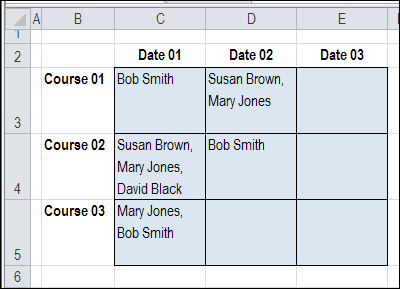
However, Leslie wants to prevent an instructor’s name from being selected twice on the same day. For example, on Date 01, in the screen shot above, Bob Smith and Mary Jones are each booked for 2 courses.
Check for Existing Names
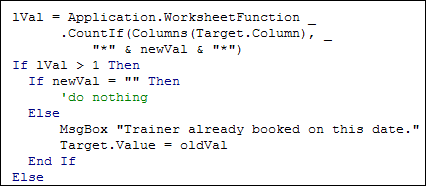
To prevent the names from being selected twice, I changed the code, to include the COUNTIF function.
- After a name is selected, the active column is checked for that name.
- If the name is found, a warning message is shown, and the name is not added in the current cell.
Here is the revised section of the code, with the COUNTIF function:
Testing the Code
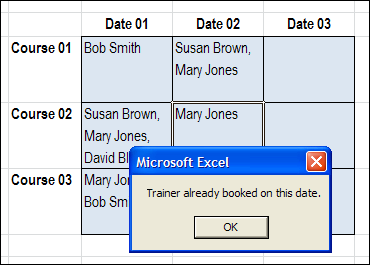
With the revised code, if I try to select a trainer who is already booked, I see this message, and the name is not added.
Download the Sample File
If you’d like to test the Block Duplicates code, you can download the No Duplicates in Multiple Selection Excel Drop Down sample file.
The file is in Excel 2007 format, and is zipped. When you open the file, enable macros, if you want to test the block duplicates feature.
_____________
That’s really useful, thanks. I had a similar problem but it wasn’t quite as complex – I wanted to make sure that duplicate information wasn’t entered into a column. I used data validation with the forumla =COUNTIF([range],[cell])=1 which did the trick!
The example above will check for the WHOLE column the table cell resides in.
If you – for example have trainer’s name mentioned BELOW the table, this will result in a duplicate error.
I think we must restrict the area to the table.
@Hugo, yes, if you’re going to have trainer names below the table, then you’ll have to restrict the COUNTIF function to the table range.
[…] prevent duplicates in multiple selection column […]
Hi,
I’m trying to develop a code that will stop duplicates from being entered. For example I am organizing a competition and have developed a code that enables people to type in there first name-. In the likely event of two or more people submitting the same name, I would like to know how to create a prompt to stop this happening and allow the person to choose another name or perhaps extend the name, from john to johnny, or john to john1 etc.
The code below is what I’ve pieced together from another code on this website, my knowledge is limited with excel coding though I would like to learn more. Can you help?
Private Sub CommandButton1_Click()
Dim historyWks As Worksheet
Dim inputWks As Worksheet
Dim nextRow As Long
Dim oCol As Long
Dim myRng As Range
Dim myCopy As String
Dim myCell As Range
‘cells to copy from Input sheet – some contain formulas
myCopy = “D5,D7,D9,D11,D13”
Set inputWks = Worksheets(“INPUT”)
Set historyWks = Worksheets(“DATABASE”)
With historyWks
nextRow = .Cells(.Rows.Count, “B”).End(xlUp).Offset(1, 0).Row
End With
With inputWks
Set myRng = .Range(myCopy)
End With
With historyWks
With .Cells(nextRow, “B”)
.Value = cbofirstname
With historyWks
With .Cells(nextRow, “C”)
.Value = cbocontactnumber
End With
End With
End With
cbofirstname.Value = “”
cbocontactnumber.Value = “”
End With
End Sub
Debra,
Thanks for this great multi-select code, as well as all your other great advice. You have been an important teacher for this Excel student.
I modified your code to prevent duplicates from being enterred in the same cell (by checking to see if the most recent selection was already present):
Else
Application.EnableEvents = False
newVal = Target.Value
Application.Undo
oldVal = Target.Value
Target.Value = newVal
If oldVal “” Then
If newVal “” Then
If InStr(1, oldVal, newVal, 1) > 0 Then
Target.Value = oldVal ‘reinsert old value, user selected same value twice
Else
Target.Value = oldVal _
& “, ” & newVal
End If
End If
End If
End If
Thanks again,
Phil