
There’s a popular sample file on my website, that lets you select multiple items from a data validation drop down list. Since the original article, I’ve posted updates:
- how to set up multiple selection
- edit multiple selection cells
- prevent duplicates in multiple selection column
And here is the latest update.
Remove Previous Selections From Cell
In the comments on the original post, Dan asked for a way to remove items if they been previously selected. For example, the cell contains four items — “One, Two, Three, Four”.
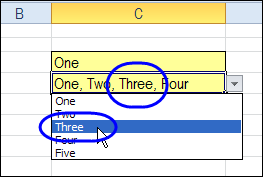
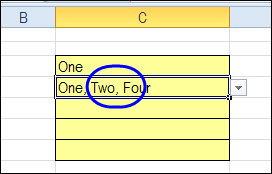
When you select Three again, that number is removed from the cell, instead of being added at the end of the cell.
Download the Sample File
To experiment with this technique, you can download the sample file from the Contextures website, on the Excel Data Validation – Select Multiple Items page. The file is in Excel 2003 format and zipped. There are macros in the file so enable them to test the features.
The new sample is on the SameCellAddRemove worksheet.
Please let me know in the comments if there are other features you’d like to see in this workbook. Thanks!
Watch the Excel Tutorial Video
This video shows how the multiple select and remove features work. You can also see the Excel VBA code, and the steps that it goes through, when you make a selection in the drop down list.
________________
How do I use SameCellAddRemove code for more than one column? Ex. I currently have it being used for column 12 but I’d also like to apply the multiselection to column 10.
Thanks!
I am currently using the code that allows multiple selections in a cell. However, I am having an issue with the code. Whenever there is data selected in the cell and I double-click in it and then click out of it, whatever was in the cell disappears. This is a huge issue since I cannot undo the deletion of the data in the cell, and there is no other way to recover the data. How can I fix this?
Please help! Very urgent.
@Coder, in the sample workbook, use the code from the SameCellEdit sheet. If the “Edit Entries” box is checked, it stops running the event code. You can make your changes, then uncheck the box.
Debra, I am new at this and would like to combine several of these for use on a worksheet (not just a column). How would I enter the code to allow for multiple choices in a drop down, no duplicates, and a line break instead of a comma?
Candice, make the following changes to the code in the SameCellNoDups example:
1) Change this line, that uses the comma and space separator:
to this, which uses a line break:
2) Change this line, which limits the code to column 3:
to this, which allows the code in any column:
Following Candice’s comment, is there a way that I can get it to skip two lines ie. have a space between selections that fall one under the other in the same cell?
Secondly, is there a way to make amendments to the text that is added in the editable cell. Ie. I select something from the drop down in bold but then the text I enter is unbolded?
Just an update I figured out the spacing but would still like to know how to change the font and perhaps the height of the line break as well. Thank you
When I delete something that was selected in error and the click off of the cell it keeps the old selections and then doubles the whole thing with the edit done. So If I removed a drop down list that said Mark, Jason, David and David was selected in error and I deleted it I would get:
Mark
Jason
David
Shows as
Mark
Jason
David
Mark
Jason
How can I resolve this. If I try to take duplicates out it simply doesn’t work. I was able to get it to work but then I don’t have the other options. Please help with this.
In the sample file, on the SameCellAddRemove worksheet, there is an example that lets you remove items if they been previously selected. There is also a worksheet that shows how you can add an Edit option, and turn that feature on or off.