
There’s a popular sample file on my website, that lets you select multiple items from a data validation drop down list. Since the original article, I’ve posted updates:
- how to set up multiple selection
- edit multiple selection cells
- prevent duplicates in multiple selection column
And here is the latest update.
Remove Previous Selections From Cell
In the comments on the original post, Dan asked for a way to remove items if they been previously selected. For example, the cell contains four items — “One, Two, Three, Four”.
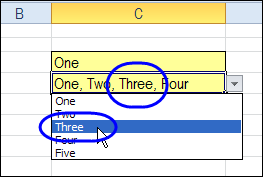
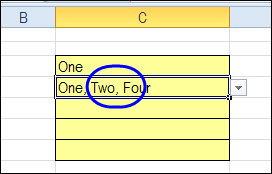
When you select Three again, that number is removed from the cell, instead of being added at the end of the cell.
Download the Sample File
To experiment with this technique, you can download the sample file from the Contextures website, on the Excel Data Validation – Select Multiple Items page. The file is in Excel 2003 format and zipped. There are macros in the file so enable them to test the features.
The new sample is on the SameCellAddRemove worksheet.
Please let me know in the comments if there are other features you’d like to see in this workbook. Thanks!
Watch the Excel Tutorial Video
This video shows how the multiple select and remove features work. You can also see the Excel VBA code, and the steps that it goes through, when you make a selection in the drop down list.
________________
I am an old hand at Excel and VBA and doing multi-select picklists is not something I would generally do in Excel. But sometimes Excel is the only tool at hand and it is all about imagining how it can be done. Worked like a champ; even handled the old multi-select data I downloaded from Salesforce.
Your tutorial sessions are fantastic.
Just wondered do you know how to add more than 1 SameCellAddRemove columns on 1 worksheet.
I need 3 columns with this samecell add remove feature on same worksheet/
This formula works brilliantly, thanks. Now my only problem is that it doesn’t work if the worksheet is protected, even if the actual cell containing the dropdown list is unlocked. It just behaves like a normal data validation list, i.e. the code is ignored.
Is there any way to allow it to work even if the sheet is protected?
Found the answer! Had to add this macro into ThisWorkbook:
Private Sub Workbook_Open()
ActiveSheet.Protect Password:=””, UserInterfaceOnly:=True
End Sub
Glad you found an answer!
This didn’t work for me.
i have the same issue and need to solve it please.
Help.
Hey Edwin,
Thanks for the code. I’m still new to vba, I cannot get the password unprotect and protect to work – can you share your code please, or how do I incorporate this code into the multiple drop down code?
Thank you.
Llewellyn
This formula/code works great, except when the list of items for the drop down contains common text across more than one item (e.g. list of items contains “Agree”, “Strongly Agree”, “Disagree”, Strongly Disagree”).
In this example, after selecting “Agree” and “Strongly Agree”, the cell where the drop down list exists is populated with “Agree, Strongly Agree”. However, when re-selecting “Agree” again to remove it (unselect it, if you will), the cell is left with “Agree, Strongl”.
Is there a way to get around this (unfortunately the options have to be the text listed above)?
@Ken, I’ve added a new worksheet — SameCellAddRemove2 — in the sample file, and it avoids the problem of removing similar entries.
The premium version of the technique also avoids that problem, by showing a list of the selected items. Just remove a check mark, to remove that item.
I don’t see the SameCellAddRemove2 sheet in the sample file? I downloaded from here http://www.contextures.com/excel-data-validation-multiple.html but it only had the original SameCellAddRemove sheet, which has the issue Ken Roberts mentioned above.
@Marcus, thanks, and the SameCellAddRemove2 sheet is back in the sample file now. Not sure how or when it disappeared!
till now i dont know how to make this function please i need easy way to make it .
thanks