
You probably know how to quickly copy Excel formula down a column, if there is data in the next column. But how can you do the same thing, if there are blank rows?
Problem Copying a Formula Down
Recently, I saw this tweet, from someone stuck on an Excel problem:
- An Excel problem I have never solved – easily copying a formula down tens of thousands of rows where the row next to it may be blank.
Fill Down Beside Filled Cells
Yes, it’s easy to copy a formula down a column, if the adjacent column is filled. Follow these steps to copy the formula down to the first blank cell in the adjacent column.
- Select the cell with the formula
- Point to the fill handle, at the bottom right of the selected cell
- When the pointer changes to a black plus sign, double-click the fill handle
The formula will automatically copy down to the last row of data.
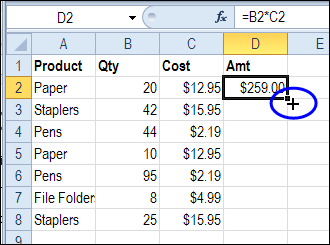
Fill Down with Empty Adjacent Column
However, if the adjacent column is empty, this fill handle trick doesn’t work. How can you quickly enter formulas in a column, if you’re setting up a workbook, with lots of empty cells?
Here’s how I do it – maybe you have another trick to do the same thing:
- Select the cell with the formula
- Click in the Name Box, and type the range where you want the formula entered. In this example, the formula is in cell D2, and it should go down to cell D2000.
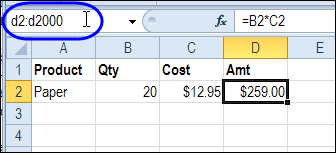
- Press the Enter key, to select the range of cells
- On the keyboard, press Ctrl + D, to fill the formula down through the selected cells.
More Data Entry Tip
For more data entry tips, go to the Data Entry page on my Contextures website. There are written steps, screen shots, and videos.
And there are more shortcuts on the Excel Double-Click Tips page too.
_________
I’d like to copy a formula down several thousand cells with only one aspect of an IF function changing in each cell. Excel automatically changes every reference to a cell +1. Is there a way to hold everything in the function constant except for 1 variable? Here’s the function I am trying to work with:
=IF(auction1!E27=A2,auction1!E27,””) in cell B2
=IF(auction1!E27=A3,auction1!E27,””) in cell B3
=IF(auction1!E27=A4,auction1!E27,””) in cell B4 and so on…
Thanks for any input!
Use an absolute reference to the cell if you don’t want it to change. For example
=IF(auction1!$E$27=A3,auction1!$E$27,””) in cell B3
Those $ signs lock the row and column in the reference.
I can’t believe I always forget about absolute references for doing this! Thanks for the reminder.
Debra,
Thank you so much for that!!! I am a self learner and really enjoy playing with excel and always had to go back and redo every cell when I copied formulas!! You have saved me so much time and effort with the absolute reference!!! Thanks!!!!
Thanks Rick! I’m glad the tip helped you save time.
This is cool. Thanks for the helpful tip!
Thank you!! A 1 minute Google search for “excel copy formula” just saved me 30 minutes of work! 😀
I used the Name Box option to copy a formula to 127,000 lines
Brilliant !!!!!!!
totally helpful! thank you.
Good work uninterrupted for ever …
Many thanks …