
You probably know how to quickly copy Excel formula down a column, if there is data in the next column. But how can you do the same thing, if there are blank rows?
Problem Copying a Formula Down
Recently, I saw this tweet, from someone stuck on an Excel problem:
- An Excel problem I have never solved – easily copying a formula down tens of thousands of rows where the row next to it may be blank.
Fill Down Beside Filled Cells
Yes, it’s easy to copy a formula down a column, if the adjacent column is filled. Follow these steps to copy the formula down to the first blank cell in the adjacent column.
- Select the cell with the formula
- Point to the fill handle, at the bottom right of the selected cell
- When the pointer changes to a black plus sign, double-click the fill handle
The formula will automatically copy down to the last row of data.
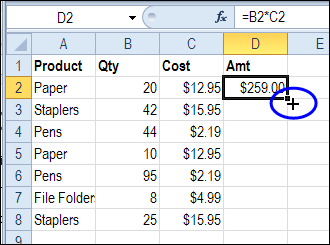
Fill Down with Empty Adjacent Column
However, if the adjacent column is empty, this fill handle trick doesn’t work. How can you quickly enter formulas in a column, if you’re setting up a workbook, with lots of empty cells?
Here’s how I do it – maybe you have another trick to do the same thing:
- Select the cell with the formula
- Click in the Name Box, and type the range where you want the formula entered. In this example, the formula is in cell D2, and it should go down to cell D2000.
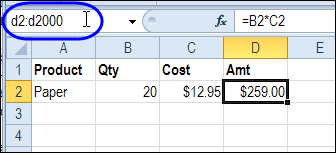
- Press the Enter key, to select the range of cells
- On the keyboard, press Ctrl + D, to fill the formula down through the selected cells.
More Data Entry Tip
For more data entry tips, go to the Data Entry page on my Contextures website. There are written steps, screen shots, and videos.
And there are more shortcuts on the Excel Double-Click Tips page too.
_________
Fill down with empty cells in adjacent column is a common problem I solve by using the Ctrl+arrow keys to navigate to the first column, then last row, then as far as I can get to the formula column. The last little bit I’ll use the arrow keys to move over to the column with the formula, then use Ctrl+Shift+Up Arrow to shoot up to the first row where the formula is located, then use Ctrl+Down to copy the formula.
Your method works great, but I don’t normally know what the last row of the range is, so I’m using Ctrl+ arrow keys to find out anyway.
“Ctrl+D” is not valid for some other countries. French people are using CTRL B.
Excellent tip – did not know I could do this! 🙂
I usually copy my formula, then Ctrl+g and enter the cell I want to copy to, then Ctrl+Shift+Up Arrow and paste.
Very handy, thanks very much!
Great tip, and well work keeping in your Excel tool arsenal! Works in Excel 2013 as well. I needed to fill only 40 empty lines for a static form and this fit the bill perfectly.
There is a much easier way.
You can still use the fill handle by simply selecting the cell in the blank column and the cell you wish to copy down. Double-clicking the fill handle copies your formula down the contiguous range without changing the blank column.
great tip, thanks a lot!