
To help users enter data in a workbook, you can create an Excel UserForm, with text boxes and combo boxes. Then, with a quick bit of code, you can show UserForm when Excel file opens, so the form is easy to find and use.
Parts Inventory Data Entry Form
Here is the parts inventory data entry form from the sample file.
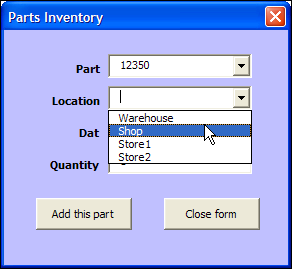
In the original UserForm sample file, there was a button on the worksheet, and users could click it to open the UserForm.

Open the UserForm Automatically
In some workbooks, you might want people to get right to work, and see the UserForm immediately.
So, instead of putting a button on the worksheet, for people to click, you can show the UserForm automatically, when the file opens.
Code to Open the Form Automatically
To make the UserForm open automatically, you’ll add a bit of code to the workbook’s code module, in the Workbook_Open procedure.
To add the code:
- In the UserForm workbook, press Alt + F11, to open the Visual Basic Editor.
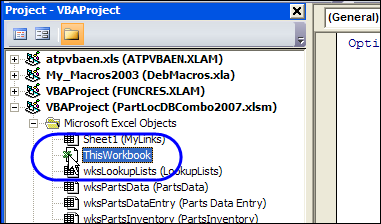
- At the left, in the Project Explorer, find the UserForm workbook, and double-click on its ThisWorkbook module (in the Microsoft Excel Objects folder).
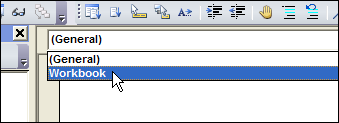
- At the top left of the main code window, from the Object drop down, select Workbook
- At the top right, from the Procedure drop down, select Open
- The Workbook_Open procedure will be automatically created, with the cursor positioned between the first and last lines of code.
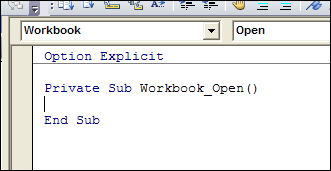
- Where the cursor is flashing, type a line that opens the UserForm. In this example, the UserForm is named frmParts, so type the following line of code in the Workbook_Open event:
- frmParts.Show
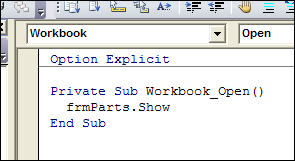
Test the Workbook_Open Code
To test the Workbook_Open code, follow these steps:
- Save and close the UserForm workbook.
- Open the workbook, and enable macros, if prompted.
- The UserForm will open automatically.
______
Is there a row source in the Mac version? I didn’t see one.
Hi,
I did this and everything was running smoothly, however when I tried to close It again suddenly I got an error
of Run-time error ‘438’: Object doesn’t support this property or method.
Private Sub Workbook_Open()
UserForm1.Show
End Sub
got any ideas out there?
cheers
Jubert
Same problem. Nothing is working. I have no idea why. 🙁
Thanks this work great.
thank u sooo much….
thank you
Private sub userform_initialize
ListBoxName.List = Range(“LISTNAME”).Value
End sub
‘You will have to delete the row source the properties box for the listbox.(option not available for Mac users)’
‘Also, make sure that you userform NOT your userform name after Private sub.’
I want to save the automatic input form that excel 2013 automatically creates from the quick access toolbar ‘form’ which uses my worksheet data. I’d like to save it as a userform object under my Developer tab (VBE).
Hi Kal, Did you get an answer to your question? I am trying to do the same thing and can’t figure it out. I want to use the automatic form generated by excel 2013 and have it open automatically in the worksheet and no luck so far.
Kal and Maureen:
I just did this as I wanted same. Over the years you may have no use for this now. But it may help others:
In Excel on your sheet where you are launching the auto form, run a macro.
1. Record the macro of you opening the form. Do nothing else but open the form and stop running the macro.
2. Alt+F11 to get into programming screen.
3. You will see on the left a module1 was created. Click it.
4. You will see the macro that was recorded and at the end just before End Sub – you will see the action. Mine says: ” ActiveSheet.ShowDataForm” – copy this.
5. Now go to “ThisWorkbook” on the left and copy the process mentioned in this article ( dropdown select, Workbook).
6. Then your code inbetween Sub and End Sub you will paste the macro action in the middle. So, instead of what this article says of “FormName.show” just paste what you copied from Module1.
7. Close and save and it should load. You will have the excel sheet in the background but the form launches and is workable.
Hope that helps.