
You can quickly create a named range in Excel, but it doesn’t automatically expand to include new items that are added at the end of the list.
However, a dynamic Excel named list grows automatically, so here’s how to create that type of list.
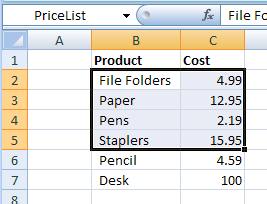
Create a Dynamic Named Range
If you plan to add new items to a list, create a dynamic named range, by using an OFFSET formula.
Here are the steps:
- On the Ribbon, click the Formulas tab
- Click Define Name
- Type a one-word name for the range, e.g. PriceListDynamic
- Leave the Scope set to Workbook.
Add the Formula
Next, in the Refers To box, enter an Offset formula that defines the range size, based on the number of product names in column B
In this example, the following OFFSET formula is entered in the Refers to box:
=OFFSET(Prices!$B$1,1,0,COUNTA(Prices!$B:$B)-1,2)
How It Works
Here’s how the OFFSET formula works:
- Using cell B1 as the reference cell, the list will start 1 row down, and 0 columns to the right.
- It counts all the items entered in column B, and subtracts 1, because the list won’t include the heading in B1.
- The list will be 2 columns wide.
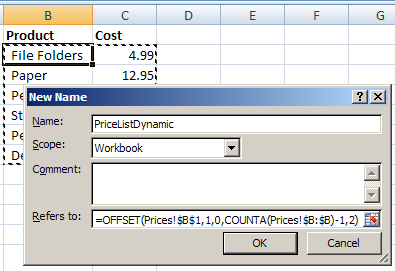
Then, as new items are added to the list, the dynamic named range will automatically expand to include them.
Video: Dynamic Excel Named List
To see the steps for creating a quick named range and a dynamic named ranged, you can watch this video tutorial.
_______________
Dear Debra,
My name is joju andi am working in a construction company i would like to learn step by step for applying dinamic name range i have some datas of employees like
Code no Name Designation
2343 Mr.A Construction Manager
2345 Mr. B Project Engineer
Like this the data base will be added with new code no and employees in thease cases how can i use dinamic name range
Hello, we use excel to record employee time worked. When a employee works over 40 hours in a given week, we require a formula that will distinguish when the total hours total over 40 and place that (additional over 40) value into a different cell which will then calculate time and a half of pay for each hour of over time.
Dear Debra—
First of all, I love dynamic ranges, and have used them in the past, but this time is different, and I have no clue how to approach this “challenge”. I am pulling data from Cognos and linking it within Excel to perform various calculations. Now the report I have has a total of 105 rows of data and 19 columns. These 105 rows of data include “header” rows to seperate the data by location and then by person. I need to be able to link data based on both the location and then the person. A dynamic range does not appear to be something that would work because the way my data is. The number of rows would vary earch time the report is run, but the number of columns will remain consistant. Any ideas Since there is no “dead space” between each location’s data?
I can probably recreat my Cognos report to list each location on a seperate page (which would be a seperate tab within Excel), but would I need to set up a range for each column (remember there are 19) within each location (there are about 12)? Any assistance you can offer would be greatly appreciated!
Sherry,
You may still be able to use dynamic ranges. First, create a dynamic range for the whole column with Location names so you can search for Locations in that range. Assuming you have a fixed set of Location names, you could use the MATCH function to find the starting row for each Location to determine the row offset, then you could use MATCH to find the top row again and subtract it from the start row of the next Location (using MATCH for the 3rd time) to get the height of the range. Depending on how you define the start row you’ll probably need to subtract 1 more from the range height. You’ll also need to add a dummy Location at the bottom of the whole dataset to be able to find the bottom of the last Location using the same scheme. It’ll be a messy formula, but you only have to do the setup once! Remember, you can use wildcard characters in MATCH to shorten the formula.
Dear Debra
I have a pivot table reporting data for various segments of sales with a subtotal for each segment such as the segments below, i need to report on each segment and rather than having one pivot table per segment, how can i use a dynamic named range to extract one segment such as “General Sales”.
Contract Sales
Contract Sales Total
General Sales
General Sales Total
Growth and Replacement
Growth and Replacement Total
Other Sales
Other Sales Total
The method I use seems a lot easier:
Create the list, use a header.
Highlight and name the range without header)
Highlight the header and range
CTRL L to create table, my table has headers.
This way new rows added to the table are also added to the range.