
You can quickly create a named range in Excel, but it doesn’t automatically expand to include new items that are added at the end of the list.
However, a dynamic Excel named list grows automatically, so here’s how to create that type of list.
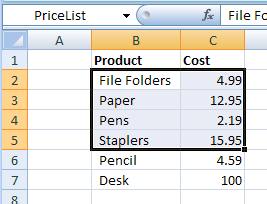
Create a Dynamic Named Range
If you plan to add new items to a list, create a dynamic named range, by using an OFFSET formula.
Here are the steps:
- On the Ribbon, click the Formulas tab
- Click Define Name
- Type a one-word name for the range, e.g. PriceListDynamic
- Leave the Scope set to Workbook.
Add the Formula
Next, in the Refers To box, enter an Offset formula that defines the range size, based on the number of product names in column B
In this example, the following OFFSET formula is entered in the Refers to box:
=OFFSET(Prices!$B$1,1,0,COUNTA(Prices!$B:$B)-1,2)
How It Works
Here’s how the OFFSET formula works:
- Using cell B1 as the reference cell, the list will start 1 row down, and 0 columns to the right.
- It counts all the items entered in column B, and subtracts 1, because the list won’t include the heading in B1.
- The list will be 2 columns wide.
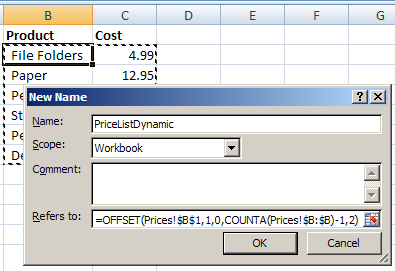
Then, as new items are added to the list, the dynamic named range will automatically expand to include them.
Video: Dynamic Excel Named List
To see the steps for creating a quick named range and a dynamic named ranged, you can watch this video tutorial.
_______________
Hello,
I need some help in excel.
I need to display the Date as July 29,2013 in excle in single row and these should be change manually and another i have to dspaly time through list for a specific time like 4:02,16:30,17:05 the time doesnot change once saved.
Please send me the excel example if this possible on my mail id [email protected]
Hi Debra.
I’m having a column in a spreadsheet which I’d like to convert to a dynamic range. And I’m using your formula, which seems pretty logic to me… Nevertheless, this column has 68 rows, and there are only 13 rows of cells with text data: the rest of the cell rows are empty… When I check into to the dynamic range I created following your procedure and formula, it seems the formula is working but it only takes the range of the first 6 cell rows of empty data and a just a cell row with text. The range does not go down any further to my 68th row and leaves 62 rows not being wrapped by the dynamic range I just set. Would you have an idea on what am I doing wrong?
Hi Debra. Sorry once again.
If you could just post an article or explanation on dynamic named ranges with blanks in a column (with helper columns) I would be much grateful.
Thanks for your blog.
It seems this is the formula when dealing with blanks among data in cells, given to me by Debraj Roy at the Chandoo forums… It is a very useful formula (seems like a pretty elegant solution), but I do not understand how it works… If someone could explain it to me, he/she’d be doing a great favor to the world of non-expert Excel users.
=SpreadsheetX!$O$6:INDEX(SpreadsheetX!$O:$O;MATCH(REPT(“z”;255);SpreadsheetX!$O:$O))
Hope it helps. Regards.
6tel – An easy solution is to insert a dummy column that always has a value in it (for example put the letter A in column 1 of every row). The COUNTA part of the OFFSET formula does not have to refer to the column that the named range is being assigned to (all you are trying to do is count the number of used rows in the sheet), so you can then use COUNTA($A:$A) to determine dynamically the number of rows in the range.
Dear Debra,
thank you very much for all your help. I was wondering: dynamic ranges are very useful for lists of data that are only growing in time, but what about a list that can be either longer or shorter?
We are reporting on the number of tickets we get per region and of course, there do not need to be all regions at all times at the report – only the ones that sent us something to solve 🙂 Is there any solution for that as well?
Thanks again,
Katerina