
You can quickly create a named range in Excel, but it doesn’t automatically expand to include new items that are added at the end of the list.
However, a dynamic Excel named list grows automatically, so here’s how to create that type of list.
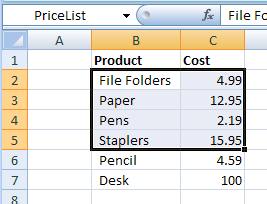
Create a Dynamic Named Range
If you plan to add new items to a list, create a dynamic named range, by using an OFFSET formula.
Here are the steps:
- On the Ribbon, click the Formulas tab
- Click Define Name
- Type a one-word name for the range, e.g. PriceListDynamic
- Leave the Scope set to Workbook.
Add the Formula
Next, in the Refers To box, enter an Offset formula that defines the range size, based on the number of product names in column B
In this example, the following OFFSET formula is entered in the Refers to box:
=OFFSET(Prices!$B$1,1,0,COUNTA(Prices!$B:$B)-1,2)
How It Works
Here’s how the OFFSET formula works:
- Using cell B1 as the reference cell, the list will start 1 row down, and 0 columns to the right.
- It counts all the items entered in column B, and subtracts 1, because the list won’t include the heading in B1.
- The list will be 2 columns wide.
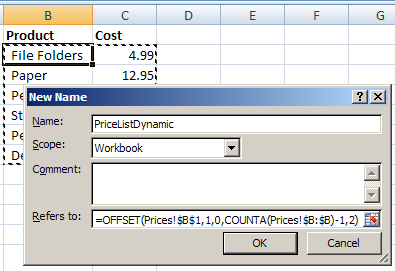
Then, as new items are added to the list, the dynamic named range will automatically expand to include them.
Video: Dynamic Excel Named List
To see the steps for creating a quick named range and a dynamic named ranged, you can watch this video tutorial.
_______________
Does anybody use Data>Lists (or Tables in 2007) for dynamic data validation lists? I’m just fooling around with it. After creating the List, I created a named range, using only the column of the list that I want in the data validation, and excluding the header.
This seems to work well, with the following benefits:
– Can have more than one list on a Validation Lists worksheet (each one having its header in Row A) and am only allowed to insert/delete rows from one List at a time. (With more than one dynamic range on a sheet it’s easy to accidentally delete a whole row spanning multiple ranges.)
– Am prevented from deleting a list’s header row.
– The named range expands and contracts with the list as I add or delete rows, just like a dynamic range.
– The data validation range isn’t affected if you add other items below the List in the same column.
– Deleting all the items in the list results in a blank as the only data validation choice – the named range adjusts to include the “*” row of the List. However, when I add items back in the List, the “*” row is no longer included, and the blank Data Validation choice goes away.
– the named range is visible in the Name box
I’d be interested to know if people use this method. I don’t recall seeing it mentioned.
Doug, the List and Table features certainly have many benefits, as you mentioned. However, many of my clients still have some people using Excel 2002 or earlier, so I can’t risk using those features, since they aren’t supported.
Thanks Debra. After I posted my comment I realized that I’m only working with 2003 or later right now, but that the issue is exactly what you said for earlier versions. Other than that, Lists/Tables seem to work very well in place of dynamic ranges for DV. I’ve written some VBA code to convert a range to a List and then add a named range to the first column for this purpose.
Hi.
Thanks for the great tip.
I’m trying to implement dynamic lists (on a third dependent list http://www.contextures.com/xldataval02.html#Third) using Excel 2003 and it doesn’t seem to be working. Does Excel 2003 allow for dynamic named lists?
Thanks,
Aviva
Thanks Aviva, and to use a dynamic list in dependent data validation, you can follow the instructions here:
http://www.contextures.com/xldataval02.html#Dynamic
Hey Debra
Great post, I have a question though and at the risk of being asking one too complicated for a comment…..
What I would like to do is have primary and dependent lists that update automatically. The primary list is a list of phases, the dependent list is a list of sub phases. The user chooses a phase in column A, which then dictates which list they will choose from in column B. I want users to be able to add/edit/delete both phases and sub phases as they see fit since this is a living document. They way I am doing it now is through a recorded macro that uses insert>name>create, but it adds all the empty cells to the list.
Thanks for any help
Johannes