
You can quickly create a named range in Excel, but it doesn’t automatically expand to include new items that are added at the end of the list.
However, a dynamic Excel named list grows automatically, so here’s how to create that type of list.
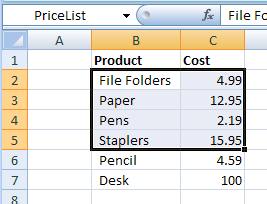
Create a Dynamic Named Range
If you plan to add new items to a list, create a dynamic named range, by using an OFFSET formula.
Here are the steps:
- On the Ribbon, click the Formulas tab
- Click Define Name
- Type a one-word name for the range, e.g. PriceListDynamic
- Leave the Scope set to Workbook.
Add the Formula
Next, in the Refers To box, enter an Offset formula that defines the range size, based on the number of product names in column B
In this example, the following OFFSET formula is entered in the Refers to box:
=OFFSET(Prices!$B$1,1,0,COUNTA(Prices!$B:$B)-1,2)
How It Works
Here’s how the OFFSET formula works:
- Using cell B1 as the reference cell, the list will start 1 row down, and 0 columns to the right.
- It counts all the items entered in column B, and subtracts 1, because the list won’t include the heading in B1.
- The list will be 2 columns wide.
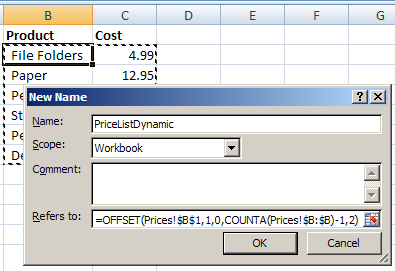
Then, as new items are added to the list, the dynamic named range will automatically expand to include them.
Video: Dynamic Excel Named List
To see the steps for creating a quick named range and a dynamic named ranged, you can watch this video tutorial.
_______________
Debra,
I totally agree with your post. Since I first know of this thanks to Chandoo’s post, I have never stopped using it.
Stan, maybe you’d like to consider split the contents of your sheet in 2 different ones: one with the data and one with the summary or the remaining contents. It helped me on structuring both macros and formulas, and it’s easier to understand and maintain by someone else if the chance arises, proving your professionalism.
Rgds,
Martin.
Debra, in my brilliant comment 😉 at the link below, I added a technique to deal with an empty list – a list with just a header: http://www.dailydoseofexcel.com/archives/2010/01/07/new-years-resolution-no-more-offset/#comment-43246.
Martin, you’re right, separate sheets certainly make things easier to maintain.
Doug, thanks for the link! That’s a nice solution to the problem of deleted heading rows.
One problem I have with dynamic name lst is when I create a pivot table using query (to combine various sheets), these names does not seem to be recognised by MS Query.
HI Debra, I need to do the same thing but instead of adding rows to columns, I need to dynamically add columns to a single row. For example, column A starting in cell 1 has 25 rows of time intervals. Each day I need to add the previous days numbers to the next empty column. I have that figured out, but I would like to use a named range for each of the 25 rows and have them dynamically expand as I would like to use the named ranges in reports I have created based on this data. So each row must have it’s own unique named range that expands across columns. Can you use a variation of the code above to accomplish this? if not, can you shed some light on how it might be done. Love your site, thanks
@Boon, you might have to use a non-dynamic named range, and use a macro to redefine the range after you’ve added or deleted data.
@wayne, you can use a COUNTA function to calculate the number of columns too. For example, count the cells with data in row 1:
=OFFSET(Prices!$B$1,1,0,COUNTA(Prices!$B:$B)-1,COUNTA(Prices!$1:$1))