
You can quickly create a named range in Excel, but it doesn’t automatically expand to include new items that are added at the end of the list.
However, a dynamic Excel named list grows automatically, so here’s how to create that type of list.
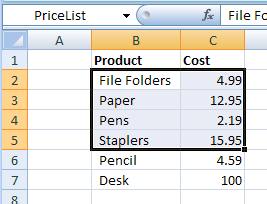
Create a Dynamic Named Range
If you plan to add new items to a list, create a dynamic named range, by using an OFFSET formula.
Here are the steps:
- On the Ribbon, click the Formulas tab
- Click Define Name
- Type a one-word name for the range, e.g. PriceListDynamic
- Leave the Scope set to Workbook.
Add the Formula
Next, in the Refers To box, enter an Offset formula that defines the range size, based on the number of product names in column B
In this example, the following OFFSET formula is entered in the Refers to box:
=OFFSET(Prices!$B$1,1,0,COUNTA(Prices!$B:$B)-1,2)
How It Works
Here’s how the OFFSET formula works:
- Using cell B1 as the reference cell, the list will start 1 row down, and 0 columns to the right.
- It counts all the items entered in column B, and subtracts 1, because the list won’t include the heading in B1.
- The list will be 2 columns wide.
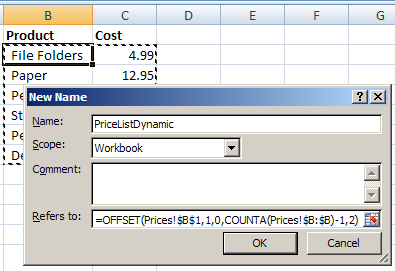
Then, as new items are added to the list, the dynamic named range will automatically expand to include them.
Video: Dynamic Excel Named List
To see the steps for creating a quick named range and a dynamic named ranged, you can watch this video tutorial.
_______________
Hi Debra:
I like the idea of using a Dynamic Named Range, however, for the workbook that I am using now, this range is in the middle of the sheet, with data above it.
Is there a way to handle a situation like this.
Thanks – I appreciate your insights into Excel, I use your tips all of the time.
Hi Stan, if you know which row the range starts in, you could subtract everything above that. For example, if the range starts in B31, and that position won’t change:
=OFFSET(Prices!$B$1,30,0,COUNTA(Prices!$B:$B)- COUNTA(Prices!$B1:$B30),2)
Or, name the start cell for the range, and use that to find and count the cells above it:
=OFFSET(Prices!$B$1,ROW(StartCell)-1,0,COUNTA(Prices!$B:$B) – COUNTA(OFFSET(Prices!B1,0,0,ROW(StartCell)-1,1)),2)
Thank you so much for this answer. I searched high and low for 30 minutes. Thanks!
Following on from this, when I use a dynamic range to pick information from the middle of a table of data I get no column headers when I reference the named range in a Pivot Table – I’ve tried selecting the first row and the named range as a source for the Pivot and even using both the first row and the dynamic formula as a named range but neither work.
I’ve been searching for days and can’t find any information on how to do this.
Please help! 🙂
@Dan, you won’t be able to create a pivot table from data in the middle of a range. Perhaps you could use an Advanced Filter to extract the data to a different worksheet, and base the pivot table on the extracted data.
I love these and use them a lot, but recently I have been rethinking how much I use them. Typically I use these together with a list via data validation so that the drop-down list updates appropriately. But then I found out that using a dynamic range doesn’t restrict user entry in the cell. If you have a hard coded range, then you can set up data validation to only accept items in that list. If you try to type anything else, it will throw an error and tell you to fix it. With dynamic ranges, you can type whatever you want in the data validation cell, even if it doesn’t match the list, and you will get no error.
Annoying.
Jayson, the data validation lists based on a dynamic range should block any invalid entries, unless there’s a blank cell in the dynamic range. Check your formula to make sure you aren’t including an extra row.
Debra- That was my thought at first. Would you care to try and let me know what you find? I’ve just tried again tonight. I don’t see a blank row (no blanks in the data validation drop-down).
Jayson, can you send me your file or upload it somewhere that I can access it?
ddalgleish AT contextures.com