
If you’re filling in a form, the data entry cells might be scattered throughout the worksheet. You’d like a quick and easy way to move through the cells, in a specific order. Here is a technique that lets you jump to the next data entry cell in Excel, without any macros.
Select the Data Entry Cells
To set up this technique, you will create a named range. The steps below show how to do this.
In this example, we have a report card, and the cells are numbered, to show the data entry order.
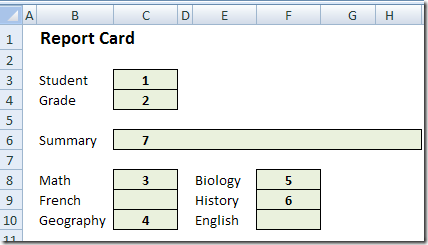
- First, select the second cell in which you want to enter data.
- In this example, we’ll select cell C4, where the student’s grade level will be entered.
- Then, hold the Ctrl key and select the next cell, then the next, until the remaining cells, 3 to 7, are selected.
- Finally, select the first cell in the sequence – cell C3 in this example.
Because cell C3 was selected last, it becomes the active cell in the range. Later, when we use this range, we’ll automatically start in cell C3.
- Note: In Excel 2003 and earlier versions, you’re limited to 255 characters in the named range formula. Depending on the length of the sheet name, you’ll probably be able to include 10-15 cells in the named range.
Name the Range
Next, you’ll create a name for the selected cells.
- Click in the Name box
- Type a one-word name for this group of cells – Grades in this example.
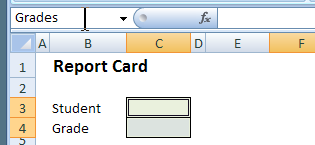
- Press the Enter key to save this name.
Use the Named Range for Data Entry
Now, when you want to enter information into these cells, you can select the named range, and tab through the cells.
- At the right of the Name box, click the drop-down arrow.
- Click on the name that you created – Grades
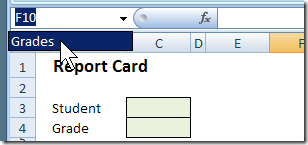
- With the named range selected, type in the active cell.
- Press the Tab key, or the Enter key, to move to the next cell.
- When all the cells are completed, click a cell outside the named range, to deselect the range.
Video: Jump to the Next Data Entry Cell
To see the technique to jump to the next data entry cell in Excel, watch this short video.
For more data entry tips and video, go to the Excel Data Entry Tips page on my Contextures website.
_______________
Excel facinates me (not tht good at it) I look forward to new stuff and this is definitely new to me — THANKS
Thanks Jim — there’s always cool new stuff in Excel, no matter how long you’ve used it.
[…] can also select the range, and use it to jump to specific cells when entering data, as in the Grades range, in the report card shown […]
This is very useful, thank you. How can I use this technique to have the data entered appear on a spreadsheet as a list od student report cards?
hi,
so i want to go on through the whole excel sheet, so if i have 4 students, i just want to pres enter and the excel jumps to the next page, is this possible plz help tnx.
hey,
i got more then 1 student and i made tabs in my worksheet, but i don’t want to click for evry student to go to the next tab, is there a way to go to the next tab with. many thanks
Mike, you can press Ctrl + PageUp or Ctrl + PageDown to go to the next worksheet