
If you’re filling in a form, the data entry cells might be scattered throughout the worksheet. You’d like a quick and easy way to move through the cells, in a specific order. Here is a technique that lets you jump to the next data entry cell in Excel, without any macros.
Select the Data Entry Cells
To set up this technique, you will create a named range. The steps below show how to do this.
In this example, we have a report card, and the cells are numbered, to show the data entry order.
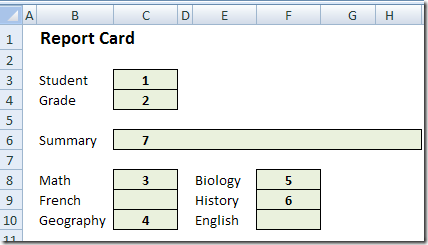
- First, select the second cell in which you want to enter data.
- In this example, we’ll select cell C4, where the student’s grade level will be entered.
- Then, hold the Ctrl key and select the next cell, then the next, until the remaining cells, 3 to 7, are selected.
- Finally, select the first cell in the sequence – cell C3 in this example.
Because cell C3 was selected last, it becomes the active cell in the range. Later, when we use this range, we’ll automatically start in cell C3.
- Note: In Excel 2003 and earlier versions, you’re limited to 255 characters in the named range formula. Depending on the length of the sheet name, you’ll probably be able to include 10-15 cells in the named range.
Name the Range
Next, you’ll create a name for the selected cells.
- Click in the Name box
- Type a one-word name for this group of cells – Grades in this example.
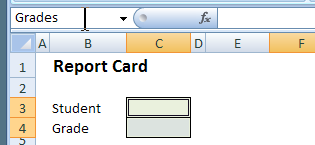
- Press the Enter key to save this name.
Use the Named Range for Data Entry
Now, when you want to enter information into these cells, you can select the named range, and tab through the cells.
- At the right of the Name box, click the drop-down arrow.
- Click on the name that you created – Grades
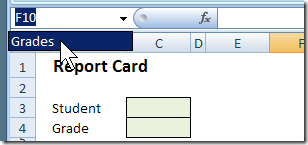
- With the named range selected, type in the active cell.
- Press the Tab key, or the Enter key, to move to the next cell.
- When all the cells are completed, click a cell outside the named range, to deselect the range.
Video: Jump to the Next Data Entry Cell
To see the technique to jump to the next data entry cell in Excel, watch this short video.
For more data entry tips and video, go to the Excel Data Entry Tips page on my Contextures website.
_______________
Hi Debra,
This may sound surprising, but the 255 character limit does not apply here, provided you use the name box to define the name after selecting the data entry cells.
The actual limit is a certain amount of areas (I forgot how many).
The only way to EDIT that name afterwards however is by using Name Manager created by Charles Williams and myself, download at
http://www.jkp-ads.com/officemarketplacenm-en.asp
@ JKP
Name manager is not the only way to edit the name. In XL 2003 I just used Insert – Name – Define to manually add another cell to the range. You can edit the content of the “Refers to:” box and click “Add” to make changes. If you hit F2 while in the “Refers to:” box, you can use the arrow keys to navigate and enter new cell addresses.
Well I never – after all the years I have been using Excel I have never used this technique – Many thanks for sharing it with us.
Lots of my customers will find this very useful and I will be passing it on with a reference to your excellent blog.
Thanks
Clayton
Thanks Clayton — glad you found the tip useful!
Thanks your tip for set Name Range for Data Entry.
[…] Jumping to next cell during data entry […]