
If you have a folder full of MP3 files, you can use Excel to create a list of the files, including title, artist, and song duration.
I pulled together a collection of music for a family wedding, and wanted to share the list with the bride and groom. Rather that write some code myself, I checked a few of my favourite Excel sites.
John Walkenbach has a download that looked perfect for the job. I downloaded his MP3 File Lister, opened the file, and clicked the Start button.
NOTE: John’s site is no longer available, but you can get the MP3 File Lister from the archive of his site on the Wayback Machine site.
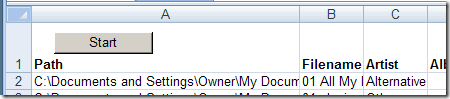
Using the MP3 File Lister
I was prompted to select a folder, and a few seconds later, the list was finished. It had included all the files from the top level folder, and all the subfolders.
The Artist and Genre columns were switched, as were the Album and Duration columns. The code is unlocked though, so you could easily change the headings if you encounter the same problem.
The file ran in Excel 2003 and Excel 2007, without any other problems.
__________________
too bad i can’t spell, lol
Works like a charm – or like magic – take your pick.
Exactly what I was looking for.
It isn’t working for me in Office 2010 64-bit on Windows 7.
Even if I change the Declare statements to include PtrSafe, as the error message suggests, Excel just crashes after I click Start.
It sounds amazing, and it seems to be exactly what I was looking for, so I hope there’s some way to make it work.
I have been searching for something like this for a very long time… and it works PERFECTLY!! Thank you very much to John Walkenbach for this MP3 File Lister!!
(I am running Windows 7 Home Premium on an HP Pavilion g7 Notebook x64 based PC with Excel 2010)
1. Anyone know how to persuade it to start in, for example, D:\My Stuffs\My Music\iTunes\iTunes Media\Music rather that in the top-level of the whole system. Would save a lot of clicking, because,
2. It seems to conk out after ~1900 files. Any ideas?
Thanks in advance
Actually, ignore comment re conking out It IS still going – you can use Resource Monitor in W8 to see how far it’s got. If you incorporate the original Clever into a sheet which Does Things with the data, turn off automatic recalculation if you’ve got a lot of files. DAMHIKT…
I like the way it works, even if the headings are switched using XP Pro. What I am not getting is the other information shown in Properties, namely: Bit Rate, Channels and Audio sample rate.
As I am not able to add the necessary code to include these fields, is there a work-around I can use to get this information, or (if you are still watching this post, John) would you consider adding these fields to this sheet? I need this information to help identify which files will have a problem playing in a specific game program I use.
Wayne, after playing around with it, I found a lot of the other labels you were looking for, but could not find all of them. I too was looking for data for album artist (contributing artist is already listed). But the codes are as follows:
1 Type of File
2 Date Modified
3 Date Accessed
4 Date Created
5 Date Modified
6 Attributes
9 Type
10 Owner
11 Type
13 Contributing Artist
14 Album*
15 Year*
16 Genre*
17 Conductors
19 Ratings
20 Artist*
21 Title*
24 Comments
26 Track Number*
27 Duration*
28 Bit Rate
54 Computer
* Already included in the code.
To add the extra columns, you only need to do 2 things, both by stepping into the macros running on the worksheet (“View” Tab, Macros Button, View Macros, Step into “GetAllFiles”; may help to change to “This Workbook” if you have a lot of macros built)
1. Scroll down about half way. Look for:
“Put column headings on active sheet
Cells(1, 1) = “Path”
Cells(1, 2) = “Filename”…
There will be about 8 of these. Copy the last line and paste it to the next line down. Make sure to change the cell number (Ex. 1,8 to 1,9). and change the heading to the desired data (ex. “Filename” to “Bit Rate”
This will add a new column to the spreadsheet
2. Scroll down some more until you see:
If UCase(Right(filename, 3)) = “MP3” Then
Row = WorksheetFunction.CountA(Range(“A:A”)) + 1
Cells(Row, 1) = currdir ‘path
Cells(Row, 2) = filename ‘filename
Cells(Row, 3) = FileInfo(currdir, filename, 21) ‘title…
Again, copy the last line and paste it to a new line. Make sure to change the row number (Ex. “Row, 8” to “Row, 9”).
Change the number at the end of the line (Ex. “, 21” to “, 28” for bitrate; see above list) and the description at the end (Ex. ‘title to ‘bitrate.
Click save and close the macros window. Test your new settings.