
If you have a folder full of MP3 files, you can use Excel to create a list of the files, including title, artist, and song duration.
I pulled together a collection of music for a family wedding, and wanted to share the list with the bride and groom. Rather that write some code myself, I checked a few of my favourite Excel sites.
John Walkenbach has a download that looked perfect for the job. I downloaded his MP3 File Lister, opened the file, and clicked the Start button.
NOTE: John’s site is no longer available, but you can get the MP3 File Lister from the archive of his site on the Wayback Machine site.
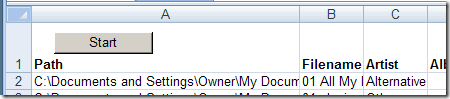
Using the MP3 File Lister
I was prompted to select a folder, and a few seconds later, the list was finished. It had included all the files from the top level folder, and all the subfolders.
The Artist and Genre columns were switched, as were the Album and Duration columns. The code is unlocked though, so you could easily change the headings if you encounter the same problem.
The file ran in Excel 2003 and Excel 2007, without any other problems.
__________________
Artist and Genre switched?
That’s odd. I just downloaded it and tried it again. It worked fine. Maybe your MP3s are tagged incorrectly?
To view the tags, right-click an MP3 file, choose Properties, and then look at the Details tab.
please create excel vba file which do work mp3 properties rename
like
NAME,TITLE,ARTIST,ALBUM,YEAR,GENER
No, the properties are fine, and the correct info shows up if I point to a file name in Windows Explorer.
Maybe you’re using Vista, which apparently has different Column IDs.
I’ve got Windows XP on this machine.
Ah! Mystery solved.
I could make a snide comment about Microsoft here, but I’ll leave that as an exercise for the reader.
This works well but somewhere deep in my folder structure there is a file it does not like. Moving the folder with that file away from the tree being searched lets the macro finish. I need to do a bit more detective work to find the “bad” file.
Nick, maybe it’s a special character in the file name that the macro doesn’t like. If you solve the mystery, please let us know.
It IS a special character in the file name that the macro doesn’t like. Has anyone found a way around this? I have alot of music in other languages that I would like to have on this spread sheet. Over 68,000 songs in my library, and this Excel sheet would make searching much more quicker.
Hi David
Did you find a workaround for other languages?
Realize this is in response to an old post, but in 2023, Excel 2010 (but I’ve read ALL versions) VBA still cannot handle characters in Unicode like Thai. I’ve read SOME posts about changing the windows code page but didn’t think that solved the problem. I’m working on a small collection (about 500 files currently – but growing) and getting details like ALBUM will help organize them.
I have found that using PowerShell and changing the codepage [CHCP ###] from 437 to 874 at least makes the file names readable (in Thai) in the terminal window so the output can be copied and pasted or sent to a text file. You can then paste the text into Excel – just can’t use VBA to work on it! I can’t collect the meta data pieces yet. STILL WORKING ON IT THOUGH!
I will retrieve the archived version of the original solution too! Sounds very useful.
Thank you so so much what a great program! boy iahve been looking for this kind of thing for long time. Give kudos to John Walkenbach. alos i found out with this how many songs were tagged incorrectly. Thanks again, Tom