
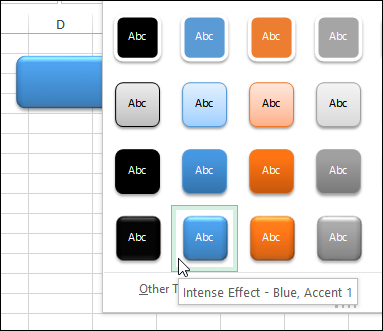
If a workbook has macros, or needs navigation buttons, I usually create a button by inserting a rounded rectangle on the worksheet. Instead of using the default flat shape, here’s how to create rounded shapes in Excel 2013.
Excel Roundup 20140217
On the Power BI blog, Microsoft Finance Director, Marc Reguera, explains how his department is using the new Power BI tools in Excel. Will you be using them too?
You can read more at the Power BI blog, or watch the video below.
The video is also on YouTube: Interview with Marc Reguera
Contextures Posts
Here’s what I posted last week:
- The heading text was filling in when I typed an “A” code in a column. See how I fixed the AutoComplete problem, and what caused it.
- Find the source data for an #Excel pivot table, to check that all rows are included.
- Select multiple items for a cell, by clicking the check boxes in a popup form. It opens when you select a cell with a drop down list.
- Finally, for a humorous peek at what other people are saying about Excel, read this week’s collection of Excel tweets, on my Excel Theatre blog.
Other Excel Articles
Here are a few of the Excel articles that I read last week, that you might find useful:
- Mitali Pattnaik wonders what kind of software could take Excel’s place. You can add your opinion in the comments on her Disrupting Excel article.
- Jon Peltier shows how to create and update a chart, using only part of a pivot table’s data.
- Tim Wolverson share his instructions for plotting a Fibonacci spiral in Excel, and there’s a sample file to download.
- Recently, I shared a formula for finding the last item in a category, in a sorted list. Oscar created a formula that works with an unsorted list.
- If you’re not sure what linear regression is, or how it works, read Mike Alexander’s excellent, and easy to understand, explanation.
- Microsoft’s Power BI pricing was announced, and the New York Times worries about feature creep in the tools.
- You can select numbers on a worksheet, and see a Sum, Count, or other summaries in the Status bar. There’s no Subtraction option, so Dick Kusleika created one of his own.
Excel Resources
Here are some upcoming events, courses and new books, related to Excel.
- If you’re near Tennessee, Rob Collie, from PowerPivot Pro, will be speaking at the first meeting of the Nashville Modern Excel User Group, on Thursday, Feb. 20th. The registration information is here, and there’s free admission to the meeting.
- Bill Jelen is presenting at the Orlando Florida Power Excel seminar, Saturday Feb 22 2014
- Chandoo has re-opened his Power Pivot online course, and you can get the course info and registration details here: Power Pivot Course
- Registration open today for the Amsterdam Excel Summit. The one-day event runs on May 14, 2014, and features sessions by several Excel MVPs, such as Bill Jelen (Mr. Excel), Ken Puls and Charles Williams.
Marketing Analytics: Data-Driven Techniques with Microsoft Excel by Wayne L. Winston
“This practical resource shows you how to tap a simple and cost-effective tool, Microsoft Excel, to solve specific business problems using powerful analytic techniques—and achieve optimum results. Practical exercises in each chapter help you apply and reinforce techniques as you learn.”
What Did You Read?
If you read any other interesting Excel articles last week, that you’d like to share, please add a comment below.
Please include a brief description, and a link to the article.
__________________________________
Select Cell Items From ListBox
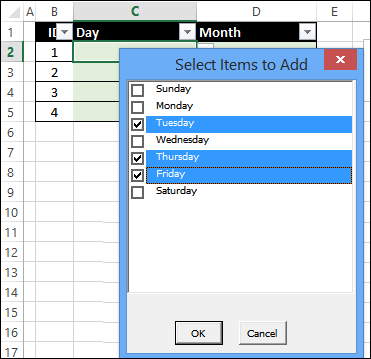
I’ve posted a few techniques for selecting multiple items from the drop down list in a cell. In the screen shot below, there is a drop down list in cell C3. When you select an item from the list, it’s added to the cell, instead of overwriting the previously selected value. Now, instead of a cell drop down, here’s how to select cell items from ListBox.
Stop Unwanted AutoComplete in Cells
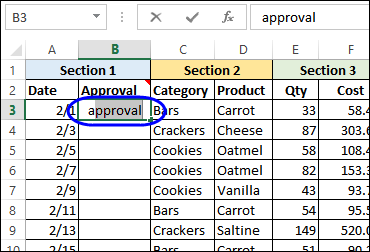
Like almost every other program, Excel comes with a few (?) annoyances, along with its great features. I butted heads with AutoComplete feature last week, and after a few attempts, we reached an agreement on how to work together nicely. Here’s how you can stop unwanted AutoComplete in cells.
Excel Roundup 20140210
The ModelOff Live Final for the 2013 Financial Modeling World Championships were held last December, in New York City, and Hilary Smart, from London, was the winner.
The organizer have just published an infographic about the competition, and you can see the full image on their blog.

Contextures Posts
Here’s what I posted last week:
- To find the last item in a list category, you can use a formula with the INDEX and MATCH functions.
- In Excel 2010 and later, you can turn repeating item labels on and off in a pivot table
- To make your favourite commands easier to use, you can add them to the Quick Access Toolbar. Show the buttons for all workbooks, or just one.
- Finally, for a humorous peek at what other people are saying about Excel, read this week’s collection of Excel tweets, on my Excel Theatre blog.
Other Excel Articles
Here are a few of the Excel articles that I read last week, that you might find useful:
- On Microsoft’s Excel team blog, Jeff Johnson shows 4 ways that you can filter your data, to show only part of the data in a chart.
- Ken Puls is in the design stage of a new reporting system for his company. He’d like to know how you start designing software, so leave a comment on his blog post.
- On the Daily Dose of Excel blog, Jeff Weir shows how you can add leader lines to non-pie charts, in Excel 2010 and earlier. If you have Excel 2013, this feature is now built-in.
- It’s not just Excel that changes its format occasionally, causing compatibility problems with older versions. John Thysell explains the pain of maintaining spreadsheets in OpenOffice / LibreOffice.
- Do you have a favourite Excel book? Chandoo shared his top picks, and you can see other people’s choices in the comments. Add your own list of favourites to the discussion.
- Mike Alexander shows how to use Power Query to combine data from multiple Excel files into one table. It’s an amazing way to clean up your data, and you can see a demo in the End-to-End Power BI webinar (see the 24 Hour PASS Replays link below)
Online Courses
- Last week, there were free Business Analytics courses online, in promotion of the upcoming PASS conference. If you missed them, the replays are available: 24 Hour PASS Replays
- Chandoo has just re-opened his Power Pivot online course, and you can get the course info and registration details here: Power Pivot Course
What Did You Read?
If you read any other interesting Excel articles last week, that you’d like to share, please add a comment below.
Please include a brief description, and a link to the article.
__________________________________
Put Add-in Buttons on Excel QAT
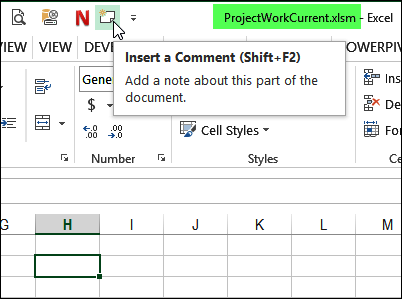
Instead of searching through the Ribbon, to find and click a command, you can save time by putting your favourite commands on the Quick Access Toolbar (QAT). You can see the written steps and a video below.
Find Last Item in Group With Index Match
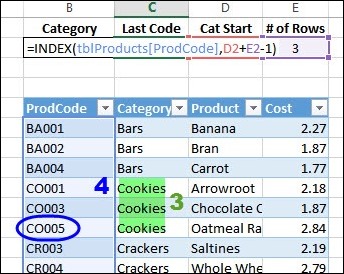
How can you use a formula to find the last item in any category, in a sorted list? Someone asked me that question last week, and I used a combination of INDEX and MATCH to find the solution.
Excel Roundup 20140203
I’ve seen Excel used to create art, and it can also be use to make bingo cards. This week, I read about a teacher who combines those techniques – she makes art history bingo cards in Excel.
Here’s a picture from her blog post, and you can download the sample file from her site.

Contextures Posts
Here’s what I posted last week:
- Have you shared files online with the Excel Web App? I found some pros and cons while using it for project tracking.
- In addition to sorting a pivot table’s values from top to bottom, you can also sort the values or grand totals, from left to right.
- If you import data into Excel, the dates might not format or sort correctly, and you can take a couple of steps to fix them.
- Finally, for a humorous peek at what other people are saying about Excel, read this week’s collection of Excel tweets, on my Excel Theatre blog.
Other Excel Articles
Here are a few of the Excel articles that I read last week, that you might find useful:
- Even if you don’t like statistics, or it makes your head hurt, take a look at Mike Alexander’s article on identifying outliers in your Excel data. You’ll feel smarter by the end of the article!
- If you’d like feedback on a chart or other data visualization that you’re working on, check out the new forum – HelpMeViz. Even if you don’t submit your own work, you’ll benefit from reading the comments there.
- If you need to compile data from several Excel files into one, you can use the sample code that Winston Snyder shared on his Data Prose blog.
- There was traffic chaos in some parts of the southeastern USA last week, when snow and ice coated the roads. To help out, volunteers set up a spreadsheet, to organize a rescue of stranded motorists.
- How do you like to learn new computer topics? Video? Books? Dive right in? Videos put Simon to sleep, and he wonders if you feel the same.
What Did You Read?
If you read any other interesting Excel articles last week, that you’d like to share, please add a comment below.
Please include a brief description, and a link to the article.
__________________________________
Excel Dates Won’t Change Format
Have you ever imported data into Excel, from your credit card statement, or somewhere else, and found that Excel dates won’t change format? And, if you try to sort that column of dates, things end up in the wrong order.
That happened to me this week, and here’s how I fixed the problem, using a built-in Excel tool.
Project Tracking with Excel Web App
When I’m working with a client on an Excel or Access project, it’s easy to lose track of everything that has to be done, as the emails fly back and forth. There are initial requirements, then things get added or changed, as we go along.
To stay on top of things, I usually make a list in Excel, showing all the steps, and marking them off when completed. Notes can be added too, in columns to the right.Later, if new items are mentioned in an email, I copy and paste those details into the master list.
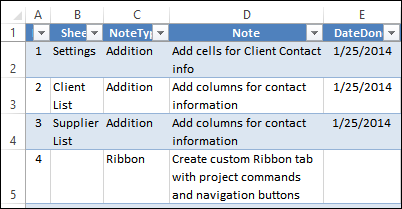
Share the Project List by Email
Most of the time, I keep this file on my computer, and my clients don’t worry about the steps – they just want the completed work. Sometimes I’ll send an update, so they can see what’s done, and what’s still outstanding.
Sometimes, during revisions, the list goes back and forth between a client and me, and that can create confusion. Who has the latest version of the To Do list? The tracking list should help us save time, not add extra time to the project, in sorting out who added what to the list.
If we were at the same location, it might be possible to both use the same Excel file, in a shared drive. I wouldn’t make it a shared workbook though! However, my clients are usually far away from my location, so sharing the file is not an option.
Share the Project List Online
A recent project was getting complicated, so I decided to try the Excel Web App, to see if it would work well for sharing the project tracking information. I had already created the file in the desktop version of Excel, so I uploaded it to my Skydrive account, and sent my client a link to the file, with editing permission. We’re the only two people who have access to the file.
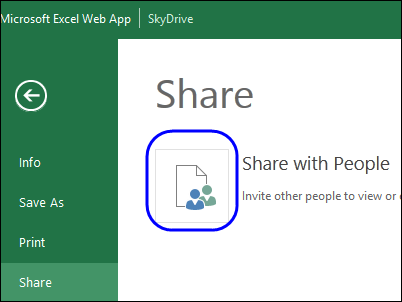
Once you have the link, you don’t need to log in – just go to the web page where the file is. My client doesn’t need a SkyDrive account, and I’ve saved a bookmark in Firefox, so I can go to that page quickly. It’s easier than opening a desktop Excel file!
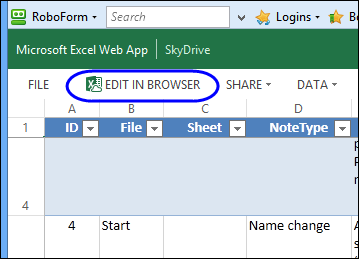
Once you’re on the page, you can click the Edit in Web Browser button, if you want to make any changes. Or, instead of editing, you can just look through the file, to see if anyone else has made changes, that you have to address.
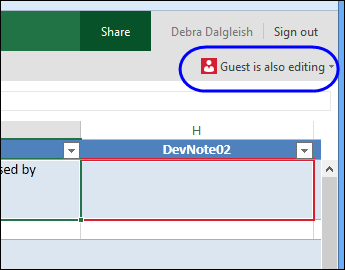
If someone else is using the file at the same time, you can see which cell they’re currently editing. That will help you avoid conflicts.
Work in the Desktop Version
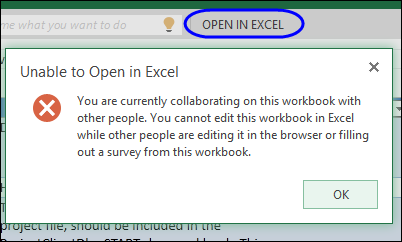
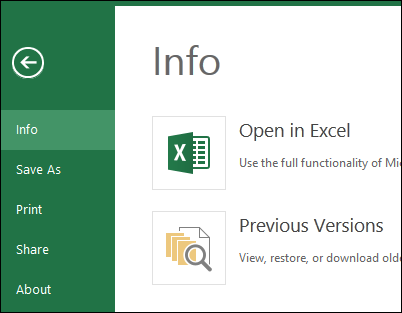
There is also an option to edit the file in the desktop version of Excel, but I haven’t used that. I have Excel 2003, 2010 and 2013 installed, and when I click the button, it opens Excel 2003 – even if Excel 2013 is already open.
This option doesn’t work if someone else is also editing the file – you’ll see this warning message in that case.
Save Your Work
When you’re editing, there’s no Save button – all your changes are saved automatically. That’s a bit disconcerting, but I’ve become used to it now.
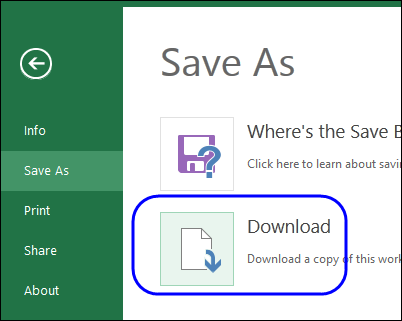
There is an option to download the file, and I do that once a day, to keep my own archive. Those backup files have come in handy a couple of times, when I accidentally overwrote cells. while trying to drag down a column. (The interface is a little clunkier than the desktop version – that’s my excuse!)
There is also an online option to view, restore or download old versions, but you need to be logged in if you want to do that.
Web App Features
The Web App is a limited version of the Excel desktop program, so some of your favourite features might not be available. However, it does have the Table feature, so that makes it ideal for sharing a simple list like this project tracking file.
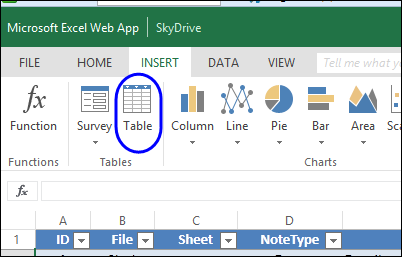
As you can see in the screen shot above, you can insert charts too, even though other shapes aren’t allowed. (See the Shapes survey link at the end of this article.)
Room For Improvement
The Excel Web App has been working well for sharing this simple file, but I wouldn’t want to use it for anything too complicated. Many shortcuts and features are missing (or I haven’t found them), and that can slow you down!
For example, in the project tracking table, I enter the date when I’ve completed a step, and sometimes add new items at the bottom of the list. So, I’d like to get down there quickly, and often want to copy data from the previous row.
Unfortunately, some of my favourite keyboard shortcuts don’t work, so these steps take a little longer.
- Ctrl + ; – Enter the current date
- Ctrl + ” – copy from the cell above
- End + Down Arrow – move to the bottom of the range
On the Microsoft website, there’s a list of keyboard shortcuts that you can use: Excel Web App Keyboard shortcuts
The good news is that the Copy and Paste shortcuts work, and the cells autocomplete based on p
revious entries in the column.
Your Experience With the Web App
- Have you used the Web App to share a file this someone else?
- Did it work well?
- What desktop features would you like added to the Web App?
- Would you like to see Shapes in the Web App? Click here to vote in the Excel team’s Web App Shapes Survey
_____________________