Excel Jawbreak Game

It’s finally Friday, so here’s another Excel game to help you relax this weekend.

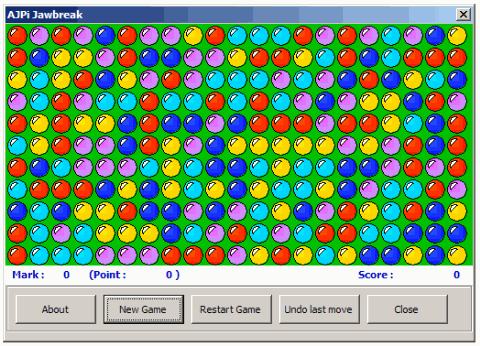
This is a Jawbreak game, adapted for Excel by Andy Pope, who is a very creative guy.

Built on Excel UserForm

Like Doug Glancy’s Concentration game, this game is based on a UserForm, with a button on the worksheet to start the game.

Excel Jawbreak Game
Excel Jawbreak Game

How to Play Jawbreak

The object is to clear all the balls from the screen, by selecting and deleting matching balls.

Remaining balls drop down to fill in the gaps, and when you clean an entire column, the other columns will shift left.

Easy to Play

I enjoyed the game, which is simple to play, but takes a bit of thinking to plan your moves. It keeps a list of high scores, so you can try to beat your previous best.

You can download the Excel Jawbreak game from Andy’s website. While you’re there, take a few minutes to look at some of the other brilliant things that Andy has done.
_________________

Create a Font From Your Handwriting

At YourFonts.com you can create a font based on a sample of your handwriting, then use it in Excel, Word, or other programs.

FontPers01

My handwriting is terrible, much to my mother’s dismay, so I thought this might give documents a personal touch, with a bit more legibility. I could use my best writing to create a sample of each letter, then use the personalized font in my documents.

How It Works

The process is quite simple. You download a blank template, and fill in the blanks with a sample of your handwriting.

FontPers02

You can also include your signature, which will be mapped to the caret (^) character.

Then, scan and upload the template.

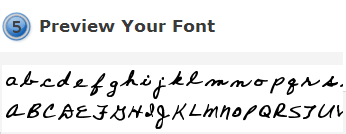
A few minutes later, you can preview, then download and install your font.

FontPers03

Use Your Font

Once the font is installed, it should appear in the font dropdown list in Excel, Word, and other programs.

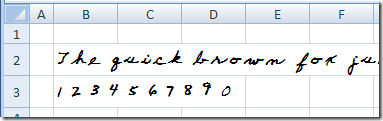
Here’s my font in Excel. Trust me, this looks better than my regular handwriting. I’m sure yours is much nicer!

FontPers04

What I’d Do Next Time

I’ll probably create another font from a sample of my printing, instead of cursive letters. The letters are a bit far apart, and the tails don’t connect to the next letter.

If you’re going to use this font in Excel, you might want to use the caret as a caret, instead of storing your signature in that character. Otherwise, you’ll have to change to a different font to use the exponentiation operator.
______________________

Sports Analysis in Excel

One of my clients coached his women’s hockey team to a provincial championship last weekend (and this is the medal they were awarded). Congratulations to him and the team!

I don’t think he used Excel in planning his coaching strategy, but I’m sure Excel has other uses in sports.

GoldMedal

Assign Baseball Players

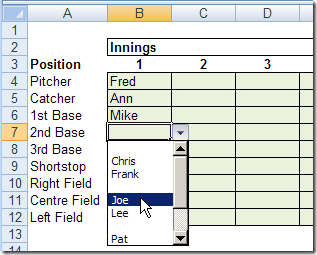
For example, one of the Excel sample files on my website lets you assign baseball players for each inning. After you assign a player in an inning, that player’s name is removed from the drop down list for the inning.

You can’t accidentally assign the same player twice. You can download the zipped file here: DataValPlayerInnings.zip 3kb

assign baseball players for each inning

Schedule Tee Off Times

There are also a couple of sample Excel file in which you can assign tee off times for a golf event. One is worksheet based, and uses an Advanced Filter to schedule selected players in specific time slot. Download it here: GolfTeeOff.zip 11 kb

The other version has a UserForm in which to enter the tee off data: GolfTeeOffForm.zip 16 kb

Analyze Walking Targets

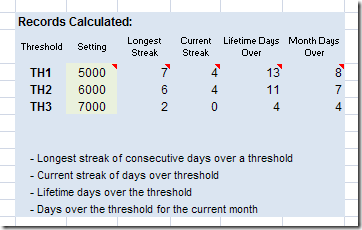
In another sample file, you can record the number of steps you’ve walked each day, and formulas will calculate if you’ve reached the thresholds that you’ve set.

It keeps track of your streaks, such as the greatest number of consecutive days that you’ve achieved each target.

You could adapt this to other sports or personal goals.

Download the file here: WalkTrack.zip 8 kb

Analyze Walking Targets

Hockey Analysis

Sadly, I don’t have any hockey sample files, but I found a Hockey Analytics site that has Excel and pdf files you can download.

For example, there are several Excel files with calculations for Individual Player Contributions, and a few with Personal Goals Against Averages.

If you like statistics and hockey, you’re sure to find something of interest. But remember, as the Hockey Analytics site points out:

Baseball is a game of a limited number of states…It can be modeled accurately in discrete steps…This ain’t the case with hockey. Hockey is fluid and can only be modeled approximately…Hockey statistics are terribly incomplete.

_____________________

Open Excel Files Quickly-Desktop Shortcuts

While working at a client’s office, I sometimes create an Excel workbook that a user will enter data in every day.

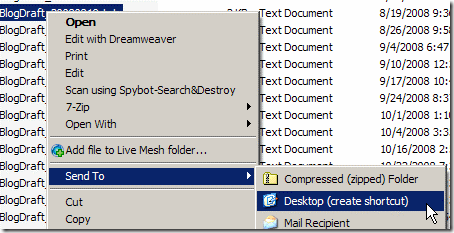
To make it easy to open the workbook, I add a shortcut to the user’s desktop (with their permission, of course).

This makes it easy for the user to open the file, without trying to remember where it’s saved.

Continue reading “Open Excel Files Quickly-Desktop Shortcuts”

Create Dynamic Ranges – Excel Macro

Roger Govier has taken the pain out of creating dynamic ranges, by writing an Excel macro to automatically create the ranges for you.

What Macro Does

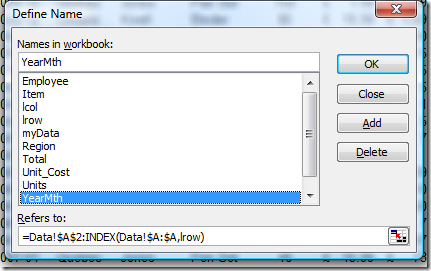
When you run the macro in Excel, it creates a series of names for each of the column headings on the sheet.

In addition to the Names for the column ranges, 3 extra names are defined:

  • lrow for the last row number used on the sheet
  • lcol for the last column number used on the sheet
  • myData for the complete range of Data including the Header row.

INDEX Function

Roger uses the INDEX function in the names, instead of OFFSET, which is volatile, and could slow down your workbook.

Define Names dialog box

Get the Dynamic Range Workbook

To see the code, and read a detailed description of Roger’s technique, you can visit the Create Dynamic Ranges With a Macro page on my Contextures site.

You can download the zipped sample file there, to see how Roger’s technique works.
___________________

Excel Concentration Game

A couple of Fridays ago, in the What’s in Your Desk Drawer comments, Doug Glancy mentioned that he had created a concentration game in Excel.

One of my first Excel VBA programming fun projects was to write one for my daughter and I to play. It had multiple decks, 3 user modes and “animated” cards (the pairs moved across the screen to a pile when correctly selected). Somewhat fun to play, and a great learning experience.

Download the Sample File

Doug sent me a copy of the file, so you can see the game for yourself: Excel Concentration Game

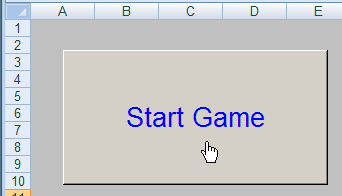
When the file opens, you can enable the macros, so the game will run. There’s one worksheet, with a button that you click to start the game.

Start button for Excel concentration game

The Game

The game opens, with a deck of cards, turned face down. You select two cards and try to match the pictures.

Conc02

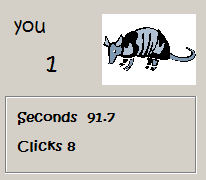
The game records the number of clicks, time used, and the match count. I am very bad at this game!

Conc03

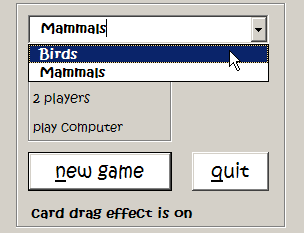
There are game options, including number of players, and type of card.

Conc04

How It Works

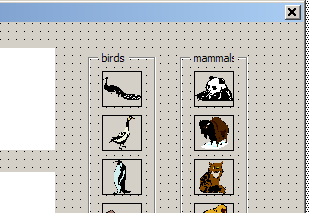
Doug’s concentration game is built on a UserForm. In the sample file you can see all the code that makes it operate. It took me a couple of minutes to find the sets of cards – one for mammals and one for birds. They’re to the right of the visible area on the UserForm.

Conc05

Other Excel Games

Do you know of any other free Excel games out there?
____________________

Excel Back Up For Google Sheets

Excel is always my first choice in spreadsheets! Recently though , I’ve been using Google Spreadsheets, to help plan a family event.

I created a file and shared it with a few people, and it’s a quick and easy way for us to keep track of who’s doing what.

We Need a Backup

Then it dawned on me that we’re storing all this information online, with no backup. What happens if we can’t get to that file, a few days before the event? Too horrible to even think about!

So, I copied everything from the Google Spreadsheet, and pasted it into Excel. Not too efficient, but at least I had an offline copy.

Export a Copy to Excel

After I had created the emergency backup file, I looked around to see what other options there are for making the backups.

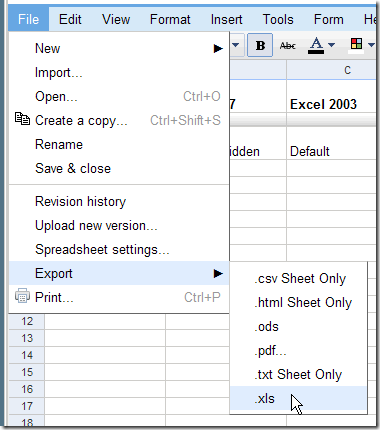
The first thing I found was that I could export to Excel, when I had a Google Spreadsheet open.

Click the File menu, then click Export, and click the .xls option.
GoogleDL03

In the dialog box that appears, to can click the Save option, then name the file and select a folder to store it in.

Save One Selected File as Excel

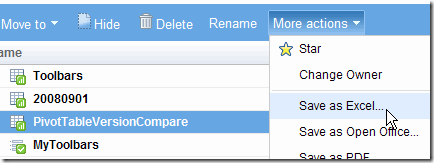
When you’re looking at the list of your Google Documents, you can add a check mark to select one Google Spreadsheet.

Then, click More actions, and click Save as Excel. (If more than one file is selected, the list won’t show the Save options.)
GoogleDL02

Download Selected Files

If you have lots of Google Documents, you might want to download and save more thane one file at a time.

To do this in Firefox, I installed GreaseMonkey, Google Docs Download script, and the DownThemAll add-on. That took a couple of minutes, and went very smoothly.

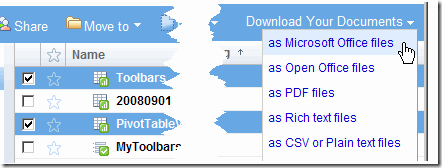
The script add a new menu, Download Your Documents, to the Google Documents menu bar.

Select all the files that you want to download, then click Download Your Documents, and click as Microsoft Office files.
GoogleDL01

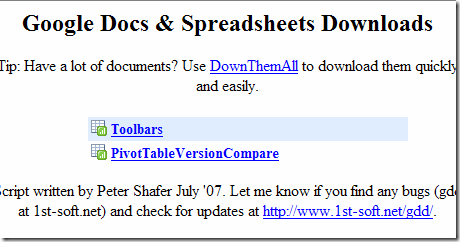
A new web page appears, with a list of your selected files.
GoogleDL04

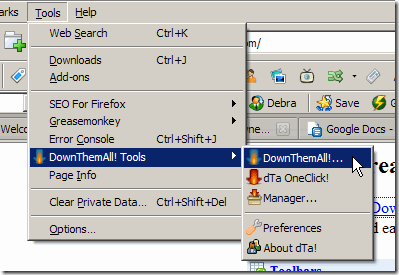
In the Firefox menu bar, click Tools, then click DownThemAll! Tools, and click DownThemAll!…
GoogleDL05

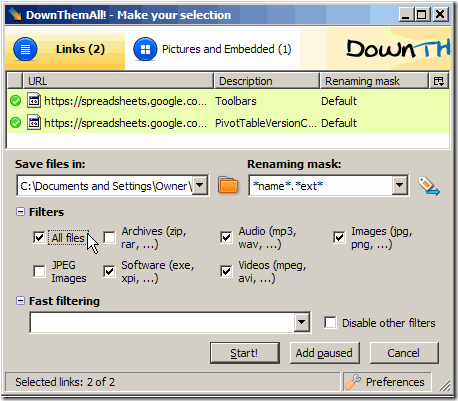
In the DownThemAll dialog box, click All files, or select specific files to download.

Click Start! to start the download.
GoogleDL06

What’s Your Backup Plan?

Do you use Google Documents? If so, how do you create backup files? Maybe you’ve found an easier way to accomplish this.
_______________

Different Excel Drop Downs from One Source

To help users enter data in a spreadsheet, you can create drop down lists with Excel’s Data Validation feature. For example, in an order form, you could provide drop down lists of customers, products, colours, sizes and shipping methods.

Data Validation Source

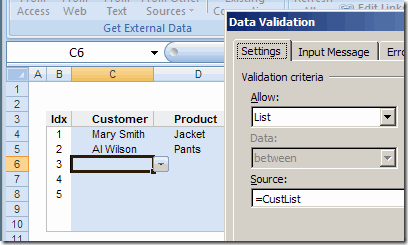
Usually, each of these lists would need a different Source in the Data Validation dialog box.

  • The Customer list would have =CustList as its source
  • The Product drop down would have =ProdList as its source.
Customer list data validation source

Use the Same Source

Instead of using a different source for each data validation list, AlexJ has devised a simple way to use the same source for all the lists. This makes it much easier to create and maintain a set of drop down lists.

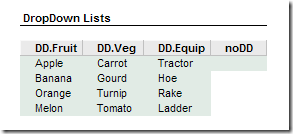
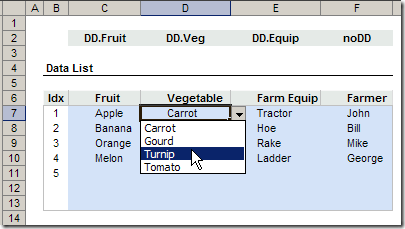
In AlexJ’s sample file, he’s recording farm information, with drop down lists for Fruit, Vegetable, Farm Equipment and Farmer. He’s typed these lists in the workbook, and named them: DD.Fruit, DD.Veg, DD.Equip and noDD.

The noDD list is just a blank cell, and it can be used when you want users to be able to type freeform in a column.

APJ_UnivDD02

In row 2, above the table where users will select from the drop down lists, AlexJ has typed the name of the source range for the column below.

APJ_UnivDD01

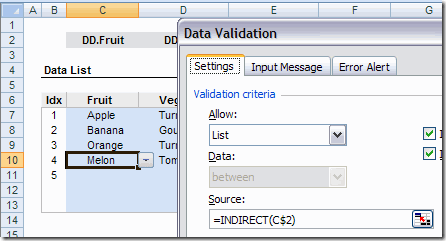
Then, AlexJ selected all the blue cells, where drop down lists will be created. In the Data Validation dialog box, he selected Allow: List. As the Source, he entered: =INDIRECT(C$2)

The column reference (C) is relative, and the row reference ($2) is absolute.

APJ_UnivDD03

Setup Tips

  • AlexJ hides row 2, using Outlining, so users aren’t distracted by the range names.
  • In the sample file, the named ranges are on the same sheet as the data entry range. In his actual files, AlexJ would have these on another sheet, hidden from users.
  • Instead of selecting noDD, cell F2 could be left blank, so no dropdown list would appear.
  • No Error Alerts or Input Messages are used in the sample file, but you could add these to your application, if needed.
  • The drop down range names in cells J6:M6 are in a range named DD.Ranges. That range is used to create the drop down lists in row 2.

Download the Sample File

To download AlexJ’s sample file click here: Universal Data Validation Drop Downs (zipped 25 KB)

What Do You Think?

I frequently use the INDIRECT function to create dependent data validation lists. However, I hadn’t seen this idea used before, to create different drop down lists from the same source formula.

To me, it seems like a great way to create several adjacent lists, and makes it easy to maintain them.

AlexJ would appreciate your feedback. What do you think? Would you use this technique? Anything you’d add or change?
_________________________

Lock Excel Shape To Reuse It Easily

When you’re inserting a shape in Excel 2007 (or using a drawing tool in earlier versions), sometimes you want to use the shape a few times, not just once.

For example, if you’re creating a simple flow chart or organization chart, there might be several rectangles and connector lines.

Simple Flow Chart in Excel

Make Quick Shapes

Yes, I know there are better tools for this kind of thing, but sometimes it’s easier and quicker to do it in Excel or Word.

Instead of going back to the Ribbon, to create each shape, you can select the shape once, and use it several times.

Reuse Shape in Excel 2007

  1. Click on the Ribbon’s Insert tab, and click Shapes.
  2. In the list of shapes, right-click on the shape that you want to use
  3. Click Lock Drawing Mode
Lock Drawing Mode command

Now you can click on the worksheet to add that shape in its default size, or drag on the worksheet to create a shape in a specific size.

Tip: Press the Shift key while you drag, to constrain the shape.

Reuse a Shape in Excel 2003

  1. On the Drawing toolbar, double-click the shape that you want to use

If the shape is not in the Drawing toolbar:

  • On the Drawing toolbar, click AutoShapes
  • Click a category, to view its shapes
  • Point to the bar at the top of the shapes list
  • When the pointer is a 4-headed arrow, drag the shapes palette onto the worksheet.

ShapesDrag2003

  • In the shapes palette, double-click the shape that you want to use

ShapeClick2003

Turn Off the Locked Shape

When you’re finished using the shape:

  • press the Esc key on the keyboard, OR
  • click that shape on the Ribbon’s Format tab (or toolbar in earlier versions), to deselect it.

__________________