
When you’re analyzing data in an Excel pivot table, you might want to see the detail behind one of the numbers.
To extract the data, you can double-click a data cell and a new worksheet is created, with the related records.
This is a nice feature, but you’ll end up with extra sheets in your workbook, and will need to clean things up occasionally.
Filter the Source Data
If the pivot table source data is in the same workbook, you can use the following macro, written by Héctor Miguel Orozco Díaz. It filters the source data, based on the pivot items connected to the double-clicked cell.
For example, if you double-click the cell circled in screenshot below:
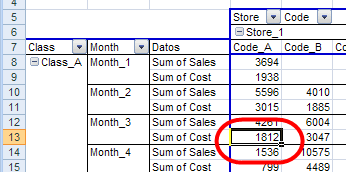
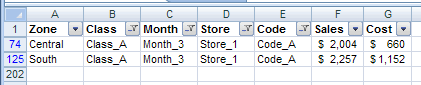
the source data is filtered for Class_A, Month_3, Store_1, Code_A cost.
This lets you focus on the detail records, without creating new worksheets.
Download the Sample File
Héctor’s code is shown on my Contextures site, and you can download the sample file to filter a pivot table’s source data.
There is also a sample file with a shorter version of the code.
________________
OK so the 2 characters <> get removed on posting…
Code should be:
Thanks Mike — WordPress really doesn’t like those <> characters!
I’ve tried to fix it in the code samples below.