
When you’re analyzing data in an Excel pivot table, you might want to see the detail behind one of the numbers.
To extract the data, you can double-click a data cell and a new worksheet is created, with the related records.
This is a nice feature, but you’ll end up with extra sheets in your workbook, and will need to clean things up occasionally.
Filter the Source Data
If the pivot table source data is in the same workbook, you can use the following macro, written by Héctor Miguel Orozco Díaz. It filters the source data, based on the pivot items connected to the double-clicked cell.
For example, if you double-click the cell circled in screenshot below:
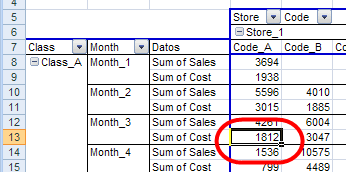
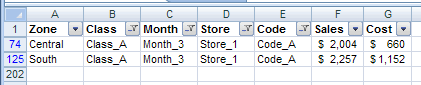
the source data is filtered for Class_A, Month_3, Store_1, Code_A cost.
This lets you focus on the detail records, without creating new worksheets.
Download the Sample File
Héctor’s code is shown on my Contextures site, and you can download the sample file to filter a pivot table’s source data.
There is also a sample file with a shorter version of the code.
________________
Tom,
Did you ever fix this problem? I am also getting the same error.
Ditto – getting the error that is .. any solution yet ?
I have used used this code. It is undoubtedly one of most brilliantly conceived code.
The problem mentioned by Keri and Uri are correct and I also faced the similar problem. I just added
On Error Resume Next
and it appeared to work well. At least it shows some filtered data. But later on I found that this way it does not show the correct filtered data.
On further analyzing i found that the code works perfectly when the data fields are placed as row heads but gives problem when the data fields are positioned as column heads.
To make my self more clear, if suppose the pivot is summing on two values ie field1 and filed2. Pivot can show the sum either as row head in which case the two cells “sum of field1” and “Sum of field2” appear one over another. They can also be placed one besides another and “sum of field1” and “Sum of field2” appear as column head.
The code works perfectly when the data fields are placed as row heads but gives problem when placed as column head. i am sure there is some small tweaking needed somewhere.
========
I was also thinking of another direct line of approach to the problem but because of very limited knowledge of VBA i find my self handicapped. I find get it is possible to get the fields and their values through a GETPIVOT function and then using activecell.formula . After having found these values in one go I feel splitting the range etc ( which is the approach taken in the code) may not be needed. I am working on that but as already mentioned because of limited knowledge of VBA I am getting stuck at every step. But logically I am sure it can be done. May be some of you may give it a try.
Regards
Dear All
I am very happy to inform you that with little tweaking I have been able to make the code work.
I have just added few line and made few changes and the code is working very fine. The entire code for PTCellFilterExcelDataSource is as follows. All other codes and instructions remain the same:
Good luck
S K Srivastava
=================
Sub PTCellFilterExcelDataSource() ' === and the procedure '(modified due to 2007 language issue) === Application.ScreenUpdating = False On Error Resume Next 'added With ActiveSheet If .PivotTables.Count = 0 Then Exit Sub End If Dim pt As Byte, Go4It As Boolean, rowL As String For pt = 1 To .PivotTables.Count If Not Intersect(ActiveCell, _ .PivotTables(pt).DataBodyRange) _ Is Nothing Then Go4It = True Exit For End If Next If Not Go4It Then Exit Sub End If rowL = Application.International(xlUpperCaseRowLetter) Dim srcData As String, xSht As String, xRng As String Dim srcTitles As String, cpFilter As String Dim Partial As Byte, Totals As Byte, Zone As Byte Dim nXT As Integer, nXT2 As Integer Dim pgFlds As Integer, colFlds As Integer Dim lblFlds As Integer, rowFlds As Integer Dim dataFlds As Integer, nRows As Integer Dim nCols As Integer Dim pTFld As PivotField, dataCols As Range Dim colsP As Range Dim rowsF As Range, rowsD As Range Dim xCell As Range, cellsD As Range Dim cellsPC As Range, cellsPR As Range Dim cellsPX As Range, cellsTC As Range Dim cellsTR As Range, cellsTCX As Range Dim cellsTRX As Range With .PivotTables(pt) srcData = .PivotCache.SourceData xSht = IIf(InStr(srcData, "!") > 0, _ Application.Substitute(Left(srcData, _ InStr(srcData, "!") - 1), "'", ""), _ .Parent.Name) With Application xRng = .ConvertFormula(.Substitute( _ Mid(srcData, InStr(srcData, "!") + 1), _ rowL, "R"), xlR1C1, xlA1) End With srcTitles = Range(xRng).Resize(1).Address pgFlds = .PageFields.Count colFlds = .ColumnFields.Count lblFlds = .DataLabelRange.Columns.Count rowFlds = .RowFields.Count - lblFlds dataFlds = .DataFields.Count If rowFlds > 1 Then Partial = 1 End If If colFlds > 1 Then Partial = Partial + 2 End If If .RowGrand Then Totals = 1 End If If .ColumnGrand Then Totals = Totals + 2 End If With .ColumnRange For Each xCell In .Offset(.Rows.Count - 1) _ .Resize(1, .Columns.Count + (Totals > 1)) If Application.CountIf(Worksheets(xSht) _ .Range(xRng), xCell) > 0 Then Set dataCols = Union(IIf(dataCols Is Nothing, _ xCell, dataCols), xCell) Else Set colsP = Union(IIf(colsP Is Nothing, _ xCell, colsP), xCell) End If Next End With For Each pTFld In .DataFields Set rowsD = Union(pTFld.DataRange.EntireRow, _ IIf(rowsD Is Nothing, pTFld.DataRange _ .EntireRow, rowsD)) Next With .RowRange Set rowsF = Intersect(rowsD, .Resize(, _ .Columns.Count - lblFlds)) End With Set cellsD = Intersect(rowsD, dataCols.EntireColumn) If Partial > 1 Then Set cellsPC = Intersect(rowsD, colsP.EntireColumn) End If With .DataBodyRange.Resize(.DataBodyRange _ .Rows.Count + ((Totals \ 2 = 1) * dataFlds)) If Partial \ 2 = 1 Then Set cellsPR = Slice(cellsD, Intersect( _ .EntireRow, dataCols.EntireColumn)) End If If Partial = 3 Then Set cellsPX = Slice(cellsPC, Intersect( _ .EntireRow, colsP.EntireColumn)) End If End With If Totals > 1 Then Set cellsTC = Intersect(rowsD, .ColumnRange.Offset _ (.ColumnRange.Rows.Count - 1, _ .ColumnRange.Columns.Count - 1) _ .Resize(1, 1).EntireColumn) End If If Totals \ 2 = 1 Then Set cellsTR = Intersect(.DataBodyRange.Offset _ (.DataBodyRange.Rows.Count - dataFlds) _ .Resize(dataFlds), _ dataCols.EntireColumn) End If If Totals = 3 Then If Not cellsPR Is Nothing Then Set cellsTCX = Intersect(cellsPR.EntireRow, _ cellsTC.EntireColumn) End If End If If Totals = 3 Then If Not cellsPC Is Nothing Then Set cellsTRX = Intersect(cellsTR.EntireRow, _ cellsPC.EntireColumn) End If End If If Not Intersect(ActiveCell, cellsD) Is Nothing Then Zone = 1 End If If Not cellsPC Is Nothing Then If Not Intersect(ActiveCell, cellsPC) Is Nothing Then Zone = 2 End If End If If Not cellsPR Is Nothing Then If Not Intersect(ActiveCell, cellsPR) Is Nothing Then Zone = 3 End If End If If Not cellsPX Is Nothing Then If Not Intersect(ActiveCell, cellsPX) Is Nothing Then Zone = 4 End If End If If Not cellsTC Is Nothing Then If Not Intersect(ActiveCell, cellsTC) Is Nothing Then Zone = 5 End If End If If Not cellsTR Is Nothing Then If Not Intersect(ActiveCell, cellsTR) Is Nothing Then Zone = 6 End If End If If Not cellsTCX Is Nothing Then If Not Intersect(ActiveCell, cellsTCX) Is Nothing Then Zone = 7 End If End If If Not cellsTRX Is Nothing Then If Not Intersect(ActiveCell, cellsTRX) Is Nothing Then Zone = 8 End If End If If Not cellsTR Is Nothing And Not cellsTC Is Nothing Then If Not Intersect(ActiveCell, cellsTR.EntireRow, _ cellsTC.EntireColumn) Is Nothing Then MsgBox "ActiveCell is @ the Bottom-Right" _ & " End of Pivot Table !!!" GoTo Done ' Zone = 9 ' End If End If If Worksheets(xSht).AutoFilterMode Then Worksheets(xSht).AutoFilterMode = False End If If pgFlds = 0 Then GoTo NoPages End If For nXT = 1 To pgFlds With .PageFields(nXT) cpFilter = .CurrentPage If Val(Application.Version) < 12 Then GoTo SkipLoop Else cpFilter = "(All)" End If For nXT2 = 1 To .PivotItems.Count If .CurrentPage = .PivotItems(nXT2) Then cpFilter = .PivotItems(nXT2) Exit For End If Next SkipLoop: If cpFilter <> "(All)" Then Worksheets(xSht).Range(xRng).AutoFilter Field:= _ Application.Match(.Name, _ Worksheets(xSht).Range(srcTitles), 0), _ Criteria1:=CStr(cpFilter) End If End With Next NoPages: Select Case Zone: Case 1, 2, 5 nRows = rowFlds End Select Select Case Zone Case 1, 3, 6 nCols = colFlds End Select Select Case Zone Case 3, 4, 7 nRows = rowFlds - 1 End Select Select Case Zone Case 2, 4, 8 nCols = colFlds - 1 End Select For nXT = 1 To nRows + 4 ' 4 added With Cells(ActiveCell.Row, .RowRange.Cells(1) _ .Column).Offset(, -1 + nXT) Worksheets(xSht).Range(xRng).AutoFilter Field:= _ Application.Match(.PivotField.Name, _ Worksheets(xSht).Range(srcTitles), 0), _ Criteria1:=.PivotItem.Name End With Next For nXT = 1 To nCols + 4 ' 4 added With Cells(.ColumnRange.Cells(1).Row, _ ActiveCell.Column).Offset(nXT) Worksheets(xSht).Range(xRng).AutoFilter Field:= _ Application.Match(.PivotField.Name, _ Worksheets(xSht).Range(srcTitles), 0), _ Criteria1:=.PivotItem.Name End With Next End With End With Sheets(xSht).Activate ' added Done: Set cellsTRX = Nothing Set cellsTCX = Nothing Set cellsTR = Nothing Set cellsTC = Nothing Set cellsPX = Nothing Set cellsPR = Nothing Set cellsPC = Nothing Set cellsD = Nothing Set rowsD = Nothing Set rowsF = Nothing Set colsP = Nothing Set dataCols = Nothing End SubHello Im gettin from this error = Sub or Function not defined , please HELP
Hello help now im getting the next error= slice , error no defined sub
This is absolutely wonderful. It is a shame Excel doesn’t come with this functionality built in. For years I have been using the following macros as a work around to add a ‘DELETE’ button every time a new page is created because I am double clicking on pivot tables all day long and I can easily add a 100 new pages in a day to a single spreadsheet. This little trick makes it so much easier to deal with them.
Add the following code to the “This Workbook” module under Microsoft Excel objects;
Private Sub Workbook_NewSheet(ByVal Sh As Object)
' this macro creates a small “Delete Sheet” button
'at the top of the page every time a new sheet is created.
'Coordinates for the button represent the number of pixels:
'(how far right, how far down down, button width, button height)
  ActiveSheet.Buttons.Add(439, , 40, 10).Select
  ' this links the button to the “delete sheet”  macro
  Selection.OnAction = "delete_sheet"
  'label for the button
  Selection.Characters.Text = "DELETE SHEET"
  'size 5 font fits the button size specified above,
  'alter to suit
  Selection.Font.Size = 5
  '=RED text for the label
  Selection.Font.ColorIndex = 3
      With Selection
      'prevents button from being moved or resized
      .Placement = xlFreeFloating
      .AutoSize = False
End With
'I also add the following 3 lines to
' activate freeze panes every time a new
' sheet is created so that the button
' (and any column labels in row1) are always
' visible even if page down is pressed many times
    Rows("1:1").RowHeight = 25.5
    Range("B2").Select
    ActiveWindow.FreezePanes = True
End Sub
Then add the following macro to a regular module in the workbook
Sub DELETE_SHEET()
    'stops the annoying
     '"Are you sure you want to delete
     '  this sheet?” dialog
    Application.DisplayAlerts = False
    ActiveWindow.SelectedSheets.Delete
    Application.DisplayAlerts = True
End Sub
I actually have a whole suite of buttons that pop up with links to my favourite macros every time a sheet is added to a workbook. “Email this Page”, “Center Across” etc. They really save a lot of time.
Thanks to both H Diaz and S Srivastava for superb contributions!
I’ve been searching for exactly this function.
In order to get it work I had to make two changes, using Srivastava’s version:
1. The phrase:
If cpFilter "(All)" Then

generates a syntax error and should read:
If cpFilter <> "(All)" Then

2. I added a refresh of the pivot table source, which in my case is a table:
Worksheets(xSht).ListObjects(1).AutoFilter.ShowAllData

For a normal range, this code may do the same:
Worksheets(xSht).ShowAllData@Mike.
I am glad that my contribution helped you.
It appears that you have been successful in making the code work for table source or listobject also. I am trying it for quite some time but have not been able to get it work so far. I request you to kindly post the code that works for table source or listobject . If there is some code that is generic and works for both named range and table then it is even better.
@ Debra
http://www.contextures.com/xlPivot-Filter-Source-Data.html#Code page says that
If your Excel pivot table source data is a list in the same workbook as the Excel pivot table, you can use the following macro, written by Héctor Miguel Orozco Díaz.
But the attached sample file does not appear to be doing so. Request you to please verify and post the correct sample file.
Regards
Hi Mike,
can you share the finalized code with me?
Hello did you get any working version of this?