Back To School

In my neighbourhood, the kids head back to school next week, and the fall session has already started in other school districts. Maybe you’ve thought about taking a few courses yourself, but don’t have the time or energy to get to evening classes, or there’s no school nearby.

If it’s just the experience that you’re looking for, and not the credits, you can attend courses online at a few major universities. There are no fees, and courses are stored online so you can listen to them on demand.

For example, Berkeley has a broad range of courses, with podcasts and webcasts that you can access. To help you remember to attend, you can subscribe to the RSS feed of any event or course.

Maybe I’ll do the Introduction to Statistics, to brush up on those long forgotten skills.

Or the Modern Poetry course at Open Yale Courses might be an easier place to start.

Office 2007 Bulk File Conversion

There are many tools available to help you prepare for migration to Office 2007. The 2007 Office Resource Kit has white papers, books and other tools that you can download, such as the Migrating to Excel 2007 white paper.

One of the tools is the Migration Planning Manager kit, which contains an Office File Converter that will do a bulk conversion of your Office XP or Office 2003 files.

By converting the files to the newer version, you’ll be able to use all the new features, without individually converting each file as you open it.

The Migration Planning Manager utility and release notes are available for download on the Microsoft website. Also, Doug Mahugh describes the process in detail on his Office Interoperability blog.

Batch Resize Graphics With Shrink O’Matic

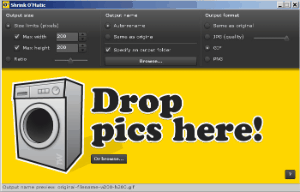
How many times has this happened to you? You have a graphic. You’re trying to find an exciting new way to prepare it for your blog or website.

You could scale the graphic, remove the graphic’s tail, head and bones, and serve the graphic as you would any other graphic dinner. But why bother, now that you can use Rovco’s amazing new computer tool, the Super Shrink O’Matic ’08.

Yes, graphic user, the days of troublesome scaling, cutting and gutting are over, because Super Shrink O’Matic ’08 is the tool that lets you use the graphic with no gif waste, and without scaling, cutting or gutting.

Here’s how it works: Catch a graphic, remove the hook, and drop the graphic – that’s the whole graphic – into the Super Shrink O’Matic ’08. Now, adjust the control dial so that the graphic is blended just the way you like it.

Yes, it’s that simple!


With apologies to fellow Canadian, Dan Aykroyd, and the legendary Bass-O-Matic.

The Business Side of Twitter

Sure, you can use Twitter to let everyone know what you had for lunch, or all about football practice, or what you fished out of the swimming pool, and plenty of people do just that.

However, you can also use Twitter to ask for feedback, share links, or give quick updates on your business or industry. If you listen, you might pick up some ideas that you can turn into blog posts, or apply in your business.

Find and follow a few people in your industry, and a few others with interests in a different area. Stick with them for a little while, and if they’re boring, or too chatty, move on, and find a couple of new people.

I follow some Excel colleagues, business associates, friends, and a few people in marketing, which is an area that I want to learn more about. If you’re looking for someone fascinating to follow, you’ll find me here. 😉

A couple of days ago I found TwitterFeed, which sends your blog feed to Twitter. This might help a few more people find your blog and become subscribers.

It requires an OpenID login, so I had to set that up, but the rest was very easy. Now, once a day, my new blog posts appear as Twitters.


For everything you ever wanted to know about Twitter, check the Twitter Fan Wiki. It has lists of users, groups, related applications, and tons of other tips and ideas.

Catalogue Your Books at LibraryThing

Use the free web application, LibraryThing, to catalogue your books, see what people with similar tastes are reading, and share reviews.

There’s also an Early Reviewers program in which publishers provide free advance copies of books, for members to review. However, there are many more requests than copies available for most books, so your chances for a free book are slim.

Sign up is quick and easy — just enter a user name, password, and optional email address. With the free membership you can catalogue up to 200 of your books. For a $10 annual or $25 lifetime membership you can catalogue an unlimited number.

Update: 2020-03-29 — Library Thing is now free for everyone.

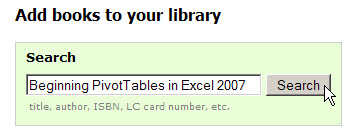
To add a book to your catalogue, just enter a few words from the title, or other info.


Click Search, and LibraryThing will return a list of matching items. Click on a book in the list, and it’s added to your library. You’ll see how many other members have added the book, and any reviews they’ve written.

There are over 480,000 members, and 30 million books catalogued, so you’re bound to find a few people whose collections are similar to yours.

Other features include special interest groups and a Local Connection page, that shows events, libraries and bookstores in your area.

If you’re an author, you can connect with your readers, and participate in an Author Chat. You can import a wish list from Amazon, or other sources, and export your library as a CSV or tab-delimited text file.

Learn Languages Online from the BBC

If you’ll be travelling soon, you might want to learn a few key phrases of another language before you go. Free language lessons are available online, at the BBC website.

It’s good to see Nick’s tax dollars hard at work.


It’s too late to learn much Mandarin before the Olympics are over, but you can study French, Urdu, Welsh, Japanese, and many other languages.

The Quick Fix page has a list of essential holiday phrases that you can print or download as an mp3 file.

Take these along on your travels and you’ll be able to say “Sorry, I don’t speak Albanian,” “We were robbed,” or “Danger! Avalanche!”

Product Support at Get Satisfaction

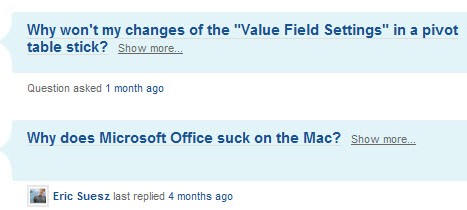
If you’re frustrated or pleased with a company or product, you can join the discussions at Get Satisfaction. The site is similar to the Microsoft newsgroups, with a wide range of questions and comments.

Company employees are encouraged to participate, and customers help one another.

You can ask questions, describe problems, voice an opinion, or help someone else. Microsoft is participating, and there are a few Excel questions listed.


There are hundreds of other companies too, so if you’re looking for help, or want to evaluate a company or product, this might be a good place to start.

Generate Numbers for Excel Testing

When answering newsgroup Excel questions, or doing testing for client projects, I often create a quick table, with a few rows and columns.

The headings, such as a list of months or weekdays can be generated by using AutoFill. That just leaves the body of the table, where I want some numbers for the test.

Create Random Numbers

I used to calculate numbers with a RAND or RANDBETWEEN formula, then copy and paste the results as values.

But that’s a lot of steps when you’re in a hurry, so I built my own number generator, that runs with a click or two.

The values aren’t important, I just want something to populate a table, pivot table or quick chart.

Excel Macros for Random Numbers

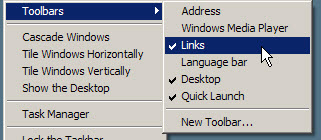
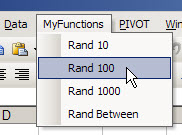
I wrote macros to generate numbers in different ranges, and added these to a toolbar menu.

You could add toolbar buttons, or assign shortcut keys to run them. In Excel 2007, add them to the Quick Access Toolbar.

Excel Macros for Random Numbers

Excel VBA Code

My macro code is shown below. Do you have a different way to create dummy numbers for testing?

'====================================
Sub SRandRange()
Dim c As Range
Dim x As Long, y As Long
Application.EnableEvents = False
Application.ScreenUpdating = False
x = Application.InputBox("Start Number")
y = Application.InputBox("End Number")
For Each c In Selection
c.Value = randbetween(x, y)
Next
Application.EnableEvents = True
Application.ScreenUpdating = True
End Sub
'====================================
Sub SRand10()
Dim c As Range
Application.EnableEvents = False
Application.ScreenUpdating = False
For Each c In Selection
c.Value = Evaluate("=ROUND(RAND()*10,0)")
Next c
Application.EnableEvents = True
Application.ScreenUpdating = True
End Sub
'====================================

Excel Fashion Statement

This Saturday, when you’re relaxing at home after working with Excel files all week, what will you wear?

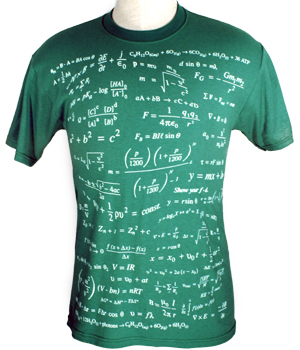
This Equations t-shirt looks like the perfect choice.


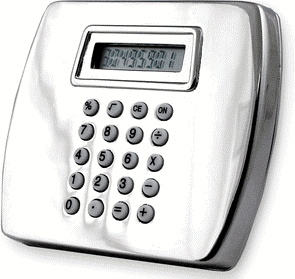
And next week, when you head back to the office, you might find this Calculator Belt Buckle useful.

The ad claims that it’s “Great for accountants, cheaters or math geeks alike.” And what could possibly be wrong with that?